


Summary
In this article, I would like to provide you with some inspiration to get into Microsoft Access 2007 ribbons and in telling this story, I review a great tool that will get you started.
Garry “We need a Ribbon menu, can you help?”
A few weeks ago, I was asked if I knew how to convert custom menus from Access 2003 to Access 2007 Ribbons. As I was a bit short of work, I said yes because I had read some articles on the topic. Also as I was being offered a job, now was the time to get into Ribbon menus. My first port of call was to find out if any books covered this topic well. A couple that that I found were “Microsoft Office Access 2007 Inside Out” by Viescas and Conrad and “Pro Access 2007” by Martin Reid which both had a comprehensive chapter on the topic. Reading this gave me a feel for the topic but it didn’t give me that quick “impress the boss” answer. An alternative was required and some of my fellow Access MVP’s have put together a website on this topic in both English and German here http://www.accessribbon.de/en/. This website also features a program, which builds ribbons for Microsoft Access, and the rest of Office and it is this tool that I will review now because it produced the “make the boss happy” ribbons that I wanted.
The IDBE Ribbon Creator
A great place to start getting involved with ribbons is to build one yourself. Gunter Avenius, a programmer from Germany, has written a .NET tool that does just that for you and you can see its interface in Figure 1. Initially the program doesn’t look like much but as you build a Ribbon, you will appreciate the way it displays your design.
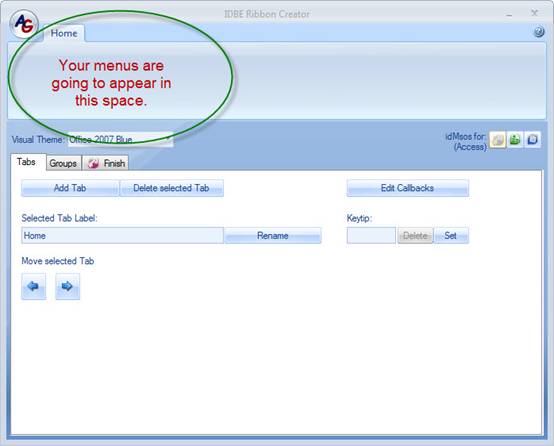
So to get started, press the Add Tab button and rename the new Tab to Reports. Choose the Groups tab and Add a Group called Invoices. You can see what I’ve done in Figure 2.
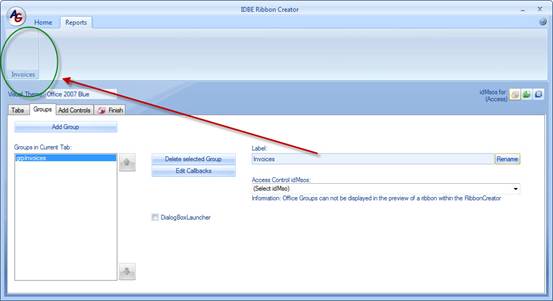
Figure 2 – Adding a group to your new ribbon tab
Now choose the Add Controls tab in the Ribbon Creator, press the ‘Add Button’ button and rename it to External. Press the Select Image button, choose an appropriate image for your button, and look at what I have created in Figure 3. You will note that at this stage that you could build a large button or a small button. These are things to experiment with later.
I suggest now that you try a couple of other controls such as labels and then proceed to adding your new ribbon to an Access database. To avoid messing up an existing database, you should now create a brand new ACCDB format database using Access 2007.
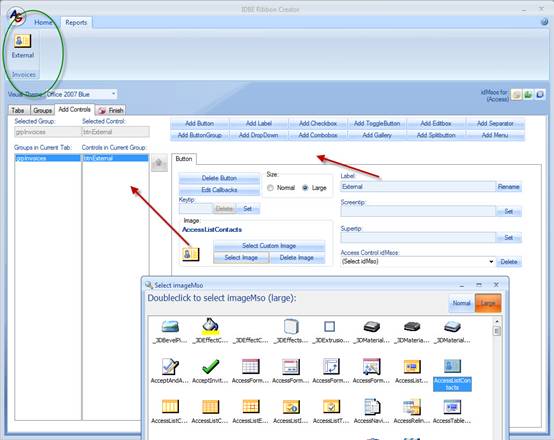
Figure 3 – Your first ribbon button
Once you have created your new database, switched to the Finish tab as shown in Figure 4 and select the database. The IDBE ribbon creator will add the ribbon XML and the related VBA code to your blank database. If you haven’t already done so it’s a good idea to make sure that your new database is in a Trusted folder.
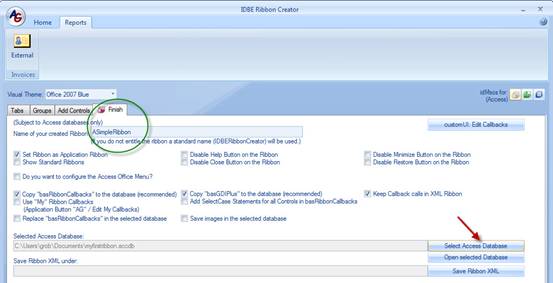
Figure 4 – Your first ribbon has been created
You can now open your new Access database and have a look at what has happened. If you look a Figure 5 you will see that the database has opened with a ribbon. Choose the Reports tab and you will see the button and other controls that you set up in the first exercise. Pretty neat, but now comes the tricky bit, building a full system of menus.
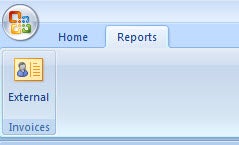
Figure 5 – Here is what your first ribbon looks like in Access
Finding the Objects That Drive Your Ribbon
To help you understand what has happened, let’s dig around this new Access database and see where this ribbon material has been stored. First, you need to click on the Office Button and then choose Access Options as in Figure 6.
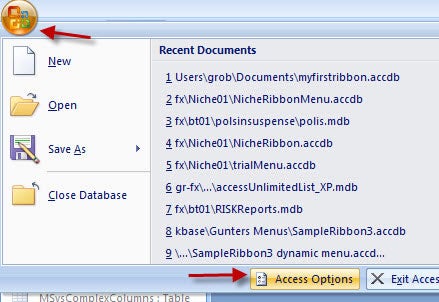
Figure 6 – Finding the Ribbon XML (step 1)
Choose the Current Database Tab, and scroll down to the Ribbon Options and you will find where the ribbon name is defined (see Figure 7).
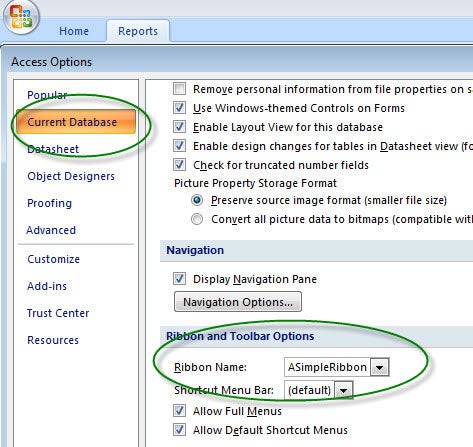
Figure 7 – Finding the Ribbon XML (step 2)
Press the F11 key to find the objects in your new database and you will find some VBA code modules and a table called USysRibbons.
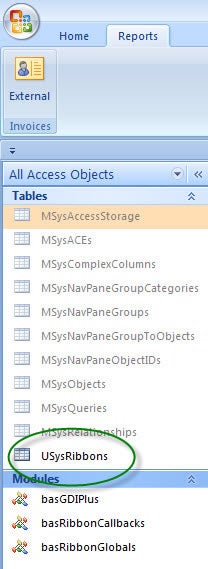
Figure 8 – Finding the Ribbon XML (part 3)
Open the USysRibbons table and you will find the XML that will establish your ribbon menu. If you have more than one menu in your database, these will be stored in multiple rows in this table.
Note: It is possible to store Ribbon XML in other tables or even to create them in vba and avoid tables altogether.
As you are more than likely going to be firing your own custom VBA code, if you look carefully at Figure 9, you will be able to see what function runs when you press buttons and menus in your Ribbon. I suggest that you now take a look at the code in the module basRibbonCallbacks and you will see some of these functions.
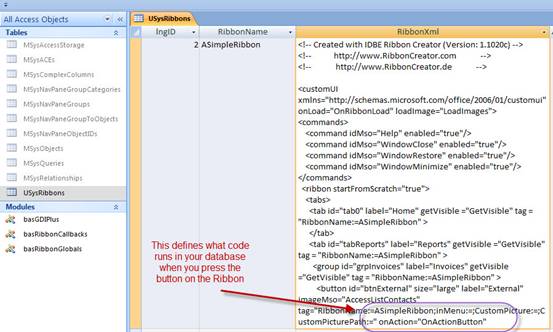
Figure 9 – Finding the Ribbon XML (part 4) plus the XML that defines which function is called
Lets Edit The Ribbon
At this stage, you will want to further edit your menu and here is My No. 1 tip for ribbon editing. Make regular one-hour backups of your database. My No. 2 tip is if something works, back up the database again. Why? If you get any of the XML code wrong, the database will open and the ribbon will not display. It is almost impossible to debug ribbon errors and the best way to fix it is to return to your backup to diagnose what went wrong. Okay I have made my point on backups; if you want to start editing your ribbon, you have three choices.
1) Edit the XML in the database manually. This sounds simple but because of the problems with debugging, is generally not a great idea when starting out. Once you head down this route, there are many XML editors around that might help you do this less erroneously.
2) Work out the VBA code to produce your ribbon XML, this is the approach that I have taken because we have 200 menus to convert. I did find in this exercise that the XML code produced by the Ribbon Creator can be a bit long-winded and I found it easier to understand by removing quite a number of the tags in the menu XML.
3) The third option is returning to the IDBE Ribbon Creator to edit the menus. This approach is really good when you want to add new controls and need some new ribbon XML samples to help you build your ribbons. To edit a ribbon, you choose the round Application button and Open the database (see Figure 10). The Ribbon Creator then reads your current ribbon XML and displays the ribbons inside its own interface fairly accurately.
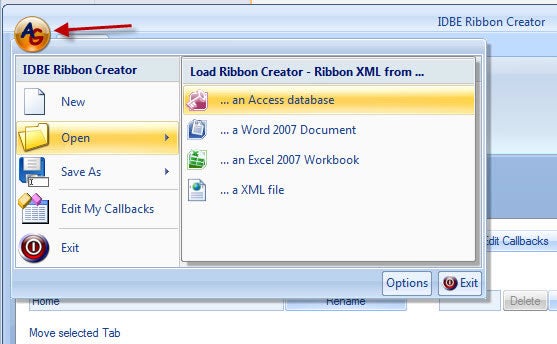
Figure 10
–
Editing an existing Ribbon with the Ribbon Creator
Conclusion
Gunter Avenius’s IDBE Ribbon Creator is a quick way to get into Ribbon building. For me it provided me with a way to impress my boss whilst I worked out what was going on behind the scenes. At the time of writing, the cost of the software was less than US$30 dollars, which is a bargain for such a specialised product. Read more about this product at http://www.ribboncreator.de/en/
As for Ribbons, Access 2007 is now getting a bit of traction and learning how ribbons work is just one of those tasks that you need to be able to grasp if you want to call yourself a Microsoft Access specialist. Good luck because now is a great time to impress your boss.
» See All Articles by Columnist Garry Robinson