
As a database
administrator, I like automation. When it comes to my backups, I like to
automate as much as possible. SQL Mail gives me the ability to know when my
backups are successful and when they fail.
SQL Mail is a component of SQL Server that allows you to send mail. Some of its
functions include the ability to send messages to an e-mail pager and to send
results via the extended stored procedure (xp_sendmail).
SQL Mail allows you to send and receive e-mail by working side by side with a
mail server. There are two services that handle SQL Mail with SQL Server 2000: MSSQLServer
and SQLServerAgent. I am going to explain how to configure and take advantage
of this hidden gem.
Setup
Before you configure SQL Mail, you will need to configure a mailbox, mail
profile, and a Windows 2000 account to start SQL Server. If you are using
Exchange, you need a domain account. If you are using a basic POP3/SMTP mail
server, you need a local or domain account. For the purposes of this article, I
will show you how to configure a POP3/SMTP mail server.
You will begin by creating an account on your domain that will be used to
configure SQL Mail, as shown in Figure A.
Figure A
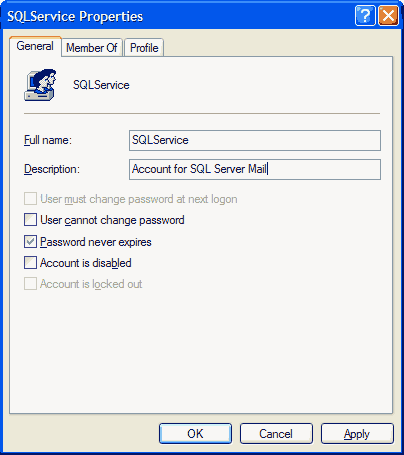
Set up a
service account for SQL Mail.
Next, you need to log in to Windows with the newly created account. Once you
are logged in, your next step is to start your MSSQLServer service and SQLServerAgent
service.
In order to configure your MSSQLServer account to run under this newly created
account, open Enterprise Manager from Start | Programs | Microsoft SQL Server |
Enterprise Manager. Next, right-click on your SQL Server and choose Properties,
as shown in Figure B, then choose the Security tab. Under the Startup
Service Account, choose This Account and type the name of the account you
created for use with SQL Mail.
Figure B
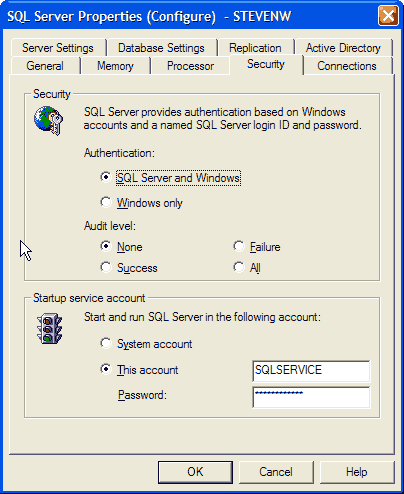
Set up MSSQLServer
to run under the service account.
Now that you have configured the MSSQLServer service account, you will need to
configure the SQLServerAgent service account. In order to do this, expand SQL
Server and Management, then right-click on SQL Server Agent and choose
Properties (Figure C). On the General Page, enter the Service Startup
Account by choosing This Account and enter the account name and password you
created to start your SQLServerAgent service.
Figure C
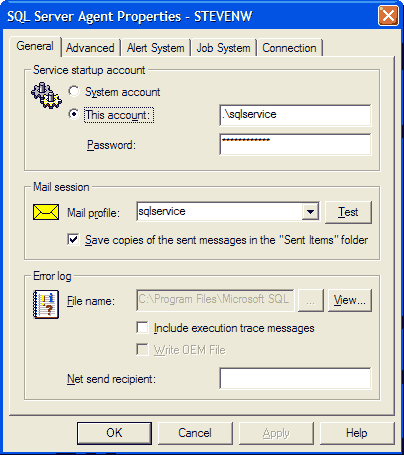
Set up SQLServerAgent
to run under the service account.
Configure the Outlook Client
In order to configure your Microsoft Outlook client, you first need to make
sure you have Microsoft Outlook installed. You can install this client from the
Microsoft Office CD. Once you have it installed, click Control Panel from the
Start Menu, then double-click the Mail icon, as shown in Figure D.
Figure D
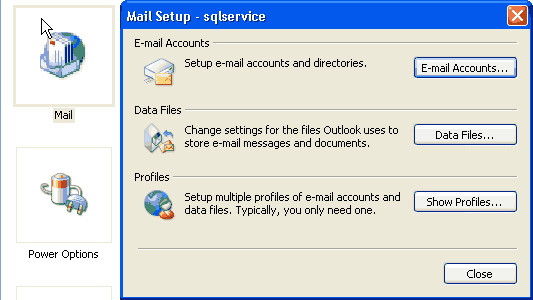
You are now
ready to configure a mail account.
Next, click Show Profiles, and then click Add, to add a new profile, as shown
in Figure E.
Figure E
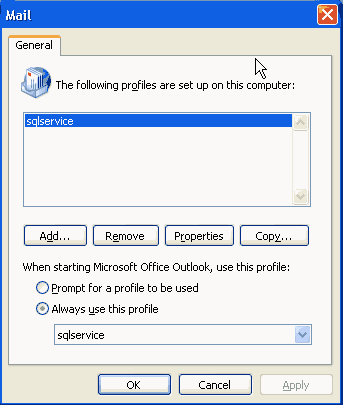
Configure
your mail profile.
You will now be prompted with a wizard to add a new e-mail account, as shown in
Figure F. Once you complete this step with the appropriate information, you
are ready to configure SQL Mail.
Figure F
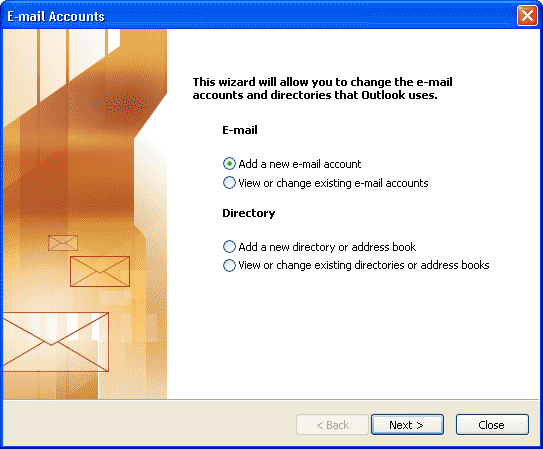
Use Outlook
to set up the actual mail account.