


Many Enterprises create and maintain applications that reside on “IBM Lotus Domino Server.” Since the Lotus Domino server has the capability of handling applications and messaging, it has become a prime requirement for a SQL Server DBA to cross- reference data or import and export data to and from the Domino database and SQL Server databases. In this article, I am going to discuss how to use SQL Server Linked server to connect to databases that reside on the Lotus Domino server. The steps involved in connecting to the Lotus notes mail server database can be used for connecting to other databases that reside in “Lotus Notes Domino” server.
Step 1
Install Lotus Notes Client on the SQL Server box. Like every heterogeneous linked server, we need to install the client portion of the heterogeneous database. In this case, it is the Lotus Notes client. (Refer to my article, “Linking SQL Server to Heterogeneous Systems.”
After installing Notes Client, get the Login ID File from your system admin and copy that to the server. Try to login to Lotus Notes Client using the given ID and make sure you can access mail and data from other databases that resides in the Domino server.
Step 2
Download the latest “NotesSQL” ODBC driver for Domino server from http://www.lotus.com. In this article, I am using NotesSQL release 3.01.
Step 3
Install NotesSQL (ODBC Driver for Domino). Installation is pretty straightforward. [Refer to Fig 1.0]

Fig 1.0
Step 4
The ODBC DSN setting using the NotesSQL Driver requires an authenticated list of users. This can be done using the NotesSQL Administrative tool. [Refer to Fig 1.1]
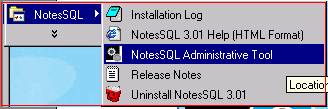
Fig 1.1
Use the NotesSQL Administration Tool to authenticate users as shown below. Point to the notes.ini file and point to the ID file given by your system admin. [Refer to Fig 1.2]
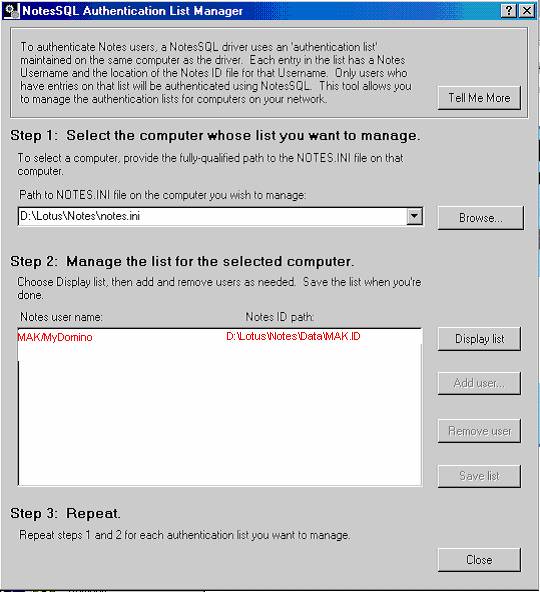
Fig 1.2
Step 5
Create the ODBC system DSN for the Lotus Domino server. [Refer to Fig 1.3]
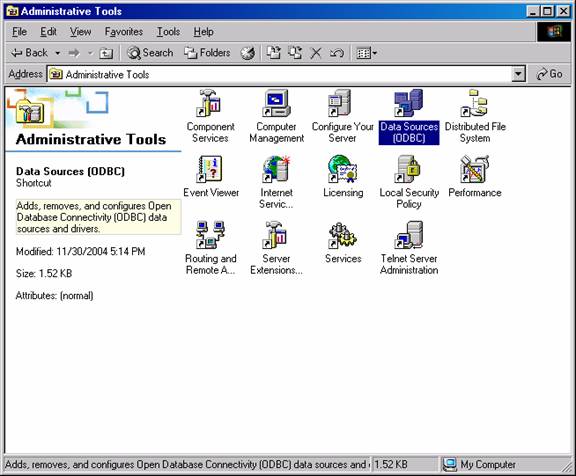
Fig 1.3
When selecting the driver, please select Lotus NotesSQL Driver as shown below. [Refer to Fig 1.4]
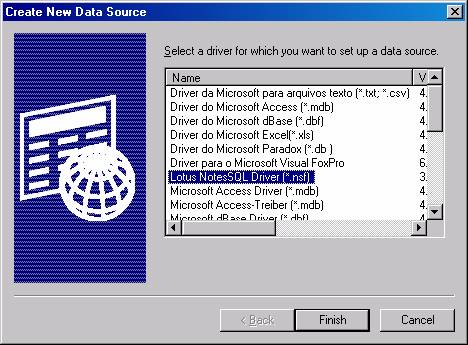
Fig 1.4
Now type the Source Name as “MyNotes,” which we are going to use in Linked server. Type the Fully qualified Domino server name as shown. Please refer to Fig 1.5, if you are accessing the mail server database. Please refer to Fig 1.6 if you are accessing other application databases that reside in the Domino server.
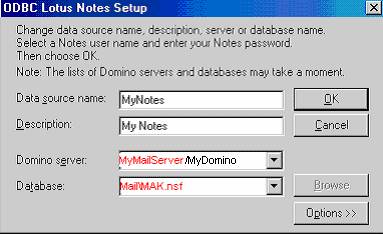
Fig 1.5
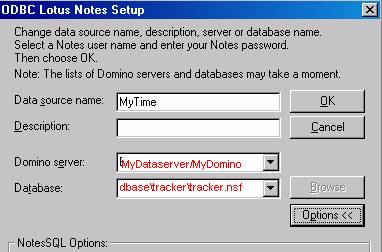
Fig 1.6
Type the password for the given ID file. [Refer to Fig 1.7]
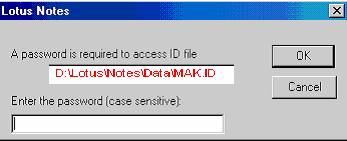
Fig 1.7
In the NotesSQL Options, add the authenticated user name from Step 4 and its corresponding password. [Refer to Fig 1.8]
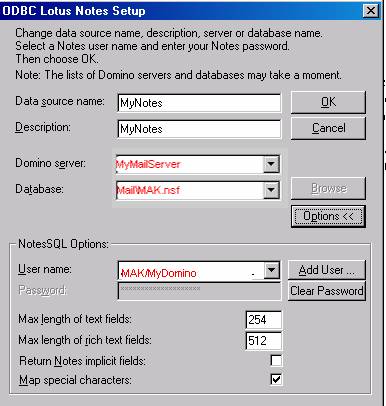
Fig 1.8