
You can monitor the system performance by using the
Performance monitor console and its related counters in Windows 2000. These
counters allow you to view or save information about the overall performance of
your server. When you install Microsoft SQL Server, additional Performance
monitor objects and counters are automatically installed. While you must have
administrative access to your SQL Server to use these objects, SQL Server admins
should find them invaluable in monitoring and tuning the database server.
Furthermore, the Performance monitor can be used either locally or remotely,
which allows admins greater control in monitoring SQL Server. I am going to
show you how to use the Performance monitor to keep a close watch over your SQL
Server systems.
To open the Performance monitor in Win2K, go to Start | Programs |
Administrative Tools | Performance. When viewing your performance data in real
time, you can view it as a report, a chart, or a histogram. Figure A
illustrates each of these views.
Click for larger image

Figure A.
To monitor your SQL Server successfully, you must add the counters in the
Performance monitor. To add counters:
1. Click
the plus-sign button to open the dialog box.
2. Select
an object from the Performance Object list.
3. Choose
either All Counters or Select Counters From List. If you opt to select
individual counters, click the Explain button for a description of each one.
You can also choose Select Instances From List. For example, if you added a PhysicalDisk
counter, you could then select an instance of either C: or D:, as shown in Figure
B.
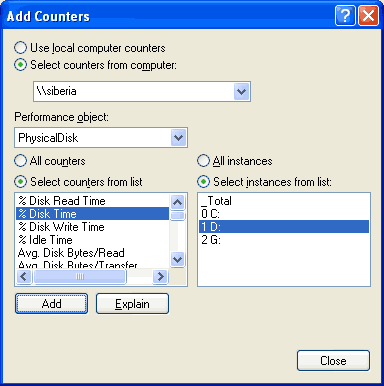
Figure B.
1. After
you select the counter(s), click Add. You can then repeat the process for any
additional objects you would like to use.
2. Click
Close when you have added all of your counters.
If you are new to performance monitoring, you probably need some guidance on
which counters to use. You can’t go wrong if you monitor CPU activity, memory,
paging, and/or disk I/O. These are a few of the most common counters. On most
systems, you should also track the % Processor Time (under the Processor
counters). On occasion, you will see spikes over 80 percent. This is normal
unless the sustained % Processor Time is at 80 percent or higher for long
periods. If that is the case, you could have a CPU bottleneck. To remedy the
situation, you might have to get a fast processor, add more processors, and/or
change disk configurations.
In addition, I recommend that you monitor the following:
-
Processor %Privileged Time: This is the amount of time the
processor spent performing operating system processes. -
System Processor Queue Length: This equates to CPU
activity. -
SQL Server Buffer Cache Hit Ratio: This is the percentage
of requests that reference a page in the buffer cache. You always want to have
a ratio of 90 percent or more. If you have allocated as much memory as you can
to SQL Server and have not met the 90 percent ratio, add more physical memory. -
SQL Server: General Statistics User connections: This
shows the number of users connected to the system. -
Physical Disk %Disk Time: This is the amount of time a
selected disk is busy. -
Memory Pages/Sec: This is the rate at which pages are read
from or written to disk, to resolve hard page faults.
I also recommend that you experiment with choosing your own counters. Remember:
You can hit the Explain button for information on any counter you select. In
addition to real-time monitoring, the Performance monitor can capture data to a
file. This is useful for analyzing performance data and making upgrade
recommendations. However, when logging data, it is best to do this locally and
not over your network. If you have to log the data over the network, you should
keep the counters to a bare minimum.