


In Part 2 of the product review for Toad for Data Analysts (TDA), we’ll look at several of the more advanced features of this application (part one is covered here). TDA offers more sophisticated users features such as data synchronization, automation, and reporting.
Excel Reports
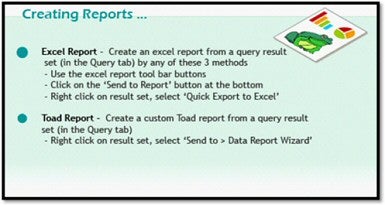
As a DBA, how many times have you been asked to run a query and provide the results in an Excel format? And, to extend this scenario a bit farther, how often do you have to provide a flat file (typically in comma separated value format) as a means of transferring data from your company to somewhere else? The manual process often times includes you having to script the select statement and concatenate columns and commas. This is also a fairly common question seen on various DBA forums (“How do I dump a table into a flat file?”). With TDA, this task just became trivial. The only work you have to do is to create the query. From there, select the type of report on the Excel report tool bar.
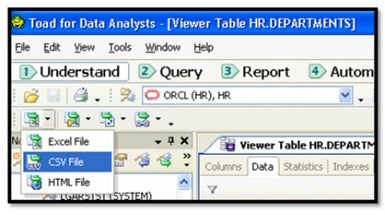
Using the Departments table in the HR sample schema, simply open the table and then click on the type of output you want.
Another route to get to the report generation is to run the query in a SQL Editor workspace (or use Query Builder), and once the results are displayed, click “Send to Report” (bottom right corner of the window) and an instance of Excel opens inside of TDA. From this point, you can send the report via email to whomever. Click on Email (also at the bottom of the window) and your default email tool (e.g., Outlook) opens with the file already included as an attachment.
Oh wait, the requirement is to run this report on a regular basis. Sounds like an excellent time to employ automation, and Quest certainly had this in mind when designing the workflow to facilitate this requirement.
Automating Reports
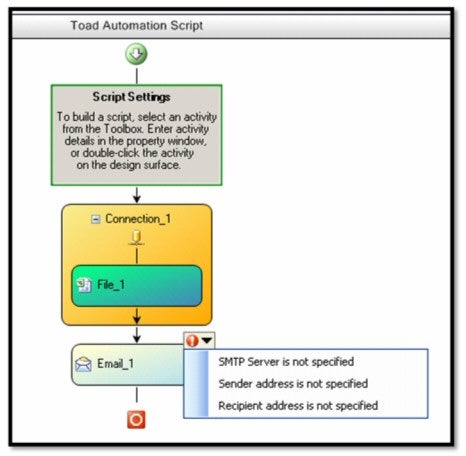
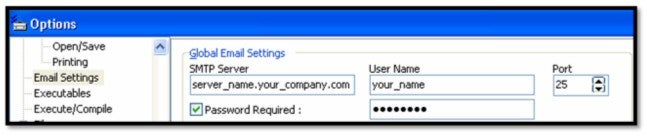
Aside from showing the user what the steps are, TDA also shows the details needing attention. In the example above, the expansion of the red exclamation mark reveals three items needing resolution. If you already use Toad for Oracle, the SMTP server you specified in your Toad setup is more than likely the same server you would use here. If you don’t know who/what your SMTP is, look at the header of an email in your inbox. An example from Toad (View>Toad Options…) is shown below.
Once the automation script has been designed in the Design Surface window, you are ready to schedule it. The scheduling interface is easy to use.
Scheduling Reports
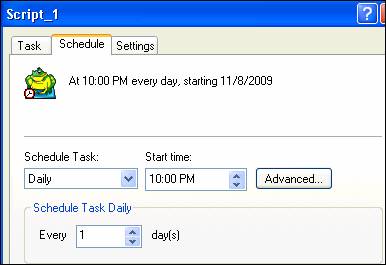
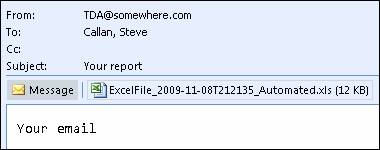
One tip on using the scheduling feature concerns the username/password account to authenticate with your mail server (assuming authentication is required). It would be handy to create a non-human domain account for this purpose, just like you would in SQL Server (e.g., the “Logon As” account used for starting a service, an authenticated user for mirroring, and so on). Once scheduled, sit back and wait for the email.
TDA also allows you to use templates (think re-usable code), add exception handling, and change logging levels within the automation design process.
Comparing Data
So now that we can easily automate reports, pretty much anything you can use reporting for is at your disposal. A simple means of comparing data can not only be automated, but also reported upon. Open a table, right-click it and select Data Compare from the context sensitive menu. Follow the steps within the easy to use Data Compare Wizard, and just like that, you have a means of detecting changes between tables. Again, it is not just tables within the same database or schema, but between many database systems. Any database system TDA can connect to is eligible for use as a source or target when it comes to data comparison. Not only can you compare data, but you can synchronize as well (with the exception of Excel).
Suppose a user suspects that a table is missing some data, and the user knows he has a good source elsewhere. In pure SQL, it is likely to be a trivial task to do a minus between the tables. For someone with lesser knowledge of SQL syntax, the point and click interface offered by TDA has an immediate return on enhancing the user’s productivity. No calls to an otherwise busy DBA are needed.
Select a source, select a target, select what it is you want to compare (i.e., table to table), and view the results. In the example below, the comparison is between the same table, with the “2” version missing a row present in the source.
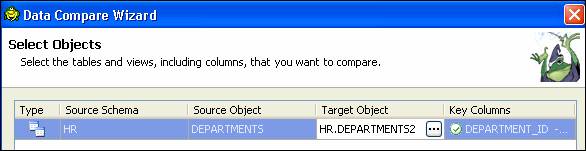
What are some of the possible differences? Without having to think about the answer, TDA suggests additional, missing, different, identical (i.e., no difference), and conflict. Knowing now that the source table has an additional row when compared to the target/copy (keeping in mind the context of which object you picked as the source; the opposite being that a row is missing), what then? How about synchronizing the tables?
Synchronizing Data
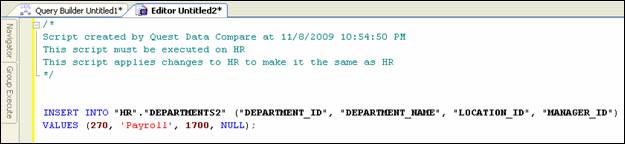
The Synchronization Wizard gives you a choice on which direction to synchronize: target to source or source to target. You can run a fix immediately, or choose to see what is going to take place via the appropriate DML statement. Viewing of the script takes place in an editor window.
Considering only Oracle, what does this process sound like? Materialized view should come to mind. Looked at another way, the data synchronization process, especially if incorporated into a scheduled task, is a poor man’s way of implementing materialized views. Within Oracle, you would no doubt simply use an MV for this purpose. But, given TDA’s ability to connect across many database systems, and having a requirement to refresh or keep data in a different RDBMS in synch with <pick your system of choice>, this feature of TDA can go a long way in simplifying an otherwise complex task for non-DBA users.
In Closing
More information about Toad for Data Analysts, including an extensive help resource in the form of online demonstrations, can be found here at Quest Software’s TDA page. Overall, Toad for Data Analysts is very impressive in its ability to make users more productive. It is simple to use, has a clean intuitive interface, and is loaded with many useful features.