There is a clever, poke-fun-at-George-Bush web site named Weekly Radio Address where you can listen to a new parody of the president each Monday morning. It's irreverent and probably exaggerates GW's difficulty with the English language, but it's funny all the same, and a little contagious. I was trying to come up with a title for this article and having difficulty finding the right word, so I followed Mr. Bush's example and made one up.
The code for today's article will show you how to access and modify the properties of various Microsoft Access objects through VBA code. So, what we're building today is an Access Object Enhancifier. Word's Spell Checker informs me there are no spelling suggestions for this word, but I'm growing more and more fond of it, Hey, if it catches on, enhancifier could even become naturalized into the English language. (I hope the White House is monitoring this site. If President Bush uses enhancifier in his next speech, I'm taking credit for it!)
Since there's a myriad of potential applications for this trick, I cannot possibly describe them all, but the principals learned may, with a little playing and practice, be applied to virtually any property related issue you face. Here's how we're going to apply this technique:
- Loop through Pubs sales table and list all its properties
- Loop through fields of Pubs sales table, setting Description for each
- Loop through form controls to read RowSource property of combo box
- Loop through form controls and set Status bar and Tool Tip text
download code for this article
Fun With Tables
This code has found its way into the pages of the DBJ site before, but without a trumpet blast to announce it, as today. In order to relink tables, you need to loop through the TableDefs collection (a collection containing all the table definitions for your database), set their Connect property and initiate the RefreshLink method for each object. This process from my February 2006 article is very similar to what we will do today.
List Table Properties
First, let's explore the code to loop through the properties of any given table. The function, ListTableProperties, takes the name of a table in your database as an argument. (For the sake of brevity, this example contains no error code to check if that table really exists.) To interrogate properties, you need to create a Property object, aTableDef object, and a Database object.
Some Access expert users may omit the Database object assignment and simply use CurrentDb() as though it were your dbs object, but I've had trouble in some instances with that practice, so I always create a top-level database object and kill it when finished.
To assign the TableDef object, you use the SET command, as shown below. Since we don't necessarily know (for this exercise) the specific property we want to view, a For Each loop is created to loop through ALL the properties and report back on their name and value. The string variable, strOut, is used to build the list and the final results are loaded into a message box and output as the results of the function.
Public Function ListTableProperties(ByVal sTable As String) As String
On Error GoTo Err_Handler
Dim dbs As DAO.Database
Dim tdf As DAO.TableDef
Dim prp As DAO.Property
Dim strProp As String
Dim strOut As String
DoCmd.Hourglass True
Set dbs = CurrentDb
strOut = sTable & vbCrLf & String(40, "-") & vbCrLf
Set tdf = dbs.TableDefs(sTable)
For Each prp In tdf.Properties
If prp.Name = "NameMap" Or prp.Name = "GUID" Then
' Do nothing for these ... they return funky data
Else
' Output the property name and value where value exists
If prp.Value <> "" Then
strOut = strOut & prp.Name & " = " & prp.Value & vbCrLf
End If
End If
Next
ListTableProperties = strOut
MsgBox strOut
' -------------- Sample Output --------------
'Print ListTableProperties("authors")
'
'authors
'----------------------------------------
'Name = authors
'Updatable = True
'DateCreated = 3/8/2006 7:14:56 AM
'LastUpdated = 9/6/2006 1:28:49 PM
'Attributes = 0
'RecordCount = 23
'Orientation = 0
'OrderByOn = False
'DefaultView = 2
' -------------- Sample Output --------------
Exit_Here:
Set tdf = Nothing
Set dbs = Nothing
DoCmd.Hourglass False
Exit Function
Err_Handler:
MsgBox Err.Description, vbExclamation, "Error"
Resume Exit_Here
End Function
It should be noted that this code omits any property that doesn't have a value assigned, so there are many other table properties that could be considered. Some of these properties can be edited and some cannot. You cannot, for example, change the date a table was created by simply reassigning the property. You may, however, change the Orientation and OrderByOn properties by simply assigning them new values.
Set Table Column Descriptions
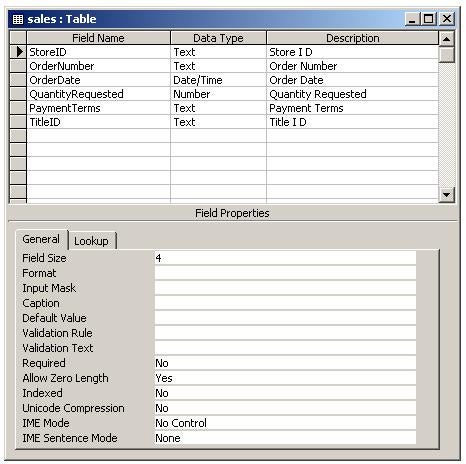
To demonstrate the process of assigning a value to a property, let's look at a real-life example, something you might actually require. In this example, all fields of the given table will have their Description property set to an adapted version of the column name. Notice that in the image below, each field of the table has a description property set to a more human-readable version of the column name, with spaces between the words. This was accomplished with my Enhancifier utility, crude though it may be.
As an aside, this property change might interest you, because when you use the Wizard to create a form from a table, Access uses the Description property to automatically update the Status Bar Text property (something we will do in the next demo) with this value. This is called "eating your own dog food" and Microsoft does it well. So, if you apply this code to 'fix' all your tables so each field has a description, these values will cascade to forms made with the Forms Wizard.

Public Function SetTableColumnDescriptions(sTable As String) As Boolean
On Error Resume Next
Dim dbs As DAO.Database
Dim tdf As DAO.TableDef
Dim fld As DAO.Field
Dim prp As DAO.Property
Dim strValue As String
Dim strOut As String
Set dbs = CurrentDb
Set tdf = dbs.TableDefs(sTable)
' Loop through all the fields (columns)
For Each fld In tdf.Fields
' Grab the field name and add spaces to make it human readable
strValue = fld.Name
' See the AddSpacesToName function below. (see download file)
strValue = AddSpacesToName(strValue)
' Attempt to read and set the property
If fld.Properties("Description") = "" Then
fld.Properties("Description") = strValue
End If
' If the property didn't exist, there will have been an error and
' it needs to be added.
If Err.Number = 0 Then
' No problem. Property existed and the value was set.
ElseIf Err.Number = 3270 Then
' This error means the property was not found.
' We need to create it.
Err.Clear
Set prp = fld.CreateProperty("Description", dbText, strValue)
fld.Properties.Append prp
If Err.Number <> 0 Then
MsgBox Err.Description, vbExclamation, "Error"
End If
Else
' Not sure what the error was. Report to user.
MsgBox Err.Description, vbExclamation, "Error"
End If
Next
Set prp = Nothing
Set tdf = Nothing
Set dbs = Nothing
End Function
This example gets a little tricky, because the way it works is that when no value for Description was previously assigned, the property doesn't actually exist. I saw one example on the newsgroup that was more elegant than this, but it works as shown above, to simply attempt to set the property and if it errs out with Err.Number = 3270, then you know the property needs to be created.
To create a property, you need to call the Field.CreateProperty method when setting your property object and then append it to the Field.Properties collection, as shown above. I'm using an additional function, which code is not shown anywhere in this article, but is available in the download.
Fun With Forms
Working with forms is just like working with tables, but there are different properties and a different set of objects that forms contain. While tables have fields (columns), forms contain controls. Controls have properties as well, that may be read and/or changed.
Modify Form Controls
The process here is the same as the example above, but instead of setting a TableDef object to 'sales' we will set an Access.Form object to a form, namely 'frmEmployees' in our example. Instead of looking at the properties of a Field object, we will interrogate the Control object for its properties. Unlike table fields, form controls have different types and expose different properties, so we use the Form.ControlType property to help us proceed without generating errors.
In this example, we want to change the Caption for Labels and the Status Bar Text for bound controls. (As long as we are setting the Status Bar text, we can set the Tool Tip text at the same time.) Another useful change would be to rename all the controls with meaningful prefixes; txt for TextBox, cbo for ComboBox, etc. The form wizard always names labels as Label1, Label2, etc, which is a little irritating for the anal programmer, so I like to run through them and create new names that associate them with their caption. All of this can be done in a few seconds with the following code:
Public Function ModifyFormControls(ByVal sForm As String) As Boolean
On Error GoTo Err_Handler
Dim frm As Access.Form
Dim ctl As Access.Control
Dim strName As String
Dim strPrefix As String
Dim strStatusText As String
Dim strMsg As String
' Begin by opening the form in design view, so it may be
' accessed by our Form object variable.
DoCmd.OpenForm sForm, acDesign
Set frm = Forms(sForm)
' Loop through all the controls on the form, checking its type
to ' know how to proceed. (Labels don't have properties of a text box.)
For Each ctl In frm.Controls
If Left(ctl.Name, 3) = "lbl" Then Stop
Select Case ctl.ControlType
Case acLabel
strPrefix = "lbl"
strName = Replace(ctl.Caption, " ", "")
strStatusText = ""
Case acTextBox
strPrefix = "txt"
strName = ctl.ControlSource
strStatusText = AddSpacesToName(strName)
Case acCheckBox
strName = ctl.ControlSource
strPrefix = "chk"
strStatusText = AddSpacesToName(strName)
Case acListBox
strPrefix = "lst"
strName = ctl.ControlSource
strStatusText = AddSpacesToName(strName)
Case acComboBox
strPrefix = "cbo"
strName = ctl.ControlSource
strStatusText = AddSpacesToName(strName)
Case Else
strPrefix = "obj"
strName = ctl.Name
strStatusText = ""
End Select
strName = UCase(Left(strName, 1)) & Mid(strName, 2)
' set the control's Name property
ctl.Name = strPrefix & strName
' For data controls, set their status bar text and
' tool tip text properties.
If
strStatusText <> "" Then
ctl.StatusBarText = strStatusText
ctl.ControlTipText = strStatusText
End If
' Just for fun, report the RowSource property to
' user if control is the sort that has one.
If ctl.ControlType = acComboBox Then
strMsg = ctl.Name & vbCrLf & "SQL = " & ctl.RowSource
MsgBox strMsg, vbInformation, "List/Combo Property"
End If
Next
DoCmd.Close acForm, sForm, acSavePrompt
Exit_Here:
Set ctl = Nothing
Set frm = Nothing
Exit Function
Err_Handler:
MsgBox Err.Description, vbExclamation, "Error"
Resume Next
End Function
There's so much more we could do ...
As I mentioned at the outset, there are so many applications for enhancifing object properties. Usually, the approach is straightforward and the above code is enough to build upon for your needs. Reports, Queries and even Modules have properties that you may read and set. So, the next time you have a daunting task in front of you, think about how you might enhancify your objects.
» See All Articles by Columnist Danny J. Lesandrini