


Resize Subform Objects Code
Jumping right into the code, you’ll notice that every form includes a public function named ResizeControls() which accepts two arguments: lObjWidth and lObjHeight. This function is called by the PARENT form, and the values passed are determined by Form properties called InsideWidth and InsideHeight. You will need to adjust the Height by subtracting the Form Header and Footer space, as that is part of the inside Height. It looks something like this …
Public Const cGap As Long = 100

lngObjWidth = Me.InsideWidth - (cGap * 2)

lngHeadFoot = Me.Section(acHeader).Height + Me.Section(acFooter).Height
lngObjHeight = Me.InsideHeight - (lngHeadFoot + (cGap * 2))
The code (both above and below) references a constant named cGap. This is a global constant which is set once and used everywhere. It allows me to tweak the appearance, giving more or less space between objects with a single edit. (This public constant must be placed in a standard module or the main form module, so it is always available.)
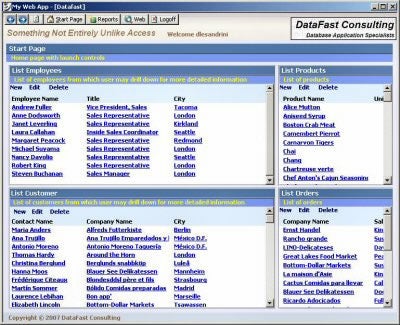
The parent form, after loading the requested subform in the subform object, invokes the ResizeControls method, passing the appropriate width and height. If that subform has subforms, it simply repeats this process, determining the allotted space for each subform and invoking that subform’s ResizeControls property. While this process isn’t trivial, once you get used to it, writing the code becomes routine. Most of the important stuff happens on the ResizeControls() function. (See my comments inline with the code.)
Public Function ResizeControls
	(ByVal lObjWidth As Long, ByVal lObjHeight As Long) As Long
    On Error GoTo Err_Handler

    Dim lngWidthLeft As Long
    Dim lngWidthRight As Long
    Dim lngHeightLeft As Long
    Dim lngHeight As Long
    Dim lngHorOffset As Long
    Dim lngVerOffset As Long

    ' The following two public function calls
	' perform some standard formatting.
    ' The first one sets the forms colors, such as control font color,
    ' section back colors and the like.  The download includes this code,
    ' which is relatively generic.  The argument passed is the form
    ' itself (Me), to which the modifications are being made.
    Call SetFormColors(Me)

    'The code for setting the header controls is more involved,
    ' requiring some resizing.  Accordingly, this function is explained
    ' below.
    g_lngResult = SetHeaderCtls(Me, lObjWidth)

    ' This first step is a little tricky.  I wanted to account for
    ' scrollbars, but not every form has it's Horizontal and/or vertical
    ' scroll bars set. So I created a function, GetScrollbarOffset(),
    ' which would determine how much space should be allotted.  The code
    ' for that is in the download file.

    ' Determine the control widths.
    ' In this example, I'm allotting 70% to the left side controls,
    ' and 30% to the right side controls.  I'm also allowing for the
    ' space of 2 gaps.
    lngHorOffset = GetScrollbarOffset(Me, "V") + (cGap * 2)
    lngWidthLeft = (lObjWidth - lngHorOffset) * 0.7
    lngWidthRight = (lObjWidth - lngHorOffset) * 0.3

    ' Determine the controls heights.
    ' This is similar to the process above, except we must account
    ' for the header section.
    lngVerOffset = GetScrollbarOffset(Me, "H") + (cGap * 2)
	+ Me.Section(acHeader).Height
    lngHeight = (lObjHeight - lngVerOffset) / 2

    ' This next section does the real work.  You must know the names of
    ' all your subform objects and you must set the LEFT, TOP, WIDTH and
    ' HEIGHT properties of each.  Finally, you need to call the
    ' ResizeControls() method of each of these subforms, so that they can resize
    ' their subforms ... if they have any.  (For consistency, and simplicity, I
    ' make sure every form and subform has this public function, even if it doesn't
    ' actually do anything.  That way it never fails when this call is made.

    ' NOTE:  The positioning is simple math.  You'll have to work out the details
    '        for your application in a way that's pleasing to you.  The following
    '        provides a working template of how it might be accomplished.

    ' Position objects and call resize functions
    Me!objEmployee.Left = cGap
    Me!objEmployee.Top = cGap
    Me!objEmployee.Width = lngWidthLeft
    Me!objEmployee.Height = lngHeight
    g_lngResult = Me!objEmployee.Form.ResizeControls(lngWidthLeft, lngHeight)

    Me!objCustomer.Left = cGap
    Me!objCustomer.Top = Me!objEmployee.Top + (lngHeight) + cGap
    Me!objCustomer.Width = lngWidthLeft
    Me!objCustomer.Height = lngHeight
    g_lngResult = Me!objCustomer.Form.ResizeControls(lngWidthLeft, lngHeight)

    Me!objProduct.Left = cGap + lngWidthLeft + cGap
    Me!objProduct.Top = cGap
    Me!objProduct.Width = lngWidthRight
    Me!objProduct.Height = lngHeight
    g_lngResult = Me!objProduct.Form.ResizeControls(lngWidthRight, lngHeight)

    Me!objOrders.Left = cGap + lngWidthLeft + cGap
    Me!objOrders.Top = Me!objProduct.Top + (lngHeight) + cGap
    Me!objOrders.Width = lngWidthRight
    Me!objOrders.Height = lngHeight
    g_lngResult = Me!objOrders.Form.ResizeControls(lngWidthRight, lngHeight)

Exit_Here:
    Exit Function
Err_Handler:
    MsgBox Err.Description, vbCritical
    Resume Next
End Function
Resize Header Controls Code
As you poke around in the sample application, you’ll notice that every form has an array of header controls: lblCaption and lblDescription and sometimes hyperlink labels named New, Edit and Delete. Again, for consistency, I try to include these labels on every form, even if they are not used. (You can set the properties of an invisible label, but you’ll get an error if you try to reference a non-existent control.)
Below is the code that is called from every ResizeControls() function. It takes three arguments: The calling form (by reference), a width and an optional comma-delimited string list of control names that should be formatted as hyperlinks. See inline comments for an explanation of the code.
Public Function SetHeaderCtls(ByRef frm As Access.Form,
                                   ByVal lWidth As Long,
                                   Optional ByVal sHyperLinks As String) As Boolean
    On Error GoTo Err_Handler

    Dim lngScroll As Long
    Dim strForm As String
    Dim strControls() As String
    Dim iCtl As Integer
    Dim ctl As Control
    Dim lngStartLblPos As Long
    Dim fLblCaption As Boolean
    Dim fLblDescr As Boolean
    Dim strCaption As String
    Dim strDescr As String
    Dim strCriteria As String

    ' Grab the form's name ... that will be required later.
    strForm = frm.Name

    ' If the form has a scrollbar, then deduct that from the width passed.
    lngScroll = GetScrollbarOffset(frm, "V")
    lWidth = lWidth - lngScroll

    ' //////////////////////////////////////////////////////////////////////////////
    ' The sHyperLinks parameter is optional.  If missing, set it to empty string
    If IsMissing(sHyperLinks) Then sHyperLinks = ""

    ' //////////////////////////////////////////////////////////////////////////////
    ' When sHyperLinks exists, process the list of hyperlink labels.
    If Trim(sHyperLinks) <> "" Then
        strControls = Split(sHyperLinks, ",")

        ' Place control at the left, shifted right by one "Gap" width.
        lngStartLblPos = cGap

        ' Loop through all the hyperlinks, positioning them with gaps.
        For iCtl = 0 To UBound(strControls())
            Set ctl = frm.Controls(strControls(iCtl))
            ctl.Top = 50
            ctl.Left = lngStartLblPos
            ctl.Height = 210
            lngStartLblPos = lngStartLblPos + (ctl.Width + cGap)
            ctl.HyperlinkAddress = " "
        Next
    End If

    ' Determine if the form has controls named lblCaption and lblDescription and
    ' set the flags appropriately.  This method may be extended to handle other
    ' common controls that appear on multiple forms.
    '
    ' First, assume the controls are missing or don't exist.
    fLblCaption = False
    fLblDescr = False

    ' If found, then set the flag to True.
    For Each ctl In frm.Controls
        If ctl.Name = "lblCaption" Then fLblCaption = True
        If ctl.Name = "lblDescription" Then fLblDescr = True
    Next


    ' //////////////////////////////////////////////////////////////////////////////
    ' Set the text for the caption and description labels based on the form name.
    '   (Captions and Descriptions are saved in a table named FormLookup.)
    strCriteria = "[FormName]='" & strForm & "'"
    strCaption = Nz(DLookup("[CaptionText]", "FormLookup", strCriteria))
    strDescr = Nz(DLookup("[DescriptionText]", "FormLookup", strCriteria))
    If strCaption = "" Then strCaption = ParseFormName(strForm)
    If strDescr = "" Then strDescr = "No description found for [" & strCaption & "]"


    ' //////////////////////////////////////////////////////////////////////////////
    ' Set properties for lblCaption ... if it exists.
    '   (Note that constants are used for all color values.  This allows for quick
    '    and easy formatting changes by editing the list of constants.)
    If fLblCaption Then
        With frm.Controls("lblCaption")
            ' If the label is set to NOT VISIBLE, then might as well skip formatting.
            If .Visible = True Then
                .Caption = " " & strCaption
                '.Top = 0
                '.Left = 0
                .Width = lWidth
                .ForeColor = cCaptionForeColor
                .BackColor = cCaptionBackColor
                .BackStyle = cNormal
                .FontName = "Tahoma"
                .FontBold = True
            End If
        End With
    End If

    ' Set properties for lblDescription ... if it exists.
    If fLblDescr Then
        With frm.Controls("lblDescription")
            ' If the label is set to NOT VISIBLE, then might as well skip formatting.
            If .Visible Then
                .Caption = "   " & strDescr
                .Left = 0
                .Width = lWidth
                .ForeColor = cDescripForeColor
                .BackColor = cDescripBackColor
                .BackStyle = cNormal
                .FontName = "Tahoma"
                .FontBold = True
            End If
        End With
    End If

Exit_Here:
    Exit Function
Err_Handler:
    MsgBox Err.Description, vbCritical
    Resume Next
End Function
Fun and Frustration
This object resize code works pretty well and I’m pleased with the applications where I’ve implemented it. That doesn’t mean, however, that it is without frustration. Getting things to line up and display where desired will take some tweaking. If you set one property incorrectly, the whole page will look screwy. Those who attempt to implement this will undoubtedly want to write me for assistance and I’ll be happy to help, but ultimately you are going to have to use trial and error to get your pages to display the way you want. Please check and double check the TOP, LEFT, WIDTH and HEIGHT properties before assuming the code is broken. Remember, it works in the demo, so if you have difficulty, the solution is in your implementation code.
» See All Articles by Columnist Danny J. Lesandrini