SQL Server 2012 included Analysis Service PowerShell provider also known as SQLAS provider. From Windows PowerShell you could navigate, administer and query Analysis Services object.
SQL Server Analysis Service can be installed in two different modes.
- Multidimensional Instance
- Tabular Instance
In this article I am going to illustrate a general overview of the use and functionality of SQLAS provider using Multidimensional Instance.
Pre-Requisite
In order to take advantage of the SQLAS provider the following are needed
a.PowerShell 2.0: It is part of the Windows 2008 install and you can enable it from the Windows server features.
b. SQLPS module: It is part of the SQL Server 2012 install. Once installed the module will be visible under Powershell. All you need is to import it. Importing loads the Analysis Service PowerShell Functionality.
c.SQLASCmdlets: It is part of the SQL Server 2012 install. Once installed the module will be visible under Powershell. All you need is to import it. Importing loads all the cmdlets for you.
d. Execution-Policy should not be restricted.
Note: SQLPS is not just related to Analysis service. You could navigate, query and manage all the following objects. We are going to focus only on SQLSERVER:\SQLAS in this article.
- SQLSERVER:\SQL
- SQLSERVER:\SQLPolicy
- SQLSERVER:\SQLRegistration
- SQLSERVER:\DataCollection
- SQLSERVER:\XEvent
- SQLSERVER:\Utility
- SQLSERVER:\DAC
- SQLSERVER:\SSIS
- SQLSERVER:\SQLAS
Step 1
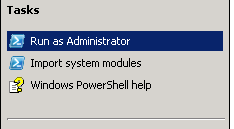
Let's launch PowerShell using RunAS Administrator from the Windows Start menu as shown below.

Launch PowerShell using RunAS Administrator
This opens a new PowerShell window session as shown.

New PowerShell window session
Step 2
Now, let's set the execution policy to Un-Restricted as shown below.

Set the execution policy to Un-Restricted
Step 3
Import SQLPS module as shown below. This will make all the SQLPS related cmdlets available on the current PowerShell session.
Import-Module SQLPS

Import-Module SQLPS
You can suppress the WARNING message using a parameter “DisableNameChecking”
Import-Module sqlps –DisableNameChecking
Step 4
Now, let's import the SQLASCmdlets using the following command. This will make all of the Analysis Services related cmdlets available on the current PowerShell session.
Import-module sqlascmdlets
Step 5
List all of the cmdlets and functions available under the module SQLPS.
Get-command -module SQLPS
You can see the following cmdlets listed.
- Add-SqlAvailabilityDatabase
- Add-SqlAvailabilityGroupListenerStaticIp
- Backup-SqlDatabase
- Convert-UrnToPath
- Decode-SqlName
- Disable-SqlAlwaysOn
- Enable-SqlAlwaysOn
- Encode-SqlName
- Invoke-PolicyEvaluation
- Invoke-Sqlcmd
- Join-SqlAvailabilityGroup
- New-SqlAvailabilityGroup
- New-SqlAvailabilityGroupListener
- New-SqlAvailabilityReplica
- New-SqlHADREndpoint
- Remove-SqlAvailabilityDatabase
- Remove-SqlAvailabilityGroup
- Remove-SqlAvailabilityReplica
- Restore-SqlDatabase
- Resume-SqlAvailabilityDatabase
- Set-SqlAvailabilityGroup
- Set-SqlAvailabilityGroupListener
- Set-SqlAvailabilityReplica
- Set-SqlHADREndpoint
- SQLSERVER:
- Suspend-SqlAvailabilityDatabase
- Switch-SqlAvailabilityGroup
- Test-SqlAvailabilityGroup
- Test-SqlAvailabilityReplica
- Test-SqlDatabaseReplicaState

Get-command -module SQLPS
Step 6
Now let us list all the cmdlets available under the module SQLASCmdlets.
Get-command -module SQLASCmdlets
This will display the following cmdlets.
- Add-RoleMember
- Backup-ASDatabase
- Invoke-ASCmd
- Invoke-ProcessCube
- Invoke-ProcessDimension
- Invoke-ProcessPartition
- Merge-Partition
- New-RestoreFolder
- New-RestoreLocation
- Remove-RoleMember
- Restore-ASDatabase

Get-command -module SQLASCmdlets
Step 7
Now let's navigate to the SSAS Instance. In this example USTESTSQL01 is the host name and SQLENG2 is the Multidimensional Analysis Services instance name.
Similar to how we navigate different folders in Windows folder hierarchy, we can navigate to Analysis Services instance and its object using the command CD and DIR command.
Note: CD is the alias for the cmdlet Set-Location and Dir is the alias for Get-ChildItem
Dir
Cd SQLAS
Cd USTESTSQL01
Cd SQLENG2

Navigating to different folders using the CD command

Navigating to different folders using the DIR command
Step 8
Let's try to create a database MyDW using Invoke-ASCmd cmdlet and .xmla file. We need the .xmla file first, so create the E:\Data\Create_DB.xmla with the following code.
<Alter AllowCreate="true" ObjectExpansion="ExpandFull" xmlns="http://schemas.microsoft.com/analysisservices/2003/engine">
<Object>
<DatabaseID>MyDW</DatabaseID>
</Object>
<ObjectDefinition>
<Database xmlns:xsd="http://www.w3.org/2001/XMLSchema" xmlns:xsi="http://www.w3.org/2001/XMLSchema-instance" xmlns:ddl2="http://schemas.microsoft.com/analysisservices/2003/engine/2" xmlns:ddl2_2="http://schemas.microsoft.com/analysisservices/2003/engine/2/2" xmlns:ddl100_100="http://schemas.microsoft.com/analysisservices/2008/engine/100/100" xmlns:ddl200="http://schemas.microsoft.com/analysisservices/2010/engine/200" xmlns:ddl200_200="http://schemas.microsoft.com/analysisservices/2010/engine/200/200" xmlns:ddl300="http://schemas.microsoft.com/analysisservices/2011/engine/300" xmlns:ddl300_300="http://schemas.microsoft.com/analysisservices/2011/engine/300/300">
<ID>MyDW</ID>
<Name>MyDW</Name>
<Description />
<DataSourceImpersonationInfo>
<ImpersonationMode>Default</ImpersonationMode>
</DataSourceImpersonationInfo>
<ddl100_100:DbStorageLocation>E:\Data</ddl100_100:DbStorageLocation>
</Database>
</ObjectDefinition>
</Alter>
Let us execute the .xmla file using Invoke-ASCmd as shown below.
Invoke-ASCmd -InputFile "E:\Data\create_DB.xmla"

Invoke-ASCmd -InputFile "E:\Data\create_DB.xmla"
This will create the database MyDW as shown below.

MyDW database
Step 9
Let's backup the Analysis Services database MyDW using Backup-ASDatabase cmdlet from the SQLASCmdlet module. We will backup the database to E:\Data\MyDW.abf.
Backup-ASDatabase -BackupFIle E:\Data\MyDW.abf -Name MyDW

Backup the database
Step 10
Let's restore the backup file E:\Data\MyDW.abf as database MyDW2 using Restore -ASDatabase cmdlet. This is the same file that we created in Step 9.
Restore-ASDatabase -Name MyDW2 -RestoreFIle E:\Data\MyDW.abf

Restore the backup file
This will restore the database MyDW2 as shown below.

You can also navigate to the Database folder using the DIR command.
CD Databases
DIR

Navigate to the database folder using DR
Step 11
If you need help with the syntax for cmdlets, always try to use Get-Help and the cmdlet.
Example
Get-Help Invoke-ASCmd
Get-Help Backup-ASDatabase–Full
Step 12
Let's navigate to the database MyDW2, as shown below, and list all of the object collections available.
Cd SQLSERVER:\SQLAS\USTESTSQL01\SQLENG2\Databases\MyDW2
DIR
You can see the following collections:
- Assemblies
- Cubes
- DatabasePermissions
- DataSources
- DataSourceViews
- Dimensions
- MiningStructures
- Roles
Step 13
If you want to process the current database, you can use the Get-Item cmdlet with “.” to access all of the methods and properties.
(Get-Item .).Process()

Access all of the methods and properties
You could also assign the current item to an object variable and execute a method.

Assign the current item to an object variable
Note: The processing is very quick here because this database is empty and we haven’t created dimensions, cubes, etc. to process.
Step 14
You can display all of the methods and properties of the current item using Get-Member cmdlets as shown below.
$DB |Get-Member
Or
(Get-Item .) | Get-Member

Display all of the methods and properties of the current item
Conclusion
This article hasn't explored and illustrated all cmdlets available for Analysis Service. However, as mentioned in the beginning of this article, it explored and illustrated a high level overview on the use and functionality of SQLAS provider using Multidimensional Instance.
Refer to my other articles related to SQL Server and Powershell here.
Microsoft Windows PowerShell and SQL Server 2005 SMO - Part I
Check your SQL Server using Windows PowerShell - Part 1
See all articles by MAK