


- Introduction
- General concepts
- Replication topologies
- Replication types
- Replication agents
- Checking necessary conditions
- Step by step example
- Backup and restore strategies
- Literature
Introduction
In this article, I want to tell you about some general Microsoft SQL Server replication’s topics: replication topologies, replication types, and replication agents. I will also discuss Merge replication: how to check necessary conditions for this type of replication and how to backup and restore the databases in this replication scenario. To illustrated these concepts, I’ll also be providing a step by step guide to setting up a Merge replication process.
Because it’s only a test example, I used only one server to replicate data: Publisher, Subscriber and Distributor databases resided on the same machine.
General concepts
Replicationis the process whereby data is copied between databases on the same server or different servers connected by LANs, WANs, or the Internet.
Microsoft SQL Server replication uses a publisher, distributor and subscribermetaphor.
Publisheris the server or database that sends its data to another server or database.
Subscriberis the server or database that receives data from another server or database.
Distributor is the server that manages the flow of data through the replication system. This server contains the distribution database.
Publisher contains publication/publications. Publicationis a collection of one or more articles that is sent to a subscriber server or database.
Articleis the basic unit of replication and can be a table or a subset of a table.
Subscriptionis the group of data that a server or database will receive.
There are push and pull subscriptions. Push subscriptionis subscription when the publishing server will periodically push transactions out to the subscribing server or database.
Pull subscription is subscription when the subscribing server will periodically connect to the distribution databaseand pull information.
The Distribution databaseis a system database, which is stored on the Distributor and does not contain any user tables. This database is used to store snapshot jobs and all transactions waiting to be distributed to Subscribers.
Replication topologies
Microsoft SQL Server supports the following replication topologies:
- Central publisher
- Central subscriber
- Central publisher with remote distributor
- Central distributor
- Publishing subscriber
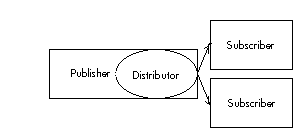
Central publisher
This is one of the most used replication topologies. In this scenario, one server is configured as Publisher and Distributor and another server/servers is/are configured as Subscriber/Subscribers.
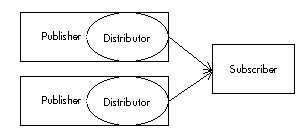
Central subscriber
This is a common topology in data warehousing. Many servers or databases replicate their data to a single central server in one or more databases.
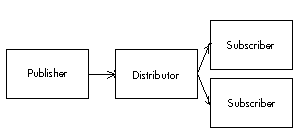
Central publisher with remote distributor
In this topology, the distribution database resides on another server than publisher. This topology is used for performance reasons when the level of replication activity increases or the server or network resources become constrained. It reduces Publisher loading, but it increases overall network traffic.
This topology requires separate Microsoft SQL Server installations, one for the Publisher and one for the Distributor.
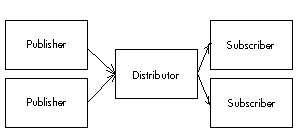
Central distributor
In this topology, several publishers use only one distributor, which resides on another server than publishers. This is one of the most rarely used replication topologies because it has only single point of failure (on the single server with central distributor), and if distributor’s server will fail, the entire replication scenario will be destroyed.
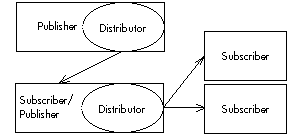
Publishing subscriber
This is a dual role topology. In this topology, two servers publish the same data. One publishing server sends data to the subscriber, and then this subscriber publishes data to any number of other subscribers. This is useful when a Publisher must send data to Subscribers over a slow or expensive communications link.
Replication types
Microsoft SQL Server 7.0/2000 supports the following replication types:
- Snapshot
- Transactional
- Merge
Snapshot replicationis the simplest type of replication. With this kind of replication, all replicated data (replica) will be copied from the Publisher database to the Subscriber’s/Subscribers’ database(s) on a periodic basis. Snapshot replication is best used as a method for replicating data that changes infrequently and when the size of replicated data is not very large.
With Transactional replication, SQL Server captures all changes that were made in an article and stores INSERT, UPDATE, and DELETE statements in the distribution database. These changes are then sent to subscribers from the distribution database and applied in the same order. Transactional replication is best used when the replicated data changes frequently or when the size of replicated data is not small and is not necessary to support autonomous changes of the replicated data on the Publisher and on the Subscriber.
Merge replicationis the most difficult replication type. It makes possible autonomous changes to replicated data on the Publisher and on the Subscriber. With Merge replication, SQL Server captures all incremental data changes in the source and in the target databases, and reconciles conflicts according to rules you configure or using a custom resolver you create. Merge replication is best used when you want to support autonomous changes of the replicated data on the Publisher and on the Subscriber.
Replication agents
Microsoft SQL Server 7.0/2000 supports the following replication agents:
- Snapshot Agent
- Log Reader Agent
- Distribution Agent
- Merge Agent
The Snapshot Agentis a replication agent that make snapshot files, stores the snapshot on the Distributor, and records information about the synchronization status in the distribution database. The Snapshot Agent is used in all replication types (Snapshot, Transactional, and Merge replications) and can be administered by using SQL Server Enterprise Manager.
The Log Reader Agentis a replication agent that moves transactions marked for replication from the transaction log on the Publisher to the distribution database. This replication agent is not used in Snapshot replication.
The Distribution Agentis a replication agent that moves the snapshot jobs from the distribution database to Subscribers, and moves all transactions waiting to be distributed to Subscribers. The Distribution Agent is used in Snapshot and Transactional replications and can be administered by using SQL Server Enterprise Manager.
The Merge Agentis a replication agent that applies initial snapshot jobs from the publication database tables to Subscribers, and merges incremental data changes that have occurred since the initial snapshot was created. The Merge Agent is used only in Merge replication.
Checking necessary conditions
Check the following before setting up Merge replication:
1. The Localsystem account has no access to shares on the network as it isn’t an authenticated network account.
So, if you want to set up replication you must change the account the MSSQLServer and SQLServerAgent services runs under to an account with the Windows NT/Windows 2000 administrator’s rights. If your Microsoft SQL Server runs on Windows NT or Windows 2000, you can create a Windows NT/Windows 2000 account and include it into local Administrators group, into Domain Users group, and set Log in as a servicepermission for this account.
Windows 9x does not support Windows NT services, so if your Microsoft SQL Server runs on Windows 9x, you do not need to create SQL account.
2. Only members of the sysadmin server role can set up and configure replication, so if you have not this rights, you can not set up replication.
3. Don’t forget to start SQLServerAgent service (and MSSQLServer service, of course).
4. You should allocate adequate disk space for the distribution database.
5. You should allocate adequate disk space for the publisher’s and subscribers’ databases.
SQL Server 7.0/2000 uses the uniqueidentifier column to identify each row during the merge replication, so if your table does not have a uniqueidentifier column with the ROWGUIDCOL property, Microsoft SQL Server 7.0/2000 will add this column to the table. So, you need to allocate additional disk space to store your data.
6. You cannot replicate only one table with foreign key constraints; you should include all referenced tables in the publication.
7. You should ensure the server that is being replicated to is defined as a remote server.
Step by step example
In this example, I will use only one server to replicate data: Publisher, Subscriber and Distributor databases will reside on the same machine.
I will use Merge replication with push subscription. To set up Merge replication, you can use the GUI interface from the SQL Server Enterprise Manager, or you can run SQL Server system stored procedures. The first way is easier and more understandable, so I will use it.
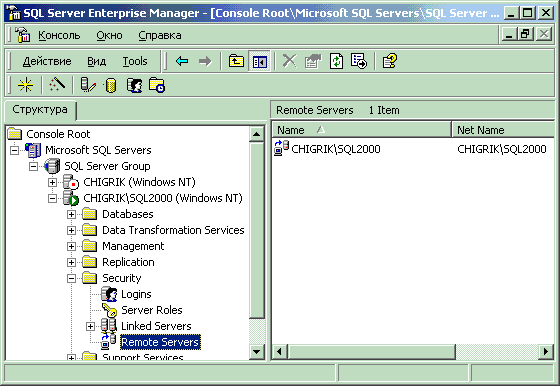
First of all, you should register the new remote server to be replicated. Because I use only one server to replicate data, I don’t need to make this step. Figure 1 shows remote server name (the same as the local server name, in this case).
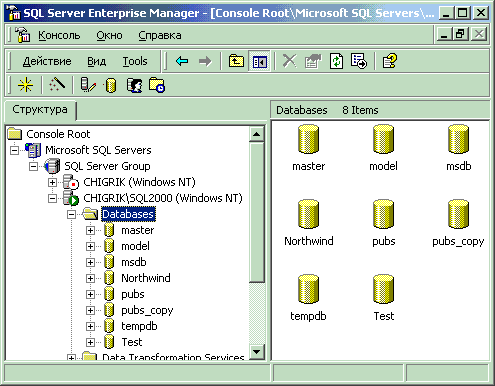
In this example, I will replicate data from the pubs database into pubs_copy database.
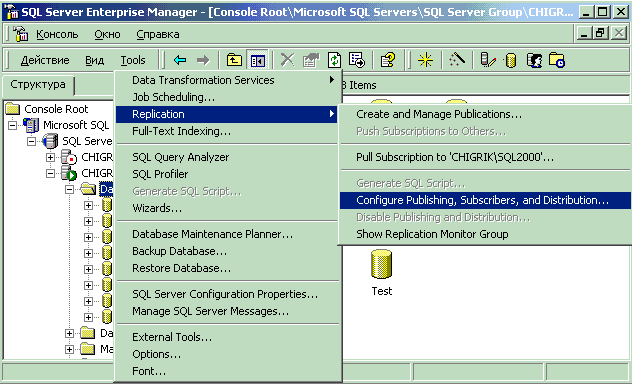
Select
Tools =>
Replication =>
Configure Publishing, Subscribers, and Distribution…
as shown in Figure 3.
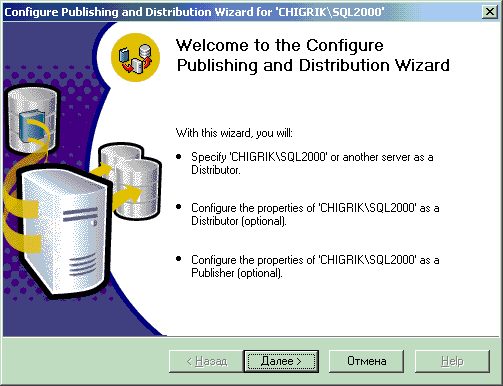
This will launch the Configure Publishing and Distribution Wizard, as shown in Figure 4.
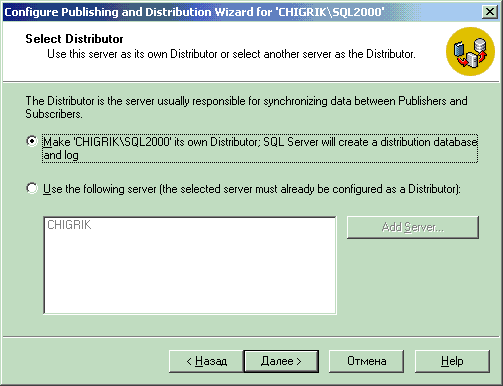
Click the Next button to create the Distributor, as shown in Figure 5.
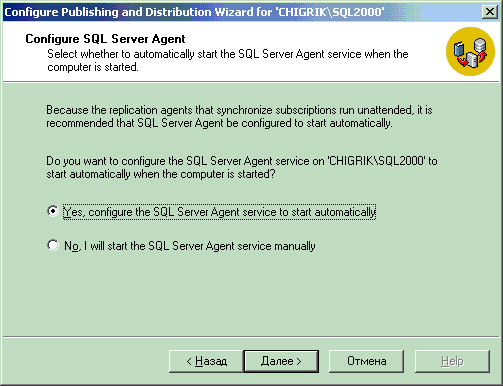
Here you can configure SQLServerAgent service to start automatically when the computer is started. Check Yes, configure the SQL Server Agent service to start automaticallyand click the Next button, as shown in Figure 6.
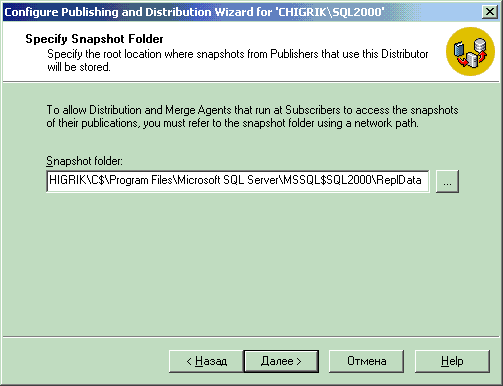
Specify snapshot folder using a network path and click the Next button, as shown in Figure 7.
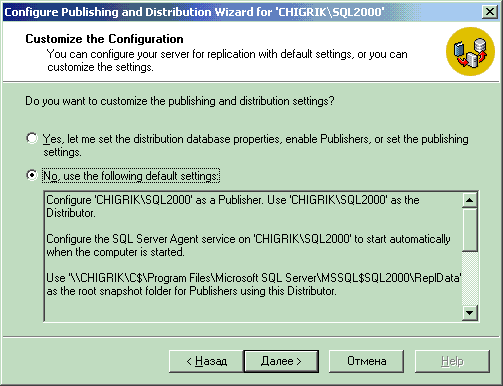
Now you can customize the publishing and distribution settings, or you can choose the default settings. Check No, use the following default settingsand click the Next button, as shown in Figure 8.
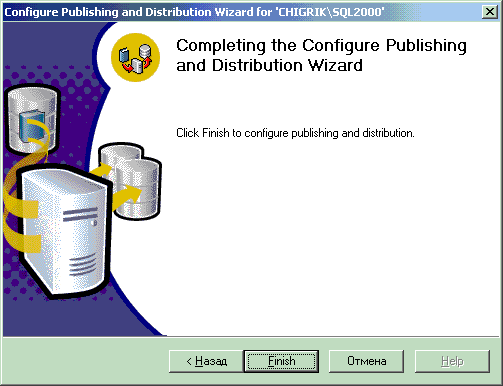
Click the Finish button, as shown in Figure 9.
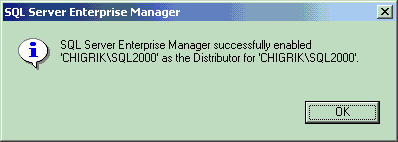
Microsoft SQL Server created the distribution database, enabled publishing, and installed the distributor. Once completed, you should see Figure 10.
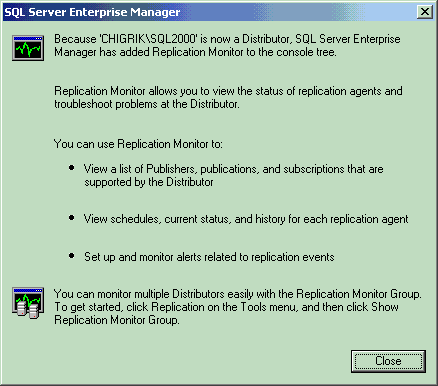
Click OK button and see Figure 11. As we installed CHIGRIK\SQL2000 as Distributor, so Replication monitor has been added to the console tree on CHIGRIK\SQL2000 server. Click Close button.
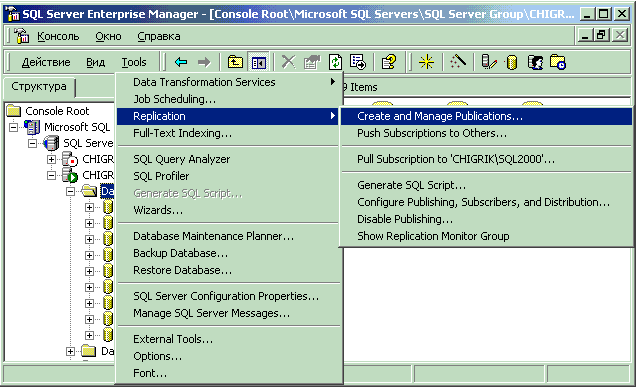
Now we are ready to start creating publications and articles. Select Tools => Replication => Create and Manage Publications as shown in Figure 12.
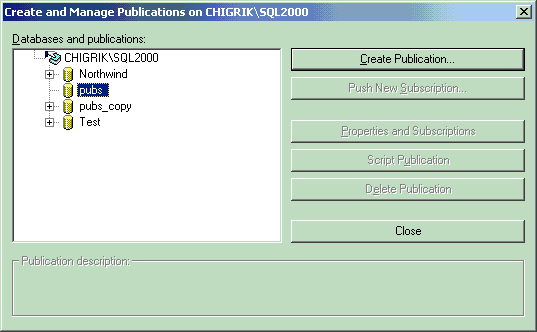
You will see Create and Manage Publications dialog box, as shown in Figure 13. Choose pubs database and click the Create Publication button.
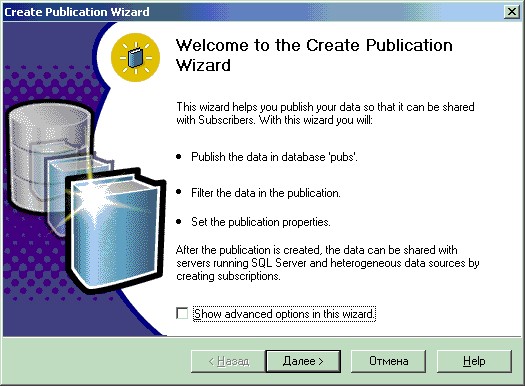
The Create Publication wizard will be launched. Click the Next button, as shown in Figure 14.
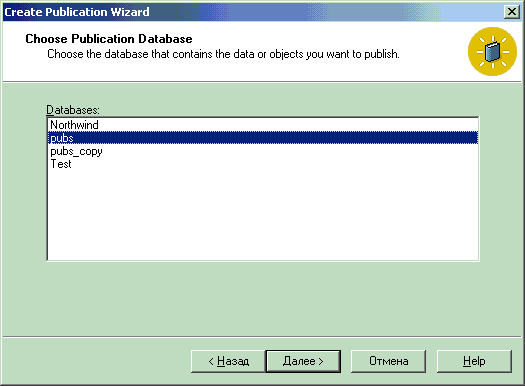
Choose the pubs database and click the Next button, as shown in Figure 15.
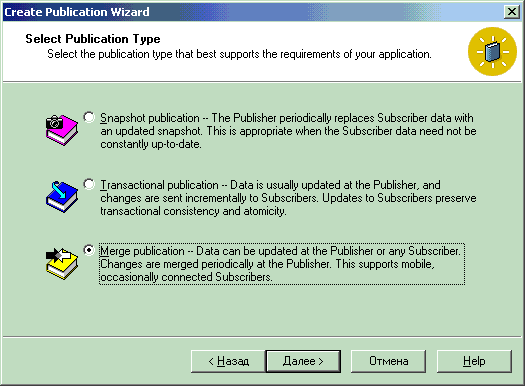
Select Merge publication and click the Next button, as shown in Figure 16.
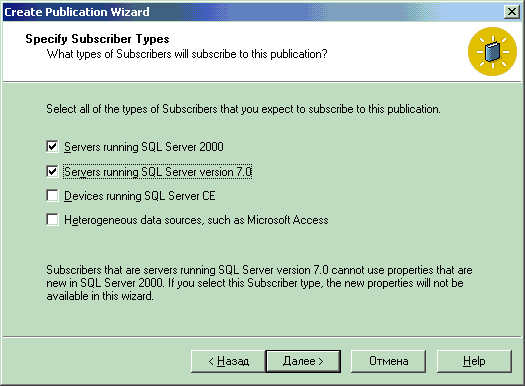
Select all of the types of Subscribers that you expect to subscribe to this publication and click the Next button, as shown in Figure 17.
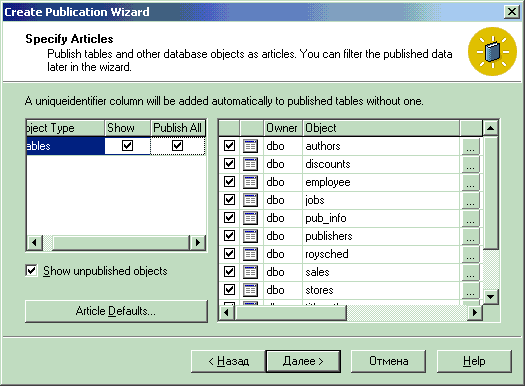
Check Publish All checkbox to publish all tables from the pubs database and click the Next button, as shown in Figure 18.
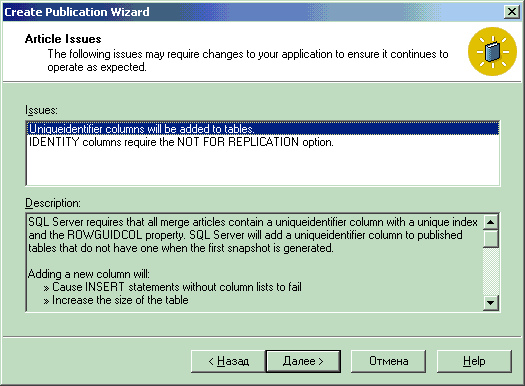
Click the Next button, as shown in Figure 19, to add uniqueidentifier columns in all tables in the pubs database and set the NOT FOR REPLICATION option to the IDENTITY column of the jobs table.
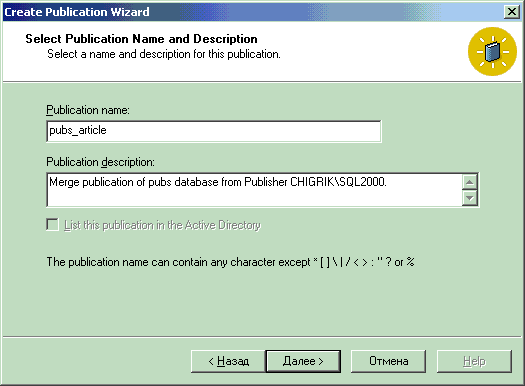
Specify pubs_article as the publication name and click the Next button, as shown in Figure 20.
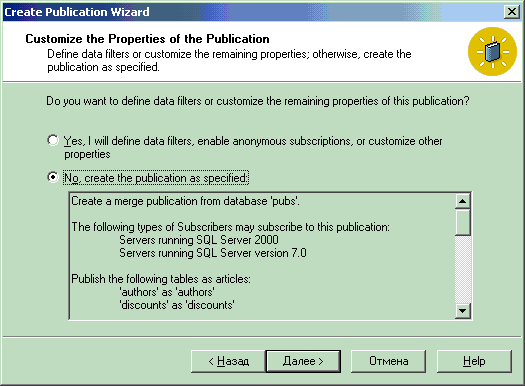
You can specify data filters on this step, but in this example, we don’t use any data filters. Check No, create the publication as specifiedand click the Next button, as shown in Figure 21.
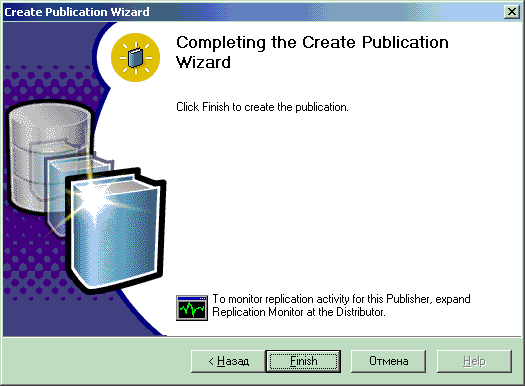
Click the Finish button to create the publication, as shown in Figure 22.
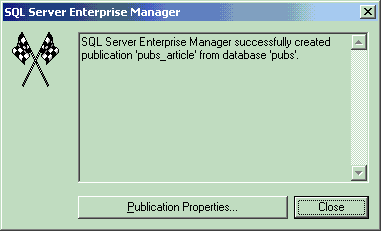
Now the ‘pubs_article’ publication was created, so click the Close button, as shown in Figure 23.
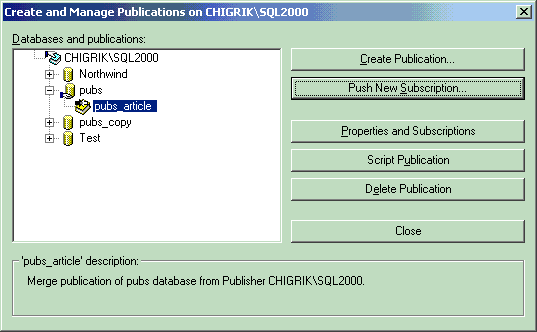
Now you can create new subscription. Click the Push New Subscription button, as shown in Figure 24.
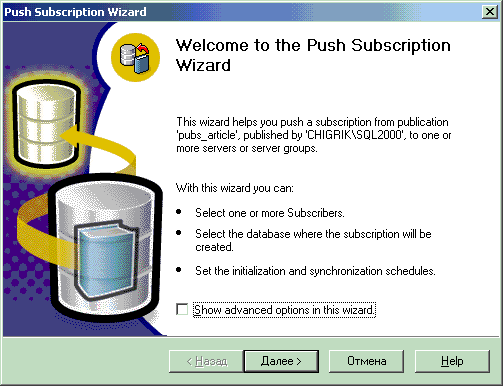
This will launch the Push Subscription wizard shown in Figure 25. Click the Next button.
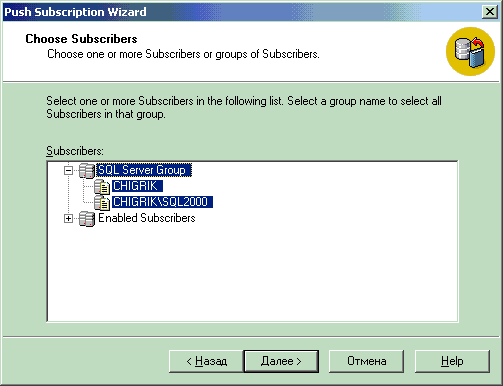
Click on the SQL Server Group to select all subscribers in the CHIGRIK and CHIGRIK\SQL2000 groups and click the Next button, as shown in Figure 26.
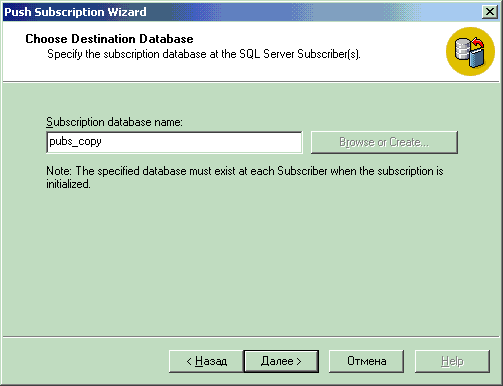
Select pubs_copy database as the subscription database and click the Next button, as shown in Figure 27.
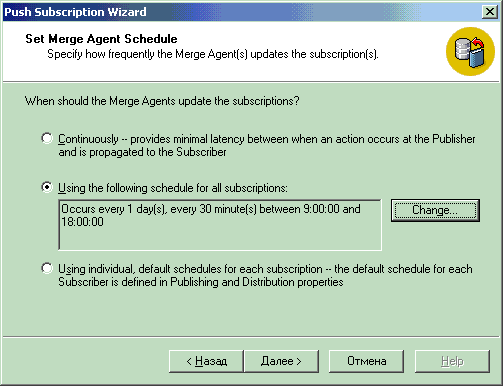
Specify how frequently Distribution Agent will update the subscription (in this example, every 1 day(s), every 30 minute(s) between 9:00:00 and 18:00:00) and click the Next button, as shown in Figure 28.
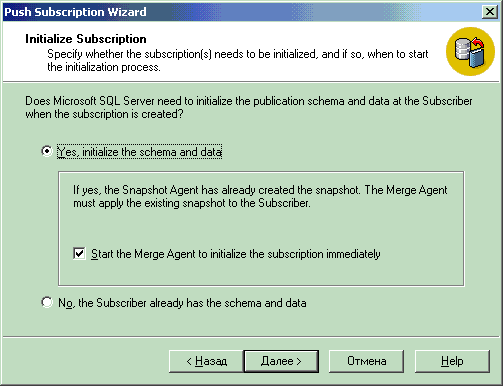
Check Start the Merge Agent to initialize the subscription immediatelyand click the Next button, as shown in Figure 29.
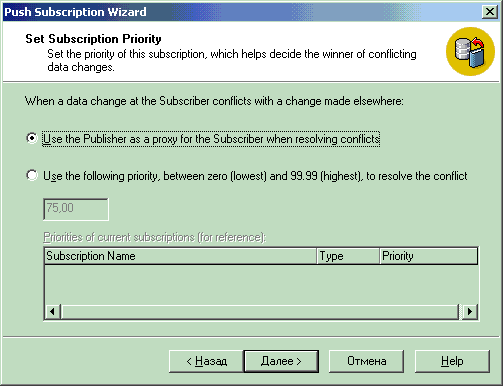
Now you can set the subscription priority, which helps decide the
winner of conflicting data changes. Check Use the Publisher as a proxy for the Subscriber when resolving conflictsand click the Next button, as shown in Figure 30.
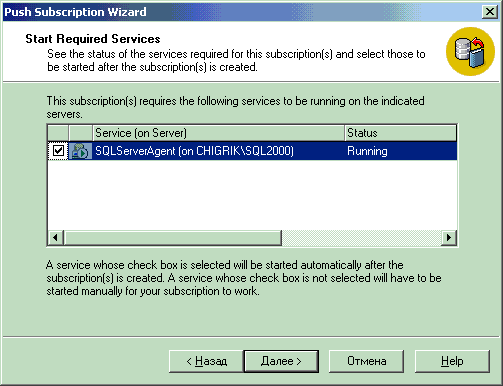
Click the Next button, as shown in Figure 31.
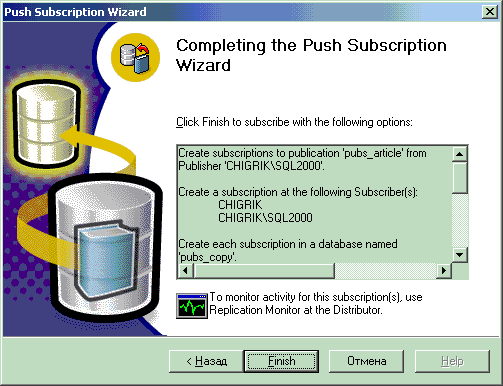
Click the Finish button to subscribe with the options you specified in the previous steps, as shown in Figure 32.
Click the Close button, as shown in Figure 33.

Click the Close button to close the Create and Manage Publication dialog, as shown in Figure 24.
The last step of setting up Merge replication should be creating a current script of your replication settings. It can be useful to help recover your replication settings in the event of server failure.
Select
Tools =>
Replication =>
Generate SQL Script…
as shown in Figure 34.

Backup and restore strategies
The backup and restore strategies differ for each of the replication types. Here, I want to describe the backup and restore strategies for the Merge replication.
Because Merge replication is more complicated than Snapshot or Transactional replication, and is usually used when you want to update data on both publisher and subscribers, you should expect to spend more time and attention in planning backup and restore strategies in more detail.
There are four main strategies for backing up and restoring Merge replication:
- Backup Publisher, master and model databases.
- Backup Publisher, Distributor, master and model databases.
- Backup Publisher, Subscriber(s), master and model databases.
- Backup Publisher, Distributor, Subscriber(s), master and model databases.
Backing up Publisher, master and model databases is the simplest strategy. This strategy has its own advantages and disadvantages. The advantages are that it requires the least amount of storage resources and does not require coordinating the backup with the backup of any other servers. The main disadvantage of this strategy is that you may need to set up replication from the beginning in the event of a Publisher or Distributor failure. With this strategy, you should back up the publication database after changing existing publications, after the new publications have been added, or whenever changes are made to a replicated objects schema (for example, adding or dropping a column).
Backing up Publisher, Distributor, master and model databases is a strategy used more rarely than the first one, because in most cases, it is not necessary to restore a distribution database when restoring a publication database backup for merge publications. This is because the distribution database does not store any data used in change tracking, and it does not provide temporary storage of merge replication changes. The main disadvantage of this strategy is that you need to back up Publisher and Distributor’s databases simultaneously (or as closely as possible). It also requires more computing and storage resources than the first way.
Backing up Publisher, Subscriber(s), master and model databases is used when some changes have been made on Subscriber(s) and you need these changes to be synchronized with the publication database.
Backup Publisher, Distributor, Subscriber(s), master and model databases is the most complex backup strategy. The main advantage of this strategy is that, in the event of a Publisher, Distributor or Subscriber(s) failure, you can quickly restore a failed database without setting up replication from the beginning. The disadvantage of this strategy is that you should back up Publisher and Distributor’s databases simultaneously (or as closely as possible). This strategy also requires the most computing and storage resources.
For each of the strategies you should back up msdb and master databases on the Publisher, Distributor and Subscriber(s). msdb database is used by SQL Server Agent for scheduling alerts and jobs, and master database is a main system database contains entries for each Subscriber(s), each login account, about system configuration settings and so on.
Note.It is strongly recommended that you make and keep a current script of your replication settings. It can be useful in helping to recover your replication settings in the event of server failure.
Literature
1. SQL Server Books Online.
2. How Merge Replication Works
http://msdn.microsoft.com/library/en-us/replsql/repltypes_30z7.asp
3. Planning for Merge Replication
http://msdn.microsoft.com/library/en-us/replsql/replplan_2ipa.asp
4. Enhancing Merge Replication Performance
http://msdn.microsoft.com/library/en-us/replsql/replperf_5kx1.asp
5. Merge Replication
http://msdn.microsoft.com/library/en-us/replsql/repltypes_6my6.asp
6. Strategies for Backing Up and Restoring Merge Replication
http://msdn.microsoft.com/library/en-us/replsql/replbackup_9v3i.asp
7. Replication Types
http://msdn.microsoft.com/library/en-us/howtosql/ht_repl_sph_7ka0.asp