


Server and Client Components using .ini File
In Part I and Part II of this series, we saw how to install the SQL Server 2005 Data Service component. In this section of this series, I am going to illustrate how to install SQL Server 2005 Database Services and SQL Server Analysis Services on a host machine using an .ini file.
Let us assume that we needed SQL Server 2005 Database Service and SQL Server Analysis Services installed on the host machine and let us assume that we are going to create a named instance “JANE.”
Let us also assume that we are going to install all the binaries in C drive, c:\Binaries, and all the data files on to C:\DSDEVICE and C:\ASDEVICE.
Step 1
Place the installation DVD in the DVD drive or copy the entire DVD on to a network shared drive and share that network drive.
Step2
Create the following folders. Refer Fig 1.0.
MKDIR  C:\Binaries
MKDIR C:\DSDEVICE
MKDIR C:\ASDEVICE
MKDIR C:\INSTALL
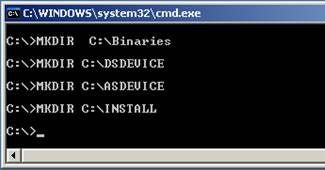
Fig 1.0
Step 3
Create C:\install\setup.ini file with the following information. Refer Fig 1.1.
[Options]
ADDLOCAL=SQL_Engine,Analysis_Server, AnalysisSharedTools,Client_Components, Connectivity,SQL_Documentation,SQL_Tools90
INSTALLSQLDIR=C:\Binaries
INSTALLSQLSHAREDDIR=C:\Binaries
INSTALLSQLDATADIR=C:\DSDEVICE
INSTALLASDATADIR=C:\ASDEVICE
INSTANCENAME=JANE
SECURITYMODE=SQL
SAPWD= KuR0Z@w@
SQLACCOUNT=kurozawa\SQLServer
SQLPASSWORD=SQL@dd!ct
AGTACCOUNT=kurozawa\SQLServer
AGTPASSWORD=SQL@dd!ct
ASACCOUNT=kurozawa\SQLServer
ASPASSWORD=SQL@dd!ct
SQLBROWSERACCOUNT=kurozawa\SQLServer
SQLBROWSERPASSWORD=SQL@dd!ct
SQLCOLLATION=Latin1_General_CI_AS
ASCOLLATION=Latin1_General_CI_AS
DISABLENETWORKPROTOCOLS=0
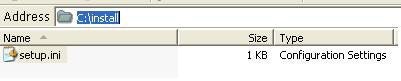
Fig 1.1
Step 4
Note: Please update the information like Instance name, collation, login and passwords in C:\Install\setup.ini according to your requirements.
Click on the Start button on the task bar, click run, type the command CMD.exe, which opens the MS-DOS shell command prompt.
Step 5
Type the following command if you are using the shared drive. Refer Figure 1.2.
H:\Servers\Setup.exe /settings C:\install\setup.ini /qb
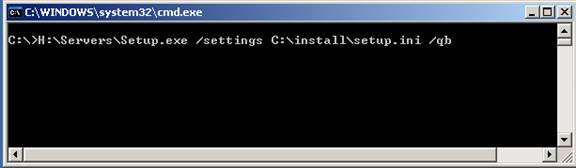
Fig 1.2
Note: H:\ is the drive letter of my computer’s DVD drive.
Note: If you are using UNC path the command should be:
\\Fileserver\sharedrive\Servers\Setup.exe /settings C:\Install\setup.ini /qb
\\Fileserver should be replaced with your file server name and shared drive should be replaced with your actual shared drive name.
You would see the following screen. [Fig 1.3, Fig 1.4, Fig 1.5, Fig 1.6 and Fig 1.7]
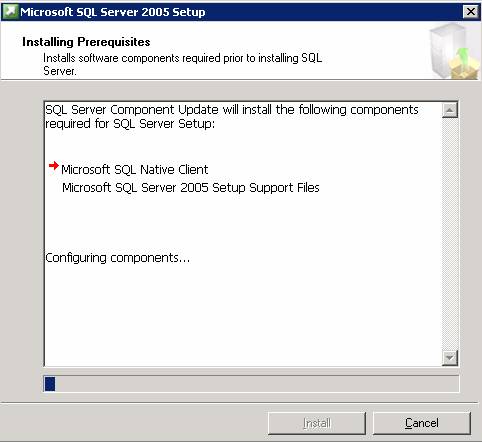
Fig 1.3
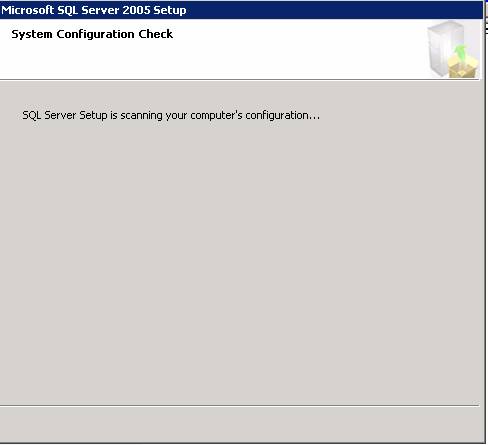
Fig 1.4
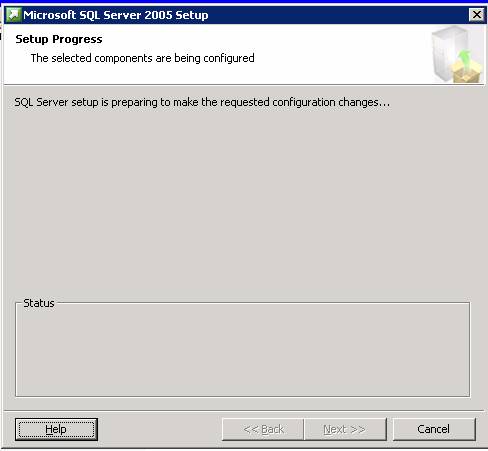
Fig 1.5
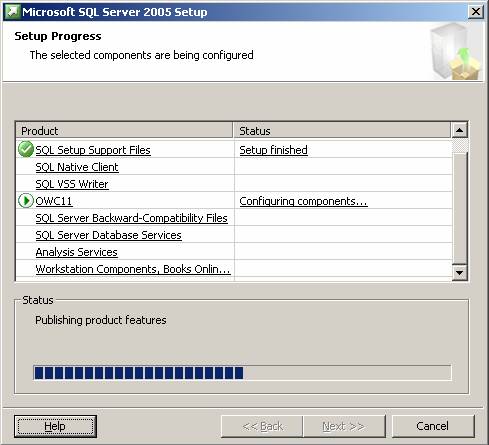
Fig 1.6
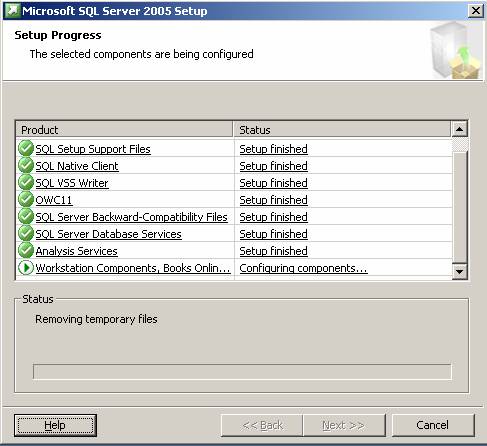
Fig 1.7
You would see the following items in the Add/Remove programs under control panel. [Fig 1.8]
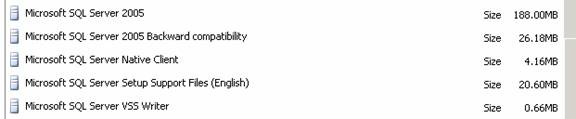
Fig 1.8
Verify the log, “C:\Program Files\Microsoft SQL Server\90\Setup Bootstrap\LOG\summary.txt,” after the installation. The log looks similar to the text shown below.
Microsoft SQL Server 2005 9.00.1399.06
==============================
OS Version      : Microsoft Windows Server 2003 family, Enterprise Edition Service Pack 1 (Build 3790)
Time            : Mon Jun 26 19:13:34 2006
KUROZAWA : Microsoft Internet Information Services (IIS) is either not installed or is disabled. IIS is required by some SQL Server features.
Without IIS, some SQL Server features will not be available for installation. To install all SQL Server features, install IIS from Add or Remove
Programs in Control Panel or enable the IIS service through the Control Panel if it is already installed, and then run SQL Server Setup again. For a
list of features that depend on IIS, see Features Supported by Editions of SQL Server in Books Online.
Machine         : KUROZAWA
Product         : Microsoft SQL Server Setup Support Files (English)
Product Version : 9.00.1399.06
Install         : Successful
Log File        : C:\Program Files\Microsoft SQL Server\90\Setup Bootstrap\LOG\Files\SQLSetup0001_KUROZAWA_SQLSupport_1.log
——————————————————————————–
Machine         : KUROZAWA
Product         : Microsoft Office 2003 Web Components
Product Version : 11.0.6558.0
Install         : Successful
Log File        : C:\Program Files\Microsoft SQL Server\90\Setup Bootstrap\LOG\Files\SQLSetup0001_KUROZAWA_OWC11_1.log
——————————————————————————–
Machine         : KUROZAWA
Product         : Microsoft SQL Server 2005 Backward compatibility
Product Version : 8.05.1054
Install         : Successful
Log File        : C:\Program Files\Microsoft SQL Server\90\Setup Bootstrap\LOG\Files\SQLSetup0001_KUROZAWA_BackwardsCompat_1.log
——————————————————————————–
Machine         : KUROZAWA
Product         : MSXML 6.0 Parser
Product Version : 6.00.3883.8
Install         : Successful
Log File        : C:\Program Files\Microsoft SQL Server\90\Setup Bootstrap\LOG\Files\SQLSetup0001_KUROZAWA_MSXML6_1.log
——————————————————————————–
Machine         : KUROZAWA
Product         : Microsoft SQL Server Setup Support Files (English)
Product Version : 9.00.1399.06
Install         : Successful
Log File        : C:\Program Files\Microsoft SQL Server\90\Setup Bootstrap\LOG\Files\SQLSetup0001_KUROZAWA_SQLSupport_2.log
——————————————————————————–
Machine         : KUROZAWA
Product         : Microsoft SQL Server Native Client
Product Version : 9.00.1399.06
Install         : Successful
Log File        : C:\Program Files\Microsoft SQL Server\90\Setup Bootstrap\LOG\Files\SQLSetup0001_KUROZAWA_SQLNCLI_1.log
——————————————————————————–
Machine         : KUROZAWA
Product         : Microsoft Office 2003 Web Components
Product Version : 11.0.6558.0
Install         : Successful
Log File        : C:\Program Files\Microsoft SQL Server\90\Setup Bootstrap\LOG\Files\SQLSetup0001_KUROZAWA_OWC11_2.log
——————————————————————————–
Machine         : KUROZAWA
Product         : Microsoft SQL Server VSS Writer
Product Version : 9.00.1399.06
Install         : Successful
Log File        : C:\Program Files\Microsoft SQL Server\90\Setup Bootstrap\LOG\Files\SQLSetup0001_KUROZAWA_SqlWriter_1.log
——————————————————————————–
Machine         : KUROZAWA
Product         : Microsoft SQL Server 2005 Backward compatibility
Product Version : 8.05.1054
Install         : Successful
Log File        : C:\Program Files\Microsoft SQL Server\90\Setup Bootstrap\LOG\Files\SQLSetup0001_KUROZAWA_BackwardsCompat_2.log
——————————————————————————–
Machine         : KUROZAWA
Product         : MSXML 6.0 Parser
Product Version : 6.00.3883.8
Install         : Successful
Log File        : C:\Program Files\Microsoft SQL Server\90\Setup Bootstrap\LOG\Files\SQLSetup0001_KUROZAWA_MSXML6_2.log
——————————————————————————–
Machine         : KUROZAWA
Product         : Microsoft SQL Server Setup Support Files (English)
Product Version : 9.00.1399.06
Install         : Successful
Log File        : C:\Program Files\Microsoft SQL Server\90\Setup Bootstrap\LOG\Files\SQLSetup0001_KUROZAWA_SQLSupport_3.log
——————————————————————————–
Machine         : KUROZAWA
Product         : Microsoft SQL Server Native Client
Product Version : 9.00.1399.06
Install         : Successful
Log File        : C:\Program Files\Microsoft SQL Server\90\Setup Bootstrap\LOG\Files\SQLSetup0001_KUROZAWA_SQLNCLI_2.log
——————————————————————————–
Machine         : KUROZAWA
Product         : Microsoft Office 2003 Web Components
Product Version : 11.0.6558.0
Install         : Successful
Log File        : C:\Program Files\Microsoft SQL Server\90\Setup Bootstrap\LOG\Files\SQLSetup0001_KUROZAWA_OWC11_3.log
——————————————————————————–
Machine         : KUROZAWA
Product         : Microsoft SQL Server 2005 Backward compatibility
Product Version : 8.05.1054
Install         : Successful
Log File        : C:\Program Files\Microsoft SQL Server\90\Setup Bootstrap\LOG\Files\SQLSetup0001_KUROZAWA_BackwardsCompat_3.log
——————————————————————————–
Machine         : KUROZAWA
Product         : MSXML 6.0 Parser
Product Version : 6.00.3883.8
Install         : Successful
Log File        : C:\Program Files\Microsoft SQL Server\90\Setup Bootstrap\LOG\Files\SQLSetup0001_KUROZAWA_MSXML6_3.log
——————————————————————————–
Machine         : KUROZAWA
Product         : Microsoft SQL Server 2005
Product Version : 9.00.1399.06
Install         : Successful
Log File        : C:\Program Files\Microsoft SQL Server\90\Setup Bootstrap\LOG\Files\SQLSetup0001_KUROZAWA_SQL.log
——————————————————————————–
Machine         : KUROZAWA
Product         : Microsoft SQL Server 2005 Analysis Services
Product Version : 9.00.1399.06
Install         : Successful
Log File        : C:\Program Files\Microsoft SQL Server\90\Setup Bootstrap\LOG\Files\SQLSetup0001_KUROZAWA_AS.log
——————————————————————————–
Machine         : KUROZAWA
Product         : Microsoft SQL Server 2005 Tools
Product Version : 9.00.1399.06
Install         : Successful
Log File        : C:\Program Files\Microsoft SQL Server\90\Setup Bootstrap\LOG\Files\SQLSetup0001_KUROZAWA_Tools.log
——————————————————————————–
 Setup succeeded with the installation; inspect the log file completely for the status on all the components.
Time            : Mon Jun 26 19:19:22 2006
You can verify all the log files for installation status and history details in:
“C:\Program Files\Microsoft SQL Server\90\Setup Bootstrap\LOG\Files”
Please refer Fig 1.9.
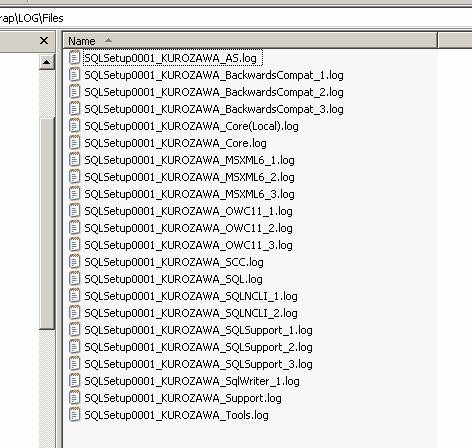
Fig 1.9
Now let us look at the services. Click start, click Run and type services.msc and you could see the following services. Refer Figure 2.0.
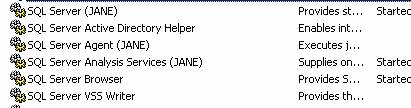
Fig 2.0
In addition, you could see the following programs under program files. Refer Fig 2.1.
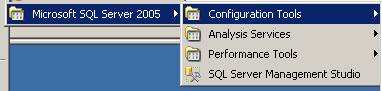
Fig 2.1
You could also see new folders and files are created under C:\Binaries C:\ASDEVICE C:\DSDEVICE. Refer Fig 2.2.
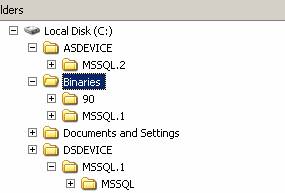
Fig 2.2
Click on Configuration manager and make sure protocols are enabled. Fig 2.3.

Fig 2.3
Try to connect to the database Engine instance, “JANE.” Refer fig 2.4.
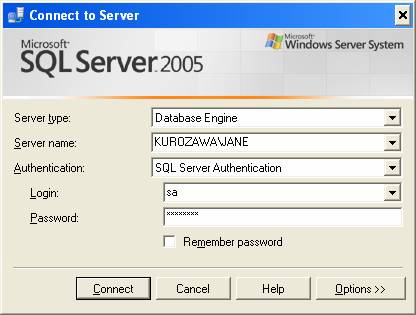
Fig 2.4
Try to connect to the Analysis Services instance, “JANE.” Refer Fig 2.5.
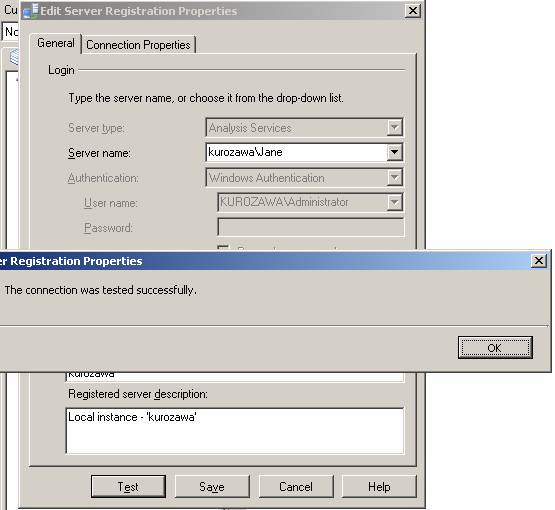
Fig 2.5
If you use /qn as the switch, instead of /qb, then setup suppresses all Setup dialog boxes and error messages. If the /qn switch is specified, all Setup messages, including error messages, are written to Setup log files.
Delete the folder c:\install.
Empty the recycle bin.
Conclusion
SQL Server 2005 can be installed using the GUI, the .ini file or just run setup.exe with a bunch of parameters. In this section of this series, we learned how to install SQL Server 2005 database services and SQL Server Analysis Services installed on a host machine using an .ini file.