


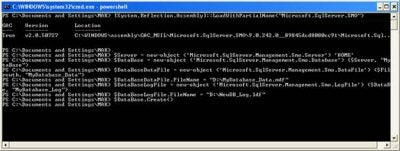
The above command created the ‘MyDatabase’ database on the
‘HOME’ server, using the default values and path. [Refer Fig 1.1 and 1.2]
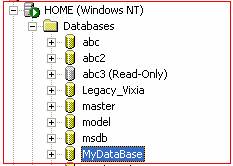
Fig 1.1
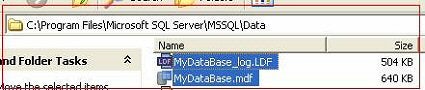
Fig 1.2
Method 2
Let us assume that we have to create a new database named
‘MyDatabase1’ on the ‘HOME’ server. Let us also assume that the data file
should be 25MB, with the Data file and log file on D drive.
Execute the following command in PowerShell as shown
below. [Refer Fig 1.3]
[System.Reflection.Assembly]::LoadWithPartialName(“Microsoft.SqlServer.SMO”)
$Server = new-object (‘Microsoft.SqlServer.Management.Smo.Server’) ‘HOME’
$DataBase = new-object (‘Microsoft.SqlServer.Management.Smo.Database’)
	($Server, “MyDataBase1”)
$FileGrowth = new-object (‘Microsoft.SqlServer.Management.Smo.FileGroup’)
	($DataBase, “PRIMARY”)
$DataBase.FileGroups.Add($FileGrowth)
$DataBaseDataFile = new-object (‘Microsoft.SqlServer.Management.Smo.DataFile’)
	($FileGrowth, “MyDatabas1e_Data”)
$FileGrowth.Files.Add($DataBaseDataFile)
$DataBaseDataFile.FileName = “D:\MyDatabase1_Data.mdf”
$DataBaseDataFile.Size = [double](25.0 * 1024.0)
$DataBaseDataFile.GrowthType = “Percent”
$DataBaseDataFile.Growth = 25.0
$DataBaseDataFile.MaxSize = [double](100.0 * 1024.0)
$DataBaseLogFile = new-object (‘Microsoft.SqlServer.Management.Smo.LogFile’) ($DataBase, “MyDatabase1_Log”)
$DataBaseLogFile.FileName = “D:\MyDatabase1_Log.ldf”
$DataBase.Create()
The above cmdlets creates the ‘Mydatabase1’ database on
the ‘HOME’ server, with a 25MB data file and both the Log file and Data file
are created on D Drive. [Refer Fig. 1.3, 1.4]
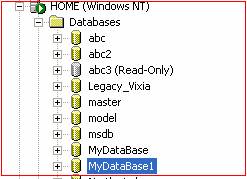
Fig 1.3

Fig 1.4
Method 3
Let us create a script that allows us to create any
database on any server with any size and path we like.
Create the following file as shown below and save it as createdb.ps1. [Refer Fig 1.5]
param (
  [string] $ServerName,
  [string] $DatabaseName,
  [Double] $DataSize ,
  [string] $DataPath,
  [string] $LogPath
)
echo “Creating Database…..”
echo “———————-”
echo “Input…”
echo “Server Name : $ServerName”
echo “Database Name : $DatabaseName”
echo “Data Size  :  $DataSize”
echo “Data File Path :  $DataPath”
echo “Log File Path : $LogPath”
$LogicalDataFile=$DatabaseName + “_Data”
$LogicalLogFIle=$DatabaseName + “_Log”
$datapath1=$DataPath + “\” + $DatabaseName + “_Data.mdf”
$Logpath1=$LogPath  + “\” + $DatabaseName +  “_Log.ldf”
$DataSize1=[double]($DataSize * 1024.0)
[System.Reflection.Assembly]::LoadWithPartialName(“Microsoft.SqlServer.SMO”)
$Server = new-object (‘Microsoft.SqlServer.Management.Smo.Server’) $ServerName
$DataBase = new-object (‘Microsoft.SqlServer.Management.Smo.Database’) ($Server, $DatabaseName)
$FileGrowth = new-object (‘Microsoft.SqlServer.Management.Smo.FileGroup’) ($DataBase, “PRIMARY”)
$DataBase.FileGroups.Add($FileGrowth)
$DataBaseDataFile = new-object (‘Microsoft.SqlServer.Management.Smo.DataFile’) ($FileGrowth, $LogicalDataFile)
$FileGrowth.Files.Add($DataBaseDataFile)
$DataBaseDataFile.FileName = $datapath1
$DataBaseDataFile.Size = [double]( $DataSize1 )
$DataBaseDataFile.GrowthType = “Percent”
$DataBaseDataFile.Growth = 25.0
$DataBaseDataFile.MaxSize = [double](100.0 * 1024.0)
$DataBaseLogFile = new-object (‘Microsoft.SqlServer.Management.Smo.LogFile’) ($DataBase, $LogicalLogFIle)
$DataBaseLogFile.FileName = $Logpath1
$DataBase.Create()
echo “Output….”
echo “Logical name of Data is $LogicalDataFile”
echo “Logical name of Log is $LogicalLogFile”
echo “Data File Path is $datapath1”
echo “Log file path is $LogPath1”
echo “Size of the file is $DataSize1”
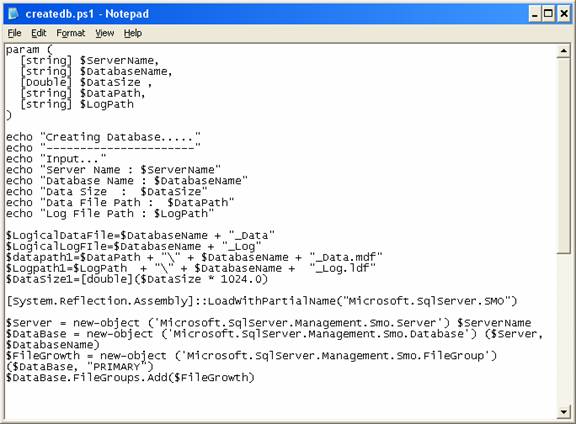
Fig 1.5
Now execute the PowerShell script file as shown below. [Refer
Fig 1.6]
./createdb.ps1 HOME MyDatabase2 30 D: D:
Note:
HOME is the server name
MyDatabase2 is the database name
30 is MB data size
D: is the location of the data Path
D: is the location of the Log Path
Output
PS C:\ps> ./createdb.ps1 HOME MyDatabase2 30 D: D:
Creating Database…..
———————-
Input…
Server Name : HOME
Database Name : MyDatabase2
Data Size  :  30
Data File Path :  D:
Log File Path : D:
GAC    Version        Location
—    ——-        ——–
True   v2.0.50727     C:\WINDOWS\assembly\GAC_MSIL\Microsoft.SqlServer.SMO\9.0.242.0__89845dcd8080cc91\Microsoft.Sql.
Output….
Logical name of Data is MyDatabase2_Data
Logical name of Log is MyDatabase2_Log
Data File Path is D:\MyDatabase2_Data.mdf
Log file path is D:\MyDatabase2_Log.ldf
Size of the file is 30720
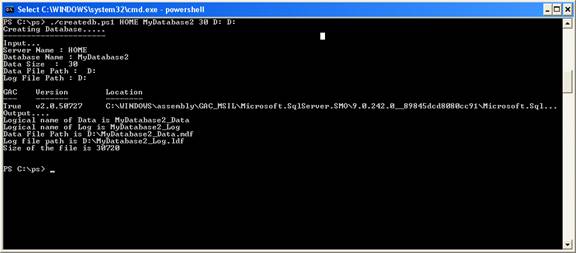
Fig 1.6
The following code generates the output, which actually
clutters the desired output.
Code
[System.Reflection.Assembly]::LoadWithPartialName("Microsoft.SqlServer.SMO")
Output
GAC    Version        Location
—    ——-        ——–
True   v2.0.50727     C:\WINDOWS\assembly\GAC_MSIL\Microsoft.SqlServer.SMO\9.0.242.0__89845dcd8080cc91\Microsoft.Sql…
This can be avoided by redirecting the output to NULL.
param (
  [string] $ServerName,
  [string] $DatabaseName,
  [Double] $DataSize ,
  [string] $DataPath,
  [string] $LogPath
)
echo “Creating Database…..”
echo “———————-”
echo “Input…”
echo “Server Name : $ServerName”
echo “Database Name : $DatabaseName”
echo “Data Size  :  $DataSize”
echo “Data File Path :  $DataPath”
echo “Log File Path : $LogPath”
$LogicalDataFile=$DatabaseName + “_Data”
$LogicalLogFIle=$DatabaseName + “_Log”
$datapath1=$DataPath + “\” + $DatabaseName + “_Data.mdf”
$Logpath1=$LogPath  + “\” + $DatabaseName +  “_Log.ldf”
$DataSize1=[double]($DataSize * 1024.0)
[System.Reflection.Assembly]::LoadWithPartialName(“Microsoft.SqlServer.SMO”)  | out-null
$Server = new-object (‘Microsoft.SqlServer.Management.Smo.Server’) $ServerName
$DataBase = new-object (‘Microsoft.SqlServer.Management.Smo.Database’) ($Server, $DatabaseName)
$FileGrowth = new-object (‘Microsoft.SqlServer.Management.Smo.FileGroup’) ($DataBase, “PRIMARY”)
$DataBase.FileGroups.Add($FileGrowth)
$DataBaseDataFile = new-object (‘Microsoft.SqlServer.Management.Smo.DataFile’) ($FileGrowth, $LogicalDataFile)
$FileGrowth.Files.Add($DataBaseDataFile)
$DataBaseDataFile.FileName = $datapath1
$DataBaseDataFile.Size = [double]( $DataSize1 )
$DataBaseDataFile.GrowthType = “Percent”
$DataBaseDataFile.Growth = 25.0
$DataBaseDataFile.MaxSize = [double](100.0 * 1024.0)
$DataBaseLogFile = new-object (‘Microsoft.SqlServer.Management.Smo.LogFile’) ($DataBase, $LogicalLogFIle)
$DataBaseLogFile.FileName = $Logpath1
$DataBase.Create()
echo “Output….”
echo “Logical name of Data is $LogicalDataFile”
echo “Logical name of Log is $LogicalLogFile”
echo “Data File Path is $datapath1”
echo “Log file path is $LogPath1”
echo “Size of the file is $DataSize1”
Now execute the PowerShell script file as shown below. [Refer
Fig 1.7]
./createdb.ps1 HOME MyDatabase2 30 D: D:
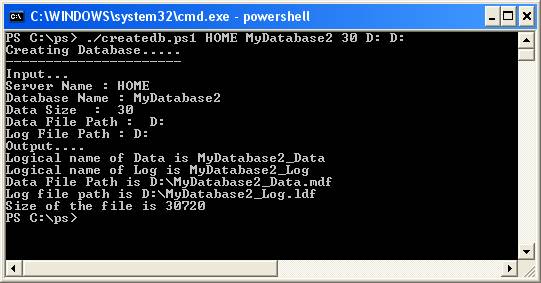
Fig 1.7
Output
PS C:\ps> ./createdb.ps1 HOME MyDatabase2 30 D: D:
Creating Database…..
———————-
Input…
Server Name : HOME
Database Name : MyDatabase2
Data Size  :  30
Data File Path :  D:
Log File Path : D:
Output….
Logical name of Data is MyDatabase2_Data
Logical name of Log is MyDatabase2_Log
Data File Path is D:\MyDatabase2_Data.mdf
Log file path is D:\MyDatabase2_Log.ldf
Size of the file is 30720
Conclusion
Part 5 of this series has illustrated how to use PowerShell
and PowerShell script to create databases etc.