


Export output to XML
Part 1
and Part
2 of this series discussed Power Shell installation and simple SMO, WMI cmdlets.
Part
3 covered how to script PowerShell and connect to SQL Server. Part 4
explained how to use a PowerShell script to loop through the content of a file
and connect to different servers. Part 5
examined creating a SQL Server database using PowerShell and SMO. Part 6
talked about backing up a SQL Server database using PowerShell and SMO. Part 7
illustrated how to list all of the objects in a database and part 8
demonstrated how to list all of the properties of the objects in a database
using PowerShell and SMO. Part 9
of this article series illustrated how to use PowerShell and SMO to generate a
script for database and tables. Part
10 illustrated creating the PowerShell script to generate a script for the
database and tables.
This installment of the
series illustrates how to use PowerShell cmdlets in conjunction with the SQL
Server client and output redirection to export to a text file or XML file.
Let us assume we want to
query any SQL Server table using transact sql and store the output in text
format or in XML format. Using PowerShell cmdlets, SQL Server client connection
and output redirection, this can be achieved very easily.
Let us create
c:\ps\output.ps1 as shown below. [Refer Fig 1.1]
param
(
  [string] $SQLServer,
  [string] $Database,
  [string] $outputType,
  [string] $filename,
  [string] $Query
)
$SqlConnection = New-Object System.Data.SqlClient.SqlConnection
$SqlConnection.ConnectionString =
“Server=$SQLSERVER;Database=$DATABASE;Integrated Security=True”
$SqlCmd = New-Object System.Data.SqlClient.SqlCommand
$SqlCmd.CommandText = $Query
$SqlCmd.Connection = $SqlConnection
$SqlAdapter = New-Object System.Data.SqlClient.SqlDataAdapter
$SqlAdapter.SelectCommand = $SqlCmd
$DataSet = New-Object System.Data.DataSet
$SqlAdapter.Fill($DataSet)
$SqlConnection.Close()
if ($outputType  -eq “Text”)
{
$DataSet.Tables[0] | format-table -auto > $filename
}
if ($outputType  -eq “xml”)
{
$DataSet.Tables[0] |Export-Clixml $filename
}
Click for larger image

Fig 1.1
This
script can be executed as shown below. [Refer Fig 1.2]
./output "HOME\SQLEXPRESS" "VixiaTrack" "TEXT" "c:\test.txt" "Select dbid,name from sys.sysdatabases"

Fig 1.2
Parameters explained:
-
output is actually the output.ps1 script
in the folder c:\ps - HOME is the hostname
-
SQLEXPRESS is the sql server instance name
on the host HOME -
VixiaTrack
is the
database name that resides in the SQLEXPRESS instance - C:\test.txt is the filename and its location
-
Select dbid,name
from sys.sysdatabases
is the actual Transact SQL query executed against the database
TEXT
is the ouput format desired. It could be TEXT or XML
When the
PowerShell script is executed, it queries the database and saves the output to
a text file that has been passed as parameter. [Refer Fig 1.3 and Fig 1.4]

Fig 1.3
Content of the test.txt file
dbid name
—- —-
   1 master
   2 tempdb
   3 model
   4 msdb
   5 test
   6 VixiaTrack
   7 XMLTest
   8 admin
   9 AdventureWorks
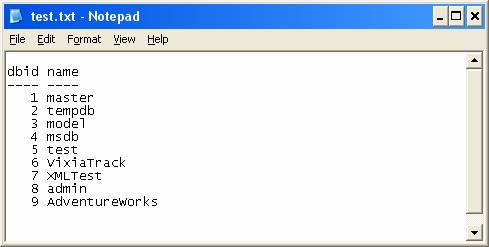
Fig 1.4
The same
PowerShell script can be executed using XML as the parameter in order to
generate the result in XML format.
This
script can be executed as shown below. [Refer Fig 1.5]
./output "HOME\SQLEXPRESS" "VixiaTrack" "XML" "c:\test.xml" "Select dbid,name from sys.sysdatabases"

Fig 1.5
Parameters explained:
-
output is actually the output.ps1 script
in the folder c:\ps - HOME is the hostname
-
SQLEXPRESS is the sql server instance name
on the host HOME -
VixiaTrack
is the
database name that resides in SQLEXPRESS instance - C:\test.txt is the filename and its location.
-
Select dbid,name
from sys.sysdatabases
is the actual Transact SQL query executed against the database
XML
is the ouput format desired. It could be TEXT or XML.
When the
PowerShell script is executed, it queries the database and saves the output to
a XML file that has been passed as parameter. [Refer Fig 1.6 and Fig 1.7]

Fig 1.6
Content
of the test.xml file
– <Objs Version=”1.1″ >
– <Obj RefId=”RefId-0″>
– <TN RefId=”RefId-0″>
  <T>System.Data.DataRow</T>
  <T>System.Object</T>
  </TN>
– <Props>
  <I16 N=”dbid”>1</I16>
  <S N=”name”>master</S>
  </Props>
  </Obj>
– <Obj RefId=”RefId-0″>
  <TNRef RefId=”RefId-0″ />
– <Props>
  <I16 N=”dbid”>2</I16>
  <S N=”name”>tempdb</S>
  </Props>
  </Obj>
– <Obj RefId=”RefId-0″>
  <TNRef RefId=”RefId-0″ />
– <Props>
  <I16 N=”dbid”>3</I16>
  <S N=”name”>model</S>
  </Props>
  </Obj>
– <Obj RefId=”RefId-0″>
  <TNRef RefId=”RefId-0″ />
– <Props>
  <I16 N=”dbid”>4</I16>
  <S N=”name”>msdb</S>
  </Props>
  </Obj>
– <Obj RefId=”RefId-0″>
  <TNRef RefId=”RefId-0″ />
– <Props>
  <I16 N=”dbid”>5</I16>
  <S N=”name”>test</S>
  </Props>
  </Obj>
– <Obj RefId=”RefId-0″>
  <TNRef RefId=”RefId-0″ />
– <Props>
  <I16 N=”dbid”>6</I16>
  <S N=”name”>VixiaTrack</S>
  </Props>
  </Obj>
– <Obj RefId=”RefId-0″>
  <TNRef RefId=”RefId-0″ />
– <Props>
  <I16 N=”dbid”>7</I16>
  <S N=”name”>XMLTest</S>
  </Props>
  </Obj>
– <Obj RefId=”RefId-0″>
  <TNRef RefId=”RefId-0″ />
– <Props>
  <I16 N=”dbid”>8</I16>
  <S N=”name”>admin</S>
  </Props>
  </Obj>
– <Obj RefId=”RefId-0″>
  <TNRef RefId=”RefId-0″ />
– <Props>
  <I16 N=”dbid”>9</I16>
  <S N=”name”>AdventureWorks</S>
  </Props>
  </Obj>
  </Objs>
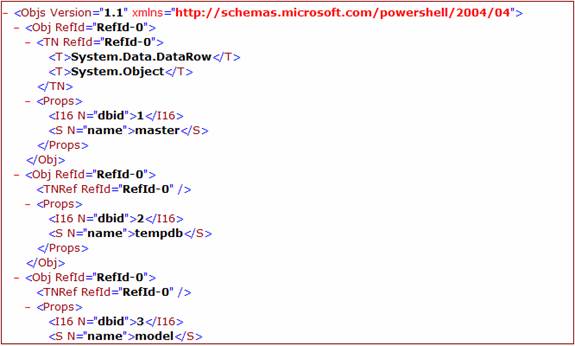
Fig 1.7
Conclusion
Part 11 of this article
series illustrated how to use PowerShell cmdlets in conjunction with the SQL
Server client and output redirection to export to a text file or XML file.