Part I of this series illustrated the
first and foremost check on SQL Serverhow to ping the host. Part 2 examined how to check all of the
windows services related to SQL Server and part 3 discussed how to check the
hardware and operating system information. Part 4
illustrated how to get hard disk and network adapter information from the host
machine. In this installment we are going to check to see if we can connect to
SQL Server and if we can query some SQL Server related properties.
Step 1
Type or
copy and paste the following code to C:\CheckSQLServer\Checkinstance.ps1.
function checkinstance(
[string] $servername
)
{
$SqlConnection = New-Object System.Data.SqlClient.SqlConnection
$SqlCmd = New-Object System.Data.SqlClient.SqlCommand
$SqlAdapter = New-Object System.Data.SqlClient.SqlDataAdapter
$DataSet = New-Object System.Data.DataSet
$SqlConnection.ConnectionString =
"Server=$servername;Database=master;Integrated Security=True"
$SqlCmd.CommandText = "
create table #serverproperty (property varchar(100),
value varchar(100))
insert into #serverproperty values
('MachineName',convert(varchar(100),
SERVERPROPERTY ('Machinename')))
insert into #serverproperty values
('Servername',convert(varchar(100),
SERVERPROPERTY ('ServerName') ))
insert into #serverproperty values
('InstanceName',convert(varchar(100),
SERVERPROPERTY ('ServerName') ))
insert into #serverproperty values
('Edition',convert(varchar(100),SERVERPROPERTY ('Edition') ))
insert into #serverproperty values
('EngineEdition',convert(varchar(100),
SERVERPROPERTY ('EngineEdition')) )
insert into #serverproperty values
('BuildClrVersion',convert(varchar(100),
SERVERPROPERTY ('Buildclrversion')) )
insert into #serverproperty values
('Collation', convert(varchar(100),SERVERPROPERTY ('Collation')) )
insert into #serverproperty values
('ProductLevel',convert(varchar(100),
SERVERPROPERTY ('ProductLevel')) )
insert into #serverproperty values
('IsClustered',convert(varchar(100),SERVERPROPERTY ('IsClustered') ))
insert into #serverproperty values
('IsFullTextInstalled',convert(varchar(100),SERVERPROPERTY
('IsFullTextInstalled ') ))
insert into #serverproperty values
('IsSingleuser',convert(varchar(100),
SERVERPROPERTY ('IsSingleUser ') ))
set nocount on
select * from #serverproperty
drop table #serverproperty
"
$SqlCmd.Connection = $SqlConnection
$SqlAdapter.SelectCommand = $SqlCmd
$SqlAdapter.Fill($DataSet)
$DataSet.Tables[0]
$SqlConnection.Close()
}
Step 2
Type or
copy and paste the following code to C:\CheckSQLServer\Checkconfiguration.ps1.
function checkconfiguration(
[string] $servername
)
{
$SqlConnection = New-Object System.Data.SqlClient.SqlConnection
$SqlCmd = New-Object System.Data.SqlClient.SqlCommand
$SqlAdapter = New-Object System.Data.SqlClient.SqlDataAdapter
$DataSet = New-Object System.Data.DataSet
$SqlConnection.ConnectionString = "Server=$servername;Database=master;Integrated Security=True"
$SqlCmd.CommandText = "
exec master.dbo.sp_configure 'show advanced options',1
reconfigure
"
$SqlCmd.Connection = $SqlConnection
$SqlAdapter.SelectCommand = $SqlCmd
$SqlAdapter.Fill($DataSet)
$SqlCmd.CommandText = "
set nocount on
create table #config (name varchar(100), minimum bigint, maximum bigint, config_value bigint, run_value bigint)
insert #config exec ('master.dbo.sp_configure')
set nocount on
select * from #config as mytable
drop table #config
"
$SqlCmd.Connection = $SqlConnection
$SqlAdapter.SelectCommand = $SqlCmd
$SqlAdapter.Fill($DataSet)
$SqlConnection.Close()
$DataSet.Tables[0].rows
}
Step 3
Append C:\CheckSQLServer\CheckSQL_Lib.ps1 with the
following code.
. ./checkinstance.ps1
. ./checkconfiguration.ps1
Now C:\CheckSQLServer\CheckSQL_Lib.ps1 will have pinghost,
checkservices, checkhardware, checkOS, checkHD, checknet, checkinstance and Checkconfiguration
as shown below.
#Source all the functions relate to CheckSQL
. ./PingHost.ps1
. ./checkservices.ps1
. ./checkhardware.ps1
. ./checkOS.ps1
. ./checkHD.ps1
. ./checknet.ps1
. ./checkinstance.ps1
. ./checkconfiguration.ps1
Note: This
CheckSQL_Lib.ps1 will be updated with sourcing of new scripts, such as
checkinstance.ps1 and checkconfiguration.ps1
Step 4
Append
C:\CheckSQLServer\CheckSQLServer.ps1 with the following code.
Write-host "Checking Instance property Information....."
Write-host "............................."
checkinstance $instancename
Write-host "Checking Configuration information....."
Write-host "........................................."
checkconfiguration $instancename
Now C:\CheckSQLServer\CheckSQLServer.ps1 will have both checkinstance and checkconfiguration scripts as shown below. We added some write-host statements to show the entire process. Also note that we added $instancename as an additional parameter to the checksqlserver script.
#Objective: To check various status of SQL Server
#Host, instances and databases.
#Author: MAK
#Date Written: June 5, 2008
param (
[string] $Hostname,
[string] $instancename
)
$global:errorvar=0
. ./CheckSQL_Lib.ps1
Write-host "Checking SQL Server....."
Write-host "........................"
Write-host " "
Write-host "Arguments accepted : $Hostname"
write-host "........................"
Write-host "Pinging the host machine"
write-host "........................"
pinghost $Hostname
if ($global:errorvar -ne "host not reachable")
{
Write-host "Checking windows services on the host related to SQL Server"
write-host "..........................................................."
checkservices $Hostname
Write-host "Checking hardware Information....."
Write-host ".................................."
checkhardware $Hostname
Write-host "Checking OS Information....."
Write-host "............................."
checkOS $Hostname
Write-host "Checking HDD Information....."
Write-host "............................."
checkHD $Hostname
Write-host "Checking Network Adapter Information....."
Write-host "........................................."
checknet $Hostname
Write-host "Checking Configuration information....."
Write-host "........................................."
checkconfiguration $instancename |format-table
Write-host "Checking Instance property Information....."
Write-host "............................."
checkinstance $instancename |format-table
}
Note: This
CheckSQLServer.ps1 will be updated with new conditions and parameters in future
installments of this article series as well.
Sourcing basically loads
the functions listed in the script file and makes it available during the
entire PowerShell session. In this case, we are sourcing a script, which in
turn is going to source many scripts.
Step 5
Now let us execute the
script, CheckSQLServer.ps1, by passing PowerServer3 host as the argument as
shown below.
./CheckSQLServer.ps1 PowerServer3 PowerServer3\SQL2008
You will get the
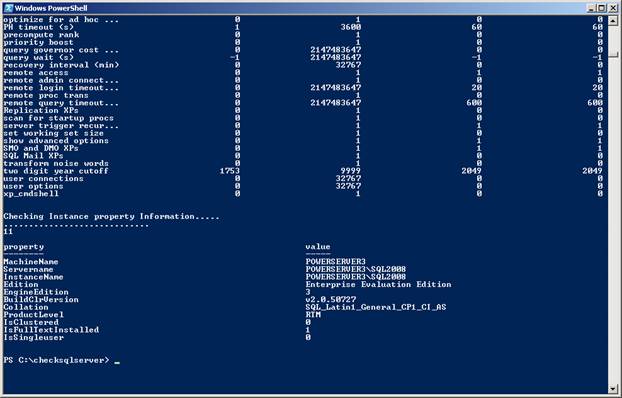
following results as shown below. [Refer Fig 1.0]
.....
....
....
two digit year cutoff 1753 9999 2049
user connections 0 32767 0
user options 0 32767 0
xp_cmdshell 0 1 0
Checking Instance property Information.....
.............................
11
property value
-------- -----
MachineName POWERSERVER3
Servername POWERSERVER3\SQL2008
InstanceName POWERSERVER3\SQL2008
Edition Enterprise Evaluation Edition
EngineEdition 3
BuildClrVersion v2.0.50727
Collation SQL_Latin1_General_CP1_CI_AS
ProductLevel RTM
IsClustered 0
IsFullTextInstalled 1
IsSingleuser 0
....
....
Figure 1.0
Fig 1.1
Step 6
Now lets execute the
script on a machine that doesnt exist as shown below.
./CheckSQLServer.ps1 TestMachine
You will get the
following results: [Refer Fig 1.3]
Results
Checking SQL Server.....
........................
Arguments accepted : TestMachine
........................
Pinging the host machine
........................
TestMachine is NOT reachable
Figure 1.3
Conclusion
This fifth installment of the Check your SQL Server using
Windows PowerShell series illustrated how
to access SQL Server instance properties and SQL Server configuration
details using Windows PowerShell.
Download the scripts for this article.
»
See All Articles by Columnist MAK