


Part I of this article series “Microsoft Windows PowerShell and SQL Server 2008 AMO” illustrated how to install Windows PowerShell and connect to an Analysis Service Servername. Part II illustrated how to use Windows PowerShell and AMO to get the various Server properties of SQL Server Analysis Service. Part III of this article discusses how to use Windows PowerShell and AMO to get the database properties of SQL Server Analysis Service.
Let us connect to Analysis Server using Windows PowerShell using AMO and get some information about one Database as shown below.
[System.Reflection.Assembly]::LoadWithPartialName

("Microsoft.AnalysisServices") >$NULL
$server = New-Object Microsoft.AnalysisServices.Server
$server.connect("PowerServer3\SQL2008")
$DBID = "Adventure Works DW 2008"
$database = $server.Databases.Item($DBID)
Note: PowerServer3 is the Analysis Server with named instance SQL2008. Please replace the server name with the Analysis server name in your environment. Please replace the database name with the actual database name on the Analysis server on your environment.
Now let us query all of the Methods available for the databases Class in ‘Microsoft AnalysisService.Server’. This can be achieved by using the Windows PowerShell cmdlet “get-member” with the parameter “ –membertype methods” as shown below.
$database |get-member -membertype methods
This displays a result similar to the results shown below. [Refer Figure 1.1]
Partial Result:
Backup
CanProcess
Clone
CopyTo
CreateObjRef
Detach
Dispose
Drop
Equals
GetDependents
GetHashCode
GetLifetimeService
GetReferences
GetType
GetUpdateOverwrites
InitializeLifetimeService
LinkDimension
Process
Refresh
Submit
ToString
Update
Validate
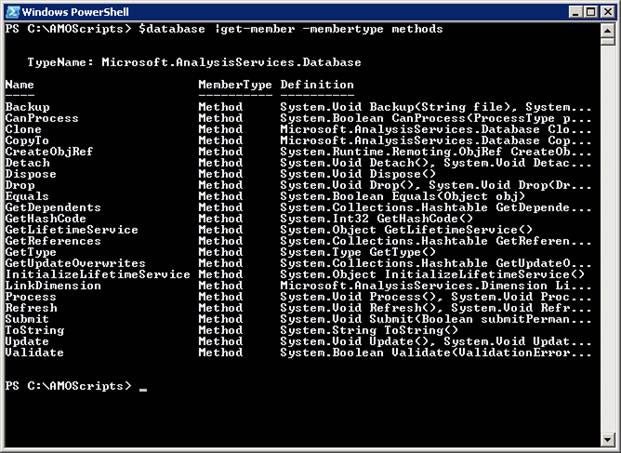
Figure 1.1
Now let’s query all the properties available for the database Class in ‘Microsoft AnalysisService.Server’. This can be achieved using Windows Powershell cmdlet “get-member” with parameter “ –membertype Properties”.
$database |get-member -membertype properties
This would display results similar to those shown below. [Refer Figure 1.2]
Accounts
AggregationPrefix
Annotations
Assemblies
Collation
Container
CreatedTimestamp
Cubes
DatabasePermissions
DataSourceImpersonationInfo
DataSources
DataSourceViews
DbStorageLocation
Description
Dimensions
DismissedValidationResults
DismissedValidationRules
EstimatedSize
ID
IsLoaded
Language
LastProcessed
LastSchemaUpdate
LastUpdate
MasterDataSourceID
MiningStructures
Name
OwningCollection
Parent
ProcessingPriority
ReadWriteMode
Roles
Site
SiteID
State
Translations
Visible
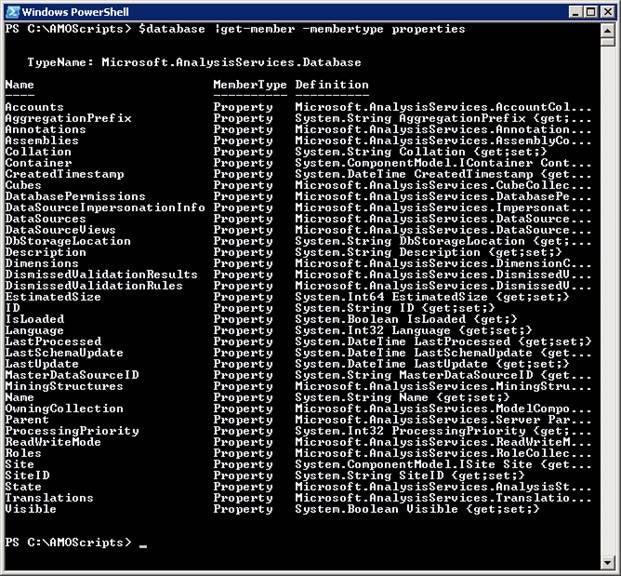
Figure 1.2
Query some of the SQL Server Analysis Service properties by using Windows PowerShell cmdlets:
$database.Name
$database.Roles | select name, members
$database.lastprocessed
$database.cubes |select name
$database.cubes |select name
The output is similar to the results shown below. [Refer Figure 1.3]
PS C:\AMOScripts> $database.Name
Adventure Works DW 2008
PS C:\AMOScripts> $database.Roles | select name, members
Name                                    Members
----                                    -------
SSASAdmin                               {POWERSERVER3\SSASUser}
SSASUser                                {SSASUser}

PS C:\AMOScripts> $database.lastprocessed
Sunday, November 30, 2008 10:03:15 AM

PS C:\AMOScripts> $database.cubes |select name
Name
----
Adventure Works
Mined Customers

PS C:\AMOScripts> $database.cubes |select name
Name
----
Adventure Works
Mined Customers
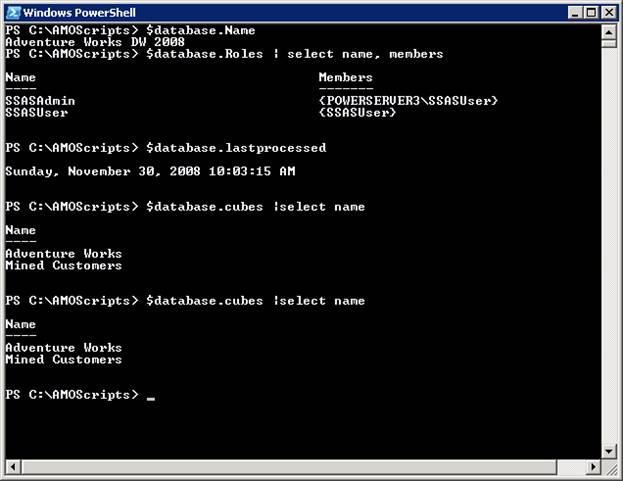
Figure 1.3
Now let’s create a Windows PowerShell script that displays some of the database properties of any SQL Server Analysis server and database that we pass as parameter.
Create a file, C:\AMOScripts\get-SSASDBproperty.ps1, using notepad and copy and paste the below code to that file and save it. [Refer Figure 1.4]
#Objective: To get database properties of the given Analysis Server
#Created by: MAK
#Create Date: 9/9/2007
param
([string] $Servername, [string] $databasename)
## Add the AMO namespace
[Reflection.Assembly]::LoadWithPartialName("Microsoft.AnalysisServices") >$NULL
$server = New-Object Microsoft.AnalysisServices.Server
$server.connect($ServerName)
if ($server.name -eq $null) {
 Write-Output ("Server '{0}' not found" -f $ServerName)
 break
}
else
{
$database = $server.Databases.Item($databasename)
if ($database.name -eq $null -or $database.name -eq "")
{
 Write-host "Database " $databasename " not found on the server $Servername"
 break
}
else
{
write-host "Server Name = " $Server.name
write-host "Database Name = " $database.Name
write-host "Database Last Schema Update = " $database.LastSchemaUpdate
write-host "Database Last Schema Update = " $database.LastProcessed
write-host "Database Cubes = " $database.cubes |select name
write-host "Database Dimensions = " $database.Dimensions | select name
}
}
Please copy the script from here. [Please provide link to get-ssasDBproperty.ps1.txt]
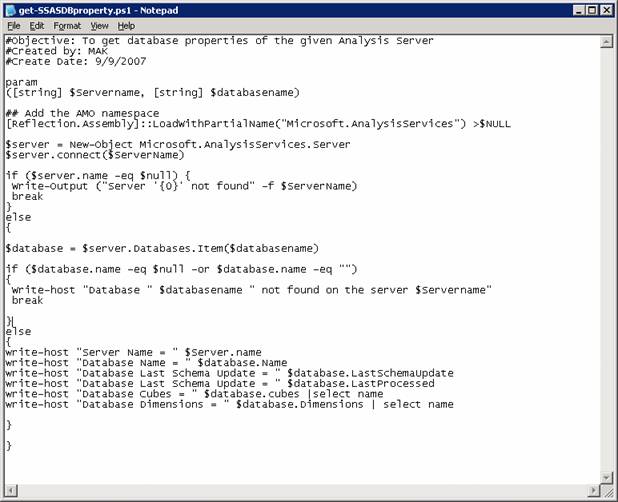
Figure 1.4
Execute the get-ssasproperty.ps1 by passing the SQL Server 2005 Analysis server name as shown below. [Refer Figure 1.5]
set-location C:\AMOScripts
./get-ssasDBproperty.ps1 "BUS-INTEL" "Adventure Works DW"
Note: BUS-INTEL is the SQL Server 2005 Analysis Server with default Analysis Service instance. “Adventure Works DW” is the database name. Please replace the server name with the Analysis server name and the database name with your database name on your Analysis server in your environment.
Result
Server Name =  BUS-INTEL
Database Name =  Adventure Works DW
Database Last Schema Update =  11/22/2008 1:03:23 AM
Database Last Schema Update =  11/22/2008 1:42:33 AM
Database Cubes =  Adventure Works Mined Customers
Database Dimensions =  Promotion Product Customer Geography Reseller Sales Terri
tory Employee Scenario Department Organization Account Date Source Currency Sale
s Reason Reseller Sales Order Details Internet Sales Order Details Clustered Cus
tomers Subcategory Basket Analysis Sales Channel Destination Currency Sales Summ
ary Order Details
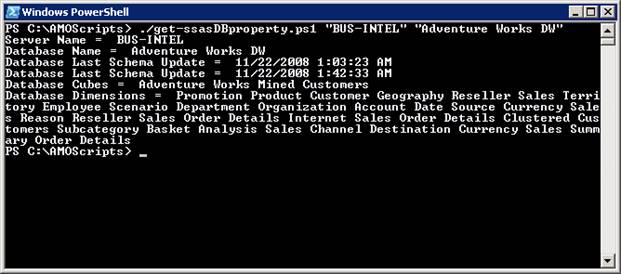
Figure 1.5
Connect to a SQL Server 2008 Analysis Server as shown below. [Refer Figure 1.6]
./get-ssasDBproperty.ps1 "PowerServer3\SQL2008" "Adventure Works DW 2008"
Note: PowerServer3 is the SQL Server Analysis Server with named instance SQL2008. Please replace the server name with the Analysis server name in your environment. Please replace the database name with your database name in your Analysis Server.
Result
Server Name =  POWERSERVER3\SQL2008
Database Name =  Adventure Works DW 2008
Database Last Schema Update =  11/30/2008 10:00:45 AM
Database Last Schema Update =  11/30/2008 10:03:15 AM
Database Cubes =  Adventure Works Mined Customers
Database Dimensions =  Promotion Product Customer Geography Reseller Sales Terri
tory Employee Scenario Department Organization Account Date Source Currency Sale
s Reason Reseller Sales Order Details Internet Sales Order Details Clustered Cus
tomers Subcategory Basket Analysis Sales Channel Destination Currency Sales Summ
ary Order Details
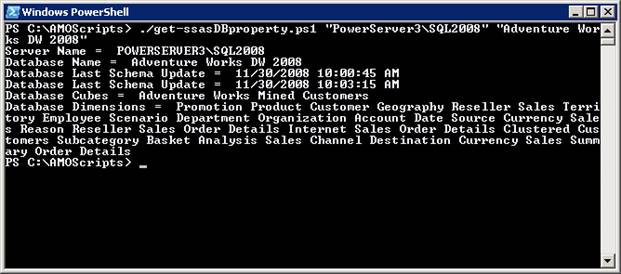
Figure 1.6
Execute the Windows PowerShell script by passing a server name that is not available on the network and also passing a database name not available on the Analysis Server, you get an error message similar to the results below. [Refer Figure 1.7]
./get-ssasDBproperty.ps1 "ABC123"  "Adventure Works"
./get-ssasDBproperty.ps1 "BUS-INTEL"  "Adventure Works"
Result
Exception calling "Connect" with "1" argument(s): "A connection cannot be made.
 Ensure that the server is running."
At C:\AMOScripts\get-SSASDBproperty.ps1:12 char:16
+ $server.connect <<<< ($ServerName)
Server 'ABC123' not found
PS C:\AMOScripts> ./get-ssasDBproperty.ps1 "BUS-INTEL"  "Adventure Works"
Exception getting "Item": "Exception calling "get_Item" with "1" argument(s): "
The 'Database' with 'ID' = 'Adventure Works' doesn't exist in the collection.""
At C:\AMOScripts\get-SSASDBproperty.ps1:21 char:35
+ $database = $server.Databases.Item <<<< ($databasename)
Database  Adventure Works  not found on the server BUS-INTEL
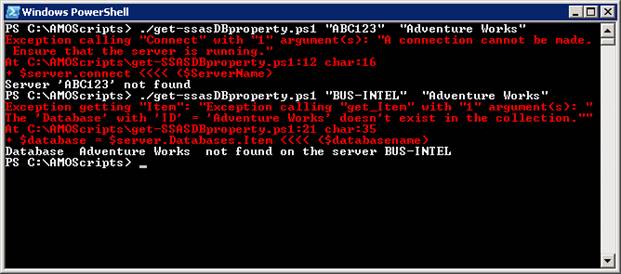
Figure 1.7
Conclusion
This article has illustrated how to use Windows PowerShell and AMO to get the various database properties of SQL Server Analysis Service.