


 (“Microsoft.AnalysisServices”) >$NULL
$server = New-Object Microsoft.AnalysisServices.Server
$server.connect(“PowerServer3\SQL2008”)
Let’s
list all of the databases available on the “PowerServer\SQL2008” Analysis
server as shown
below. [Refer Figure
1.1]
$database=$server.databases
$database|select-object name
Result
Name
—-
Advent2
Adventure Works 2008 DWsss
Adventure Works 2008 -3
Adventure Works 2008 -2
AAA
Adventure Works Test
Adventure Works 2008 DW
MyCube
xyz
Marketing
Finance1
Finance2
Finance3
Marketing1
Click for larger image

Figure 1.1
Connect
to the “Adventure
Works 2008 DW”
database on the Analysis
Service instance “SQL2008” on the host “PowerServer3” as shown below. [Refer Figure 1.2]
$advdb=$database[”Adventure Works 2008 DW”]

Figure 1.2
Let’s
list all of the dimensions in the “Adventure Works 2008 DW” database as shown below. [Refer Figure 1.3] Here we are using the
Analysisservices.Dimension class to get all of the information about the
dimensions.
$dimensions=New-object Microsoft.AnalysisServices.Dimension
$dimensions=$advdb.dimensions
$dimensions|select Name
Result:
Result:
Name
—-
Promotion
Product
Customer
Geography
Reseller
Sales Territory
Employee
Scenario
Department
Organization
Account
Date
Source Currency
Sales Reason
Reseller Sales Order Details
Internet Sales Order Details
Clustered Customers
Subcategory Basket Analysis
Sales Channel
Destination Currency
Sales Summary Order Details
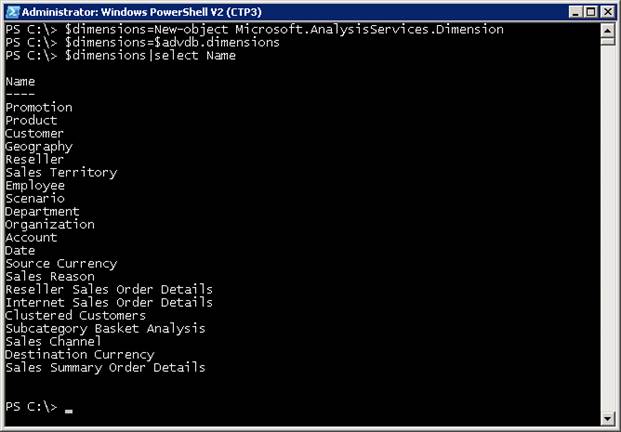
Figure 1.3
Now let’s
find all of the dimensions, its state and the last processed date using the
Windows PowerShell script block as shown below. [Refer Figure 1.4]
$dimensions|select name,state,lastprocessed
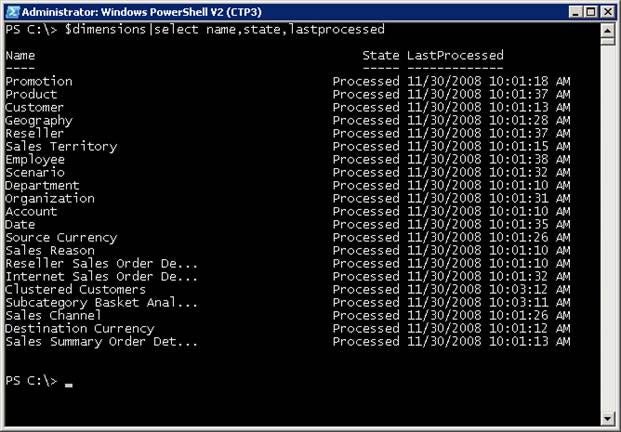
Figure 1.4
Set the
process type to “ProcessFull” and process the dimension “Date” as shown below. [Refer
Figure 1.5]
$ProcessType=”ProcessFull”
foreach ($dim in $dimensions)
{
if ($dim.Name -eq “Date”)
{
Write-host “Processing Dimension: $dim”
 $dim.Process($ProcessType)
}
else
{
Write-host “Skipped Processing Dimension: $dim”
}
}
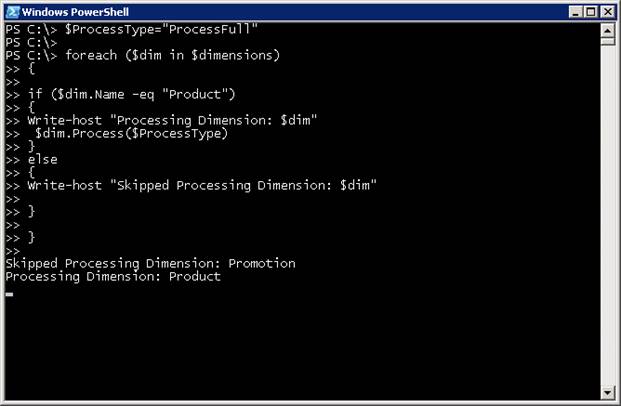
Figure 1.5
From the result,
you see that the script block processed the dimension “date” and skipped the
rest of the dimensions. [Refer Figure 1.6]
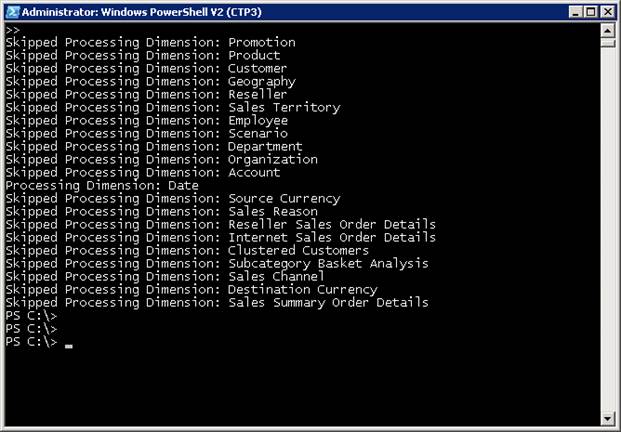
Figure 1.6
Let’s
find all of the dimensions, its state and the last processed date as shown
below. [Refer Figure 1.7] From the result, you see that the last processed
date and time information of the dimension “Date” is updated to the current
date and time.
$dimensions|select name,state,lastprocessed
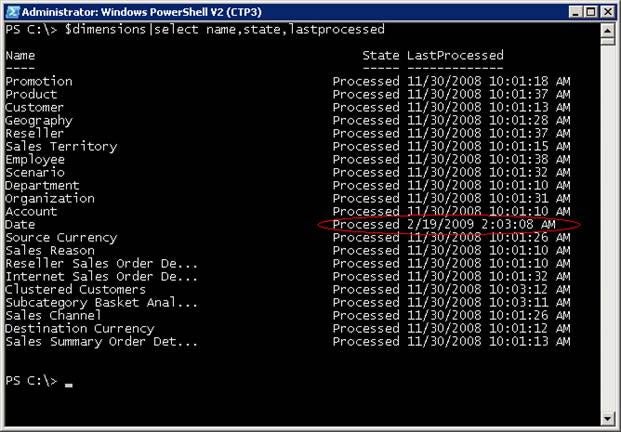
Figure 1.7
Process
all of the dimensions in the “Adventure Works 2008 DW” database on the Analysis Service instance “SQL2008” on the host “PowerServer3”
by executing the following Windows Powershell script block. [Refer Figure 1.8]
\
$ProcessType=”ProcessFull”
foreach ($dim in $dimensions)
{
$date1=get-date
write-host “———————————————”
Write-host “Processing Dimension: $dim”
$dim.Process($ProcessType)
$date2=get-date
write-host “Processing took ”  ($date2-$date1).Hours ” Hours, ” ($date2-$date1).Minutes ” Mins, ” ($date2-$date1).Seconds ” Secs ”
}
}
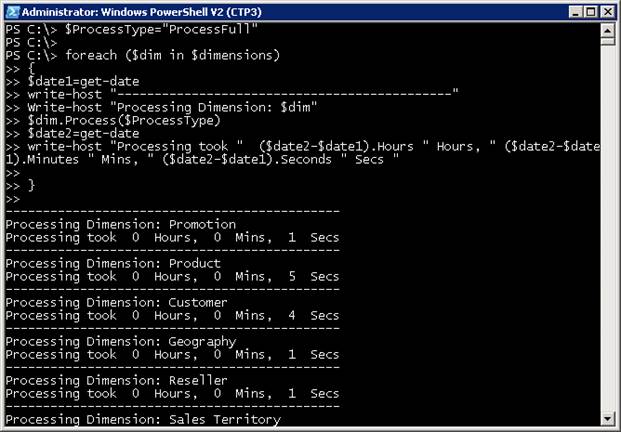
Figure 1.8
From the
above results, you see the dimensions that are processed and the time it took
to process each dimension.
Let’s
find all of the dimensions, its state and the last processed date using the
Windows PowerShell script block as shown below. [Refer Figure 1.9] From the result,
you see that the last processed date and time information of all the dimensions
are updated to the current date and time.
$dimensions|select name,state,lastprocessed
Result
Name                                            State LastProcessed
—-                                            —– ————-
Promotion                                   Processed 2/19/2009 2:11:37 AM
Product                                     Processed 2/19/2009 2:11:42 AM
Customer                                    Processed 2/19/2009 2:11:47 AM
Geography                                   Processed 2/19/2009 2:11:48 AM
Reseller                                    Processed 2/19/2009 2:11:50 AM
Sales Territory                             Processed 2/19/2009 2:11:51 AM
Employee                                    Processed 2/19/2009 2:11:53 AM
Scenario                                    Processed 2/19/2009 2:11:54 AM
Department                                  Processed 2/19/2009 2:11:55 AM
Organization                                Processed 2/19/2009 2:11:57 AM
Account                                     Processed 2/19/2009 2:11:58 AM
Date                                        Processed 2/19/2009 2:12:00 AM
Source Currency                             Processed 2/19/2009 2:12:01 AM
Sales Reason                                Processed 2/19/2009 2:12:09 AM
Reseller Sales Order De…                  Processed 2/19/2009 2:12:11 AM
Internet Sales Order De…                  Processed 2/19/2009 2:12:11 AM
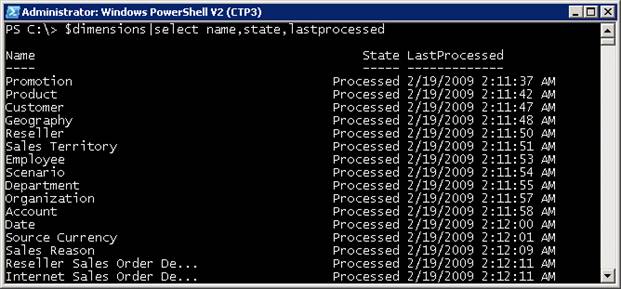
Figure 1.9
Conclusion
This
article has illustrated a given dimension and all of the dimensions on an Analysis
Service database. The next part of the series will discuss how to process a
cube.