


We all know by now that SQL Server 2012 RTM is available for download.
Prior to SQL Server 2012, Microsoft provided a mini shell called sqlps.exe. In SQL Server 2012, SQLPS exists in the form of module. SQLPS.exe still exists in SQL Server 2012, however, it basically does a module call. This article illustrates how to make use of the SQLPS module and how to access SQL Server components and features via Windows PowerShell.
Note: You can download from the website http://www.microsoft.com/sqlserver.
Pre-Requisite
In order to take advantage of SQLPS the following are needed:
a. PowerShell 2.0: It is part of the Windows 2008 install and you can enable it from the Windows server features.
b. SQLPS module: It is part of the SQL Server 2012 install. Once installed, the module will be visible under Powershell. After the install, all you need is to import the SQLPS module.
c. Execution-Policy: Powershell’s Execution policy should not be Unrestricted.
Step 1
Let’s launch PowerShell using RunAS Administrator from the Windows Start menu, as shown below.
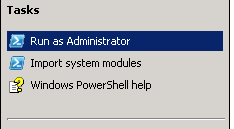
Launch PowerShell using RunAS Administrator
This opens a new PowerShell window session as shown.

New PowerShell window session
Step 2
Now, let’s set the execution policy to Un-Restricted as shown below.

Set the execution policy to Un-Restricted
Step 3
List all of the modules available on the PowerShell environment.
Get-Module –ListAvailable


ModuleType Name                      ExportedCommands
Manifest   ADRMS                     {}
Manifest   AppLocker                 {}
Manifest   BestPractices             {}
Manifest   BitsTransfer              {}
Manifest   PSDiagnostics             {}
Manifest   ServerManager             {}
Manifest   TroubleshootingPack       {}
Manifest   SQLASCMDLETS              {}
Manifest   SQLPS                     {}
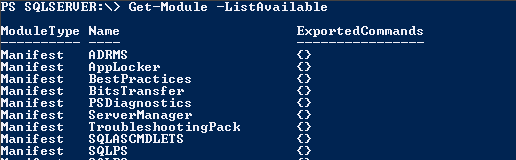
Get-Module –ListAvailable
If you do not see SQLPS in the list of modules available, install the SQL Server 2012 PowerShell extensions from the feature pack. http://www.microsoft.com/download/en/details.aspx?id=29065
Step 4
Import the SQLPS module as shown below. This will make all of the SQLPS related cmdlets available on the current PowerShell session.
Import-Module SQLPS

Import-Module SQLPS
You can suppress the WARNING message using a parameter “DisableNameChecking”.
Import-Module sqlps –DisableNameChecking
Step 5
You can list the number of commands available in the SQLPS module by running the following cmdlet.
Get-Command -CommandType cmdlet -Module sqlps | group-object -Property verb
Count Name                      Group

    2      Add                       {Add-SqlAvailabilityDatabase, Add-SqlAvailabilityGroupListenerStaticIp}

    1      Backup                    {Backup-SqlDatabase}

    1      Convert                   {Convert-UrnToPath}

    1      Decode                    {Decode-SqlName}

    1      Disable                   {Disable-SqlAlwaysOn}

    1      Enable                    {Enable-SqlAlwaysOn}

    1      Encode                    {Encode-SqlName}

    2      Invoke                    {Invoke-PolicyEvaluation, Invoke-Sqlcmd}

    1      Join                      {Join-SqlAvailabilityGroup}

    4      New                       {New-SqlAvailabilityGroup, SqlAvailabilityRepl...

    3      Remove                    {Remove-SqlAvailabilityDatabase, Remove-SqlAvailabilityGroup….

    1      Restore                   {Restore-SqlDatabase}

    1      Resume                    {Resume-SqlAvailabilityDatabase}

    4      Set                       {Set-SqlAvailabilityGroup, Set-SqlAvailabilityGroupListener…

    1      Suspend                   {Suspend-SqlAvailabilityDatabase}

    1      Switch                    {Switch-SqlAvailabilityGroup}

    3      Test                      {Test-SqlAvailabilityGroup, Test-SqlAvailabilityReplica…
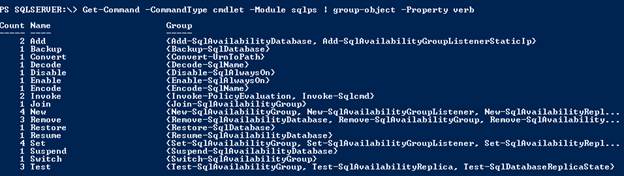
Get-Command -CommandType cmdlet -Module sqlps | group-object -Property verb
Step 6
List all of the cmdlets and functions available under the module SQLPS.
Get-command –module SQLPS
You can see the following cmdlets listed.
Add-SqlAvailabilityDatabase

Add-SqlAvailabilityGroupListenerStaticIp

Backup-SqlDatabase

Convert-UrnToPath

Decode-SqlName

Disable-SqlAlwaysOn

Enable-SqlAlwaysOn

Encode-SqlName

Invoke-PolicyEvaluation

Invoke-Sqlcmd

Join-SqlAvailabilityGroup

New-SqlAvailabilityGroup

New-SqlAvailabilityGroupListener

New-SqlAvailabilityReplica

New-SqlHADREndpoint

Remove-SqlAvailabilityDatabase

Remove-SqlAvailabilityGroup

Remove-SqlAvailabilityReplica

Restore-SqlDatabase

Resume-SqlAvailabilityDatabase

Set-SqlAvailabilityGroup

Set-SqlAvailabilityGroupListener

Set-SqlAvailabilityReplica

Set-SqlHADREndpoint

SQLSERVER:

Suspend-SqlAvailabilityDatabase

Switch-SqlAvailabilityGroup

Test-SqlAvailabilityGroup

Test-SqlAvailabilityReplica

Test-SqlDatabaseReplicaState
After importing the SQLPS module, SQL Server will be available to be navigated like a file system. We could navigate SQL Server simply by using CD (Set-Location) and DIR (Get-ChildItem) commands.
Example:
CD SQLSERVER:
DIR


Name               Root                          Description
----               ----                          -----------

SQL                SQLSERVER:\SQL                SQL Server Database Engine

SQLPolicy          SQLSERVER:\SQLPolicy          SQL Server Policy Management

SQLRegistration    SQLSERVER:\SQLRegistration    SQL Server Registrations

DataCollection     SQLSERVER:\DataCollection     SQL Server Data Collection

XEvent             SQLSERVER:\XEvent             SQL Server Extended Events

Utility            SQLSERVER:\Utility            SQL Server Utility

DAC                SQLSERVER:\DAC                SQL Server Data-Tier Application Component

SSIS               SQLSERVER:\SSIS               SQL Server Integration Services

SQLAS              SQLSERVER:\SQLAS              SQL Server Analysis Services
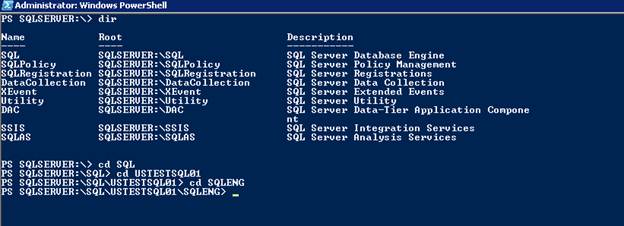
Navigate SQL Server by using CD and DIR
Note: Here USTESTSQL01 is the hostname and SQLENG is the instance name. {Named Instance}
We can list all of the available folders under the instance by running the command DIR.
DIR


Audits
AvailabilityGroups
BackupDevices
Credentials
CryptographicProviders
Databases
Endpoints
JobServer
Languages
LinkedServers
Logins
Mail
ResourceGovernor
Roles
ServerAuditSpecifications
SystemDataTypes
SystemMessages
Triggers
UserDefinedMessages
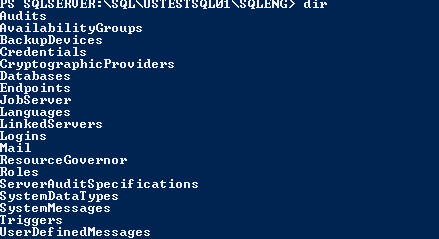
List all of the available folders by running the DIR command
If you want to list all the server level roles, run the following commands.
CD ROLES
DIR
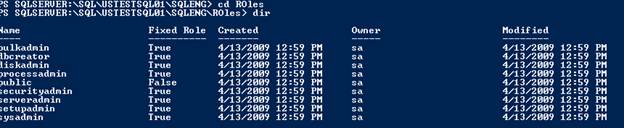
Server level roles
If you want to see all of the logins starting with NT, we have to navigate one step, go to the login folder and use the wild cards like in Get-Childitem command as shown below:
CD..
CD Logins
DIR NT*

PS SQLSERVER:\SQL\USTESTSQL01\SQLENG\Roles> cd ..
PS SQLSERVER:\SQL\USTESTSQL01\SQLENG> cd Logins
PS SQLSERVER:\SQL\USTESTSQL01\SQLENG\Logins> dir NT*

Name                      Login Type             Created
----                         ----------             -------
NT SERVICE\Winmgmt           WindowsUser            3/15/2012 11:13 AM
NT SERVICE\SQLWriter         WindowsUser            3/15/2012 11:13 AM
NT SERVICE\SQLAgent$SQLENG   WindowsUser            3/15/2012 11:13 AM
NT Service\MSSQL$SQLENG      WindowsUser            3/15/2012 11:13 AM
NT AUTHORITY\SYSTEM          WindowsUser            3/15/2012 11:13 AM

See all of the logins starting with NT
If you want to execute some TSQL you could use the Invoke-SQLCMD cmdlet as shown below.
Invoke-SQLCMD "select @@version;select db_name()"
Result:
WARNING: Using provider context. Server = USTESTSQL01\SQLENG.

Column1
-------
Microsoft SQL Server 2012 - 11.0.2100.60 (X64) ...
Master

Invoke-SQLCMD “select @@version;select db_name()”
Invoke-SQLCMD "backup database master to disk ='c:\bak\master.bak'"
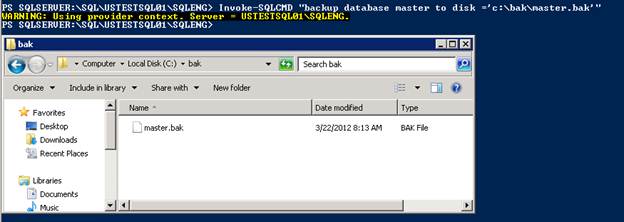
You could also use Backup-SQLDatabase cmdlet to back up a database .
Backup-SqlDatabase -ServerInstance USTESTSQL01\SQLENG -Database Master
If you want to learn and understand more about any cmdlets, make use of the Get-Help cmdlets as shown below.
Get-Help invoke-sqlcmd –full
Get-Help Backup-SqlDatabase –full
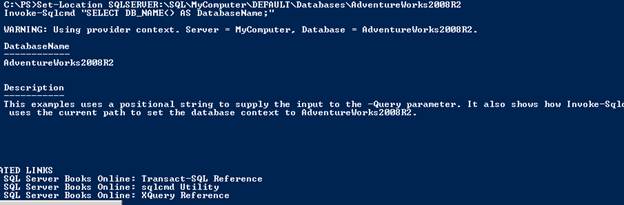
Get-Help cmdlets

Conclusion
As mentioned earlier, this article illustrated how to make use of the SQLPS module and how to access the SQL Server components and features via Windows PowerShell.