One of the main features of Oracle Business Intelligence Publisher (BIP) is its ability to connect to pretty much every major RDBMS on the market. By default, the configuration for connecting to the Oracle RDBMS is present out of the box. Being a Java-based application at heart, the connection setup to Oracle uses JDBC. Let’s venture out a bit and establish a connection to SQL Server.
Overall, what we’re trying to do is create another data source. The types of data sources appear under the Admin tab.
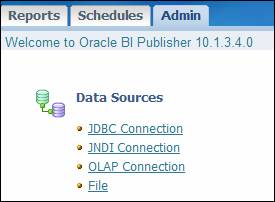
Clicking the JDBC Connection link and then the Add Data Source link brings up the interface below.
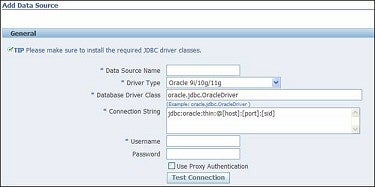
As far as the default Driver Type is concerned with respect to Oracle, been there done that. Expand the drop down list to see what the other currently support database sources are.
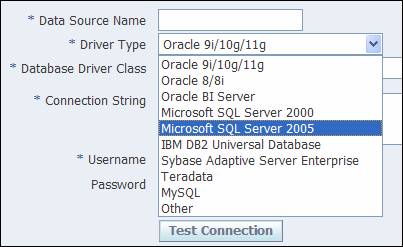
Select the Microsoft SQL Server 2005 option and note the similarity as far as the JDBC connection string is concerned.
NOTE: In some references at My Oracle Support and OTN, you may see the driver class written as com.microsoft.jdbc.sqlserver.SQLServerDriver. Accept the default string BIP provides, which uses com.microsoft.sqlserver.jdbc.SQLServerDriver.
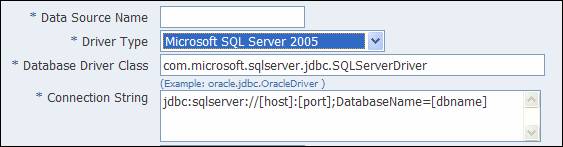
So far, this looks to be trivial. I’ve installed SQL Server 2005 on the same PC hosting the BIP installation, and have gone a bit further by installing some sample databases. The database of interest here will be AdventureWorks, which you can obtain from MSDN. I’ve also created the highly original username/password combination of scott/tiger as a Login. Scott has also been added to the Users folder under the Security folder for the database, and has the appropriate roles to see tables in the database (select db_owner if you don’t know what else to pick).
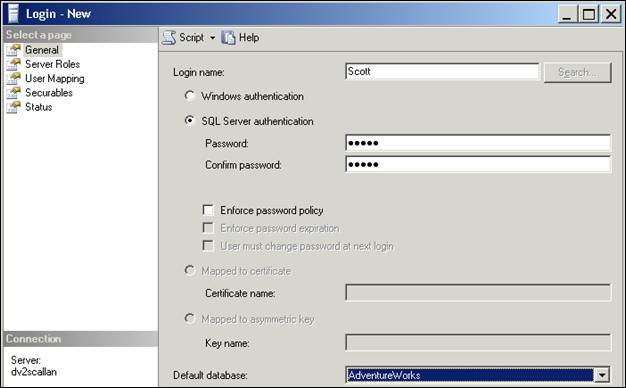
At this point, the completed fields look as shown below, and we’re ready to click Test Connection.
NOTE: To avoid wasting hours looking up error messages related to output such as…
com.microsoft.sqlserver.jdbc.SQLServerException: The port number [1433] is not valid.
…or
com.microsoft.sqlserver.jdbc.SQLServerException: Cannot open database "[AdventureWorks]"
…be sure to NOT use the square brackets in the boilerplate text provided by BIP (in the Connection String field).
A good, final example is shown below.
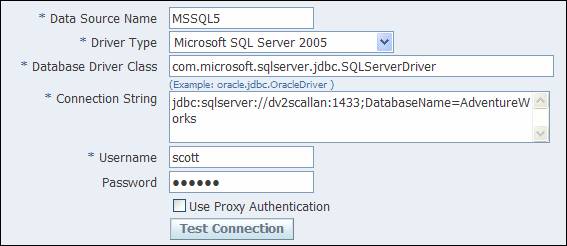
I named the data source as MSSQL5 to help identify the source in an expedient manner. The MSSQL part should be obvious, and the 5 relates to 2005 so as to separate it from the 2000, 2005 and 2008 named versions of SQL Server. The port number can be found by examining the output from netstat, logs within MSSQL, and also knowing that 1433 is the standard port number similar to 1521 or 1526 in Oracle. You can also go into the configuration manager and examine the TCP information.
Upon clicking Test Connection, we get the highly informative message shown below.
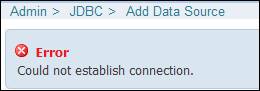
What went wrong with the connection setup? Actually, nothing went wrong; it’s just that we haven’t done everything necessary yet. Going back to the Add Data Source picture, note the tip at the top of the frame: “Please make sure to install the required JDBC driver classes.” Such a simple tip, and as you may already be guessing, it implies a good bit of work or research to get those classes, and the path (the work needing to be done) is not entirely clear either.
The short and sweet of this is that three jar files (msbase, mssqlserver, and msutil) need to be acquired and placed into the ORACLE_HOME (for BIP) and under the path below:
<start>/oc4j_bi/j2ee/home/applib
Once these files are in place (where to get them is coming up) and the OC4J instance is started, enter the connection information as shown, modified for your particulars, and test the connection. This is a go/no-go situation; you either get the error message just shown, or a success message.
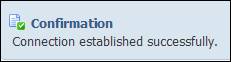
Don’t forget to assign a role (BI_USER will likely be the only role available if you haven’t created non-default roles yet) and then click Apply at the top right of the page to finalize the setup. If all goes well, you’ll see the new data source in the available list.

Where to get the MSSQL jar files
A quick and easy way to get the requisite files is to download them from MSDN. The SQL Server 2000 JDBC files work; you don’t need the single 2005 version named sqljdbc.jar (at least as far as BIP is concerned, and even though we did the setup using a 2005 database). Navigate to this URL…
http://www.microsoft.com/downloads/details.aspx?familyid=07287b11-0502-461a-b138-2aa54bfdc03a&displaylang=en
…and download the tar or exe file as appropriate for your platform. Using Windows, run the setup and the JDBC installation for 2000 will be located at:
C:\Program Files\Microsoft SQL Server 2000 Driver for JDBC\lib
Within this folder, you will find the three jar files. Copy them to the applib folder as mentioned earlier. A note on My Oracle Support (Doc ID: 445157.1, How to Install JDBC Connection for MS SQL Server in BI Publisher Enterprise) makes reference to a how-to note at OTN (SQL Server Walkthrough). Within this walkthrough, there are instructions on how to configure OC4J to work with foreign datasources.
This section discusses editing the application.xml file in the <OracleHome>/j2ee/home/config directory. You simply add in three library path tags with the path and file name of each jar file. To be a bit more precise, the example shown at OTN (shown below) has had the closing tags corrected to use “/>” instead of just “>” (just like strict HTML with self-closing tags).
<library path="C:\Program files\Microsoft SQL Server 2000 Driver for JDBC\lib\msbase.jar" />
<library path="C:\Program files\Microsoft SQL Server 2000 Driver for JDBC\lib\msutil.jar" />
<library path="C:\Program files\Microsoft SQL Server 2000 Driver for JDBC\lib\mssqlserver.jar" />
You can go this route if you want (it works just as well, and if you test this, be sure to move or rename the files in the applib folder so you know the jar files are only being referenced via the application.xml file). The edited file also has each tag on one line; the line returns above are for formatting in this article.
NOTE: The link to get the JDBC files in the walkthrough document at OTN is broken or outdated, so use one shown earlier, or do a search at MSDN.
From this point forward, you should be able to create folders and reports in a normal fashion.
In Closing
Once some of the gotcha’s were taken care of in setting up a data source, getting BI Publisher to connect to SQL Server was fairly straightforward, in fact, it was no more difficult than creating a new data source within Oracle. Once the jar files were placed and connection details were identified for the MSSQL database, the setup was trivial.
Can you find this information in the installation guide or release notes? Unfortunately, no, and even the notes on My Oracle Support are a bit lacking. The product as a whole is improving by leaps and bounds, but some time needs to be spent on administration and documentation. Oracle recently released a patch (8284524) for version 10.1.3.4. The patch apply or upgrade process will be the focus of a future article. You may find it worthwhile to apply the patch forthwith as it has two major enhancements (numbers to words, and better support for Single Sign-On) and lots of bug fixes.
» See All Articles by Columnist Steve Callan


