


Most organizations have a system of weekly reboots or
monthly reboots etc., for all their servers. When it comes to clustered servers,
the reboot cycle would be little different. Usually the active node in the
cluster will always be active, unless there is a failover initiated manually or
when there is a hardware failure etc.
In this article, I am going to explain how to reboot cluster
nodes.
We are going to discuss how to reboot the active nodes
every Saturday at 1 AM. In addition, we will discuss how
to make the current active node a passive node every week so that the same
physical server will not be the active node every week.
Let’s assume we have a Cluster server VCLUSTER with nodes
SQLNode1 and SQLNode2. Let’s also assume that the virtual server name for the
SQL Server cluster is SQLClusterA. Refer Fig 1.0
Click for larger image
Fig 1.0
We are going to take advantage of the command SHUTDOWN, the
MS-DOS command FOR and the Windows Scheduler to handle the reboot of the
cluster nodes. This will make SQLNode2 the active node and SQLNode1 the passive
node on the first week and make SQLNode1 the active node and SQLNode2 the
passive node the following week and so on.
Step 1
Create Folder C:\reboot as shown in Fig 1.1.
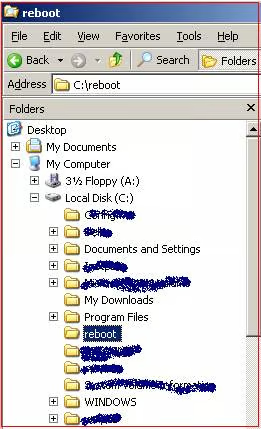
Fig 1.1
Step 2
Create file C:\reboot\Clusternodes.txt as shown below in
Fig 1.2.
Make sure your active node is listed first and the passive
node is listed second, separated by a comma.
SQLNode1,SQLNode2
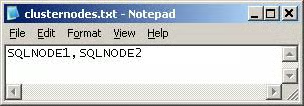
Fig 1.2
Step 3
Create C:\reboot\preparereboot.bat as shown below in Fig 1.3.
REM Objective: Prepare rebooting of cluster nodes
REM Created By: MAK
REM Created date: Jan 10, 2004
for /f “tokens=1,2,3 delims=,”
  %%i in (C:\reboot\clusternodes.txt) do c:\reboot\rebootserver.bat %%i %%j
Download preparereboot.bat_
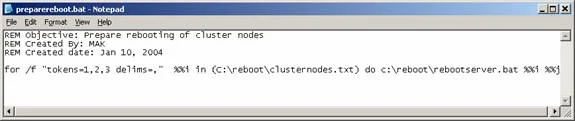
Fig 1.3
Step 4
Create C:\reboot\rebootserver.bat as shown in Fig 1.4.
REM Objective: To reboot the active node of the cluster every week
REM Created by: MAK
REM COntact: mak_999@yahoo.com
REM Created Date: Jan 10, 2004
shutdown /m \\%1 /r /f /c “Weekly reboot cycle for %1” /t 60
Echo %2,%1 > c:\reboot\clusternodes.txt
Download rebootserver.bat_.
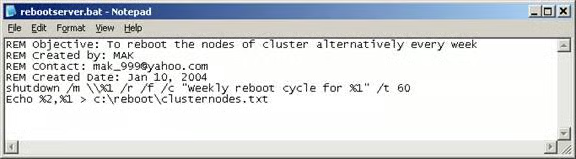
Fig 1.4
Step 5
Create a Windows schedule to execute
C:\reboot\preparereboot.bat as shown below.
a. Open Control panel. Refer to Fig 1.4.
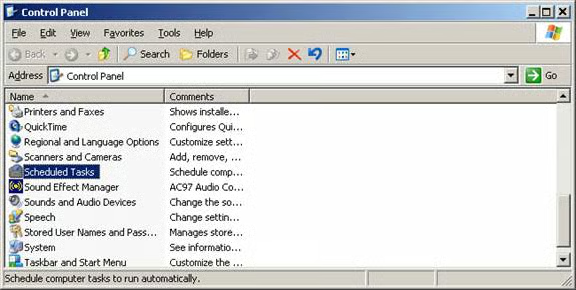
Fig 1.4
b. Select prepareboot.bat as the program to schedule.
Refer to Fig 1.5.
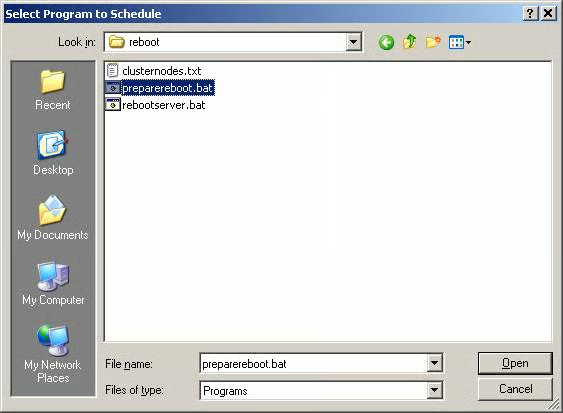
Fig 1.5
c. Select Weekly Schedule. Refer to Fig 1.6.
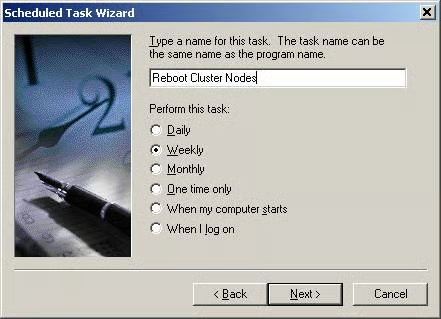
Fig 1.6
d. Change time to 1 AM. Refer to Fig 1.7.
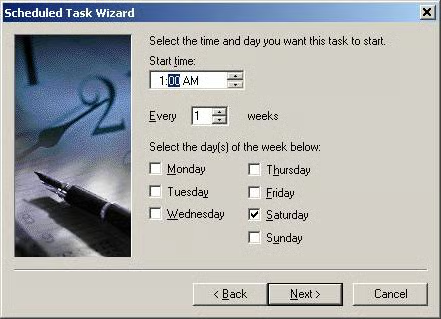
Fig 1.7
e. Update using the Admin userid and password, which has
access to the physical nodes SQLNode1 and SQLNode2 of the VCLuster. Fig 1.8.
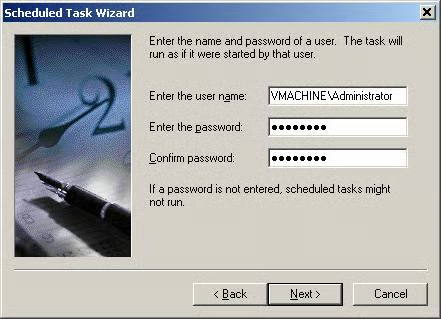
Fig 1.8
f. Click Finish. Refer to Fig 1.9.
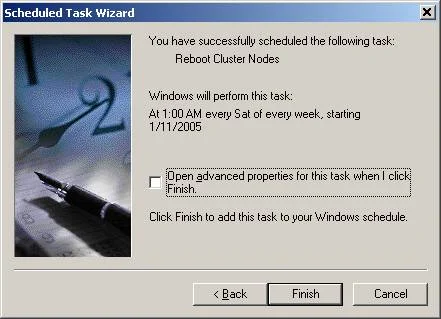
Fig 1.9