
In this series of articles, you will learn the basics of
installing Microsoft Operations Manager 2005 as well as how to use MOM to
monitor SQL Server. This article takes advantage of virtualization. We will use
VMware Workstation 5 to create the lab to introduce you to the basics of
installing MOM to monitor SQL Server. This series will be broken into the
following two parts:
- Installing MOM 2005
- Monitoring SQL Server with MOM 2005
Our lab will consist of three virtual machines as shown in
Figure A. Please remember that you must have these three virtual machines
networked and connected to the virtual domain. Instructions on how to network
your virtual machines and connect them to the virtual domain controller are
outside the scope of this article.
Click for larger image
Figure A.
Installing the MOM User Interfaces on the Domain Controller
In order to install the MOM user interfaces, select the MOM
2005 setup icon. This will launch the install wizard. Next, click Install
Microsoft Operations Manager 2005 (Figure B). Accept the License Agreement and
choose a Custom installation. On the Custom installation window, make sure you
only select MOM 2005 User Interfaces (Figure C). Once the installation is
finished, click the Finish button and deselect the checkbox to Start the MOM
Administrator Console (Figure D).
Note: In order to make sure you meet the minimum
requirements for you virtual lab, make sure to use the Check Prerequisites
utility located on the cd-rom (Figure B).
Click for larger image
Figure B.
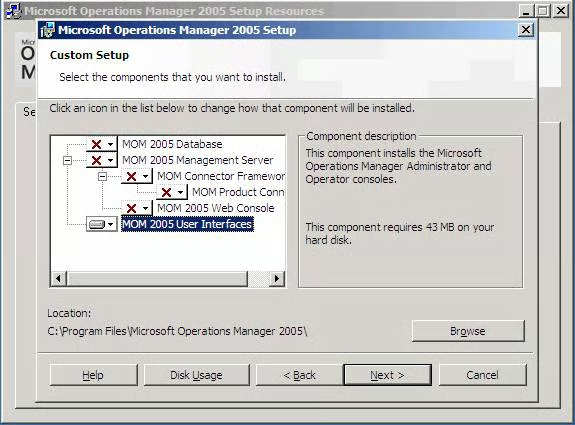
Figure C.
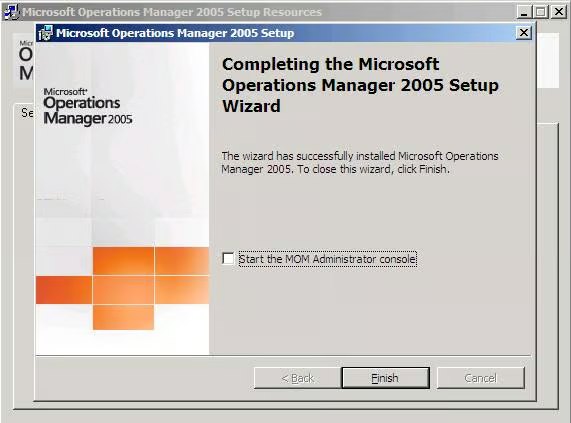
Figure D.
Installing the MOM Database on the DB Server
In order to install the MOM database you need to have the
following installed:
- Windows 2003
- SQL Server 2000 SP 3a or greater
- SQL Server Reporting Services
- .Net Framework 1.1
Note: In order to make sure you meet the minimum
requirements for your virtual lab, make sure to use the Check Prerequisites
utility located on the cd-rom (Figure E).
Now that you have the minimum requirements, select the MOM
2005 setup icon. This will launch the install wizard. Next, click Install
Microsoft Operations Manager 2005 (Figure B).
Walk through the wizard and choose a Custom Installation. On
the Database server, only select MOM 2005 database. Deselect all other
components (Figure E). The installation will now make sure you pass all of your
prerequisites and prompt you to choose your SQL Server database instance.
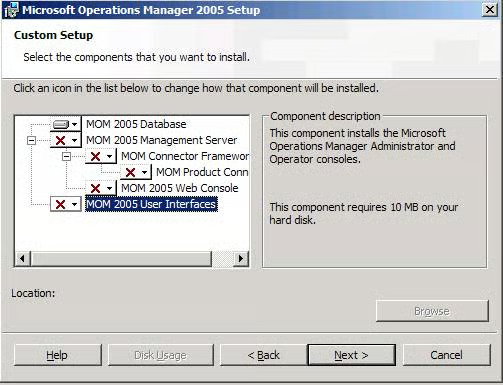
Figure E.
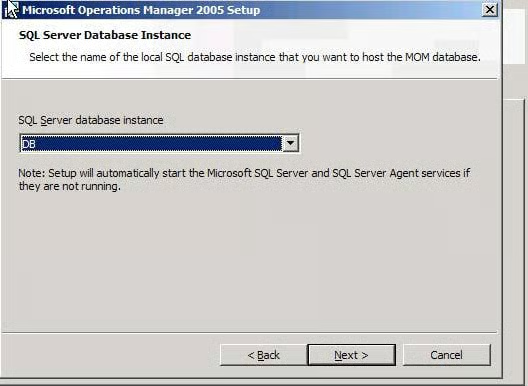
Figure F.
On the Database and Log File Option window, you can choose
your database size. For purposes of this article, we are going to keep the
database size small and choose 400 MB (Figure G). On the Management Group Name
window, provide a name for your MOM components, and agents as shown in Figure
H. Now you are ready to provide a data access server account as shown in Figure
I. You can now work through the remaining defaults and begin the installation.
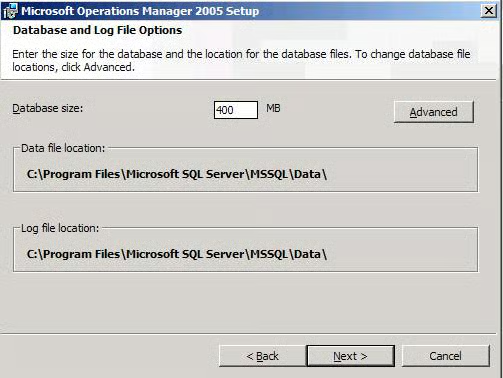
Figure G.
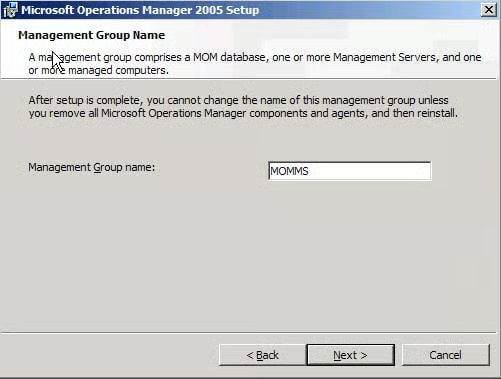
Figure H.
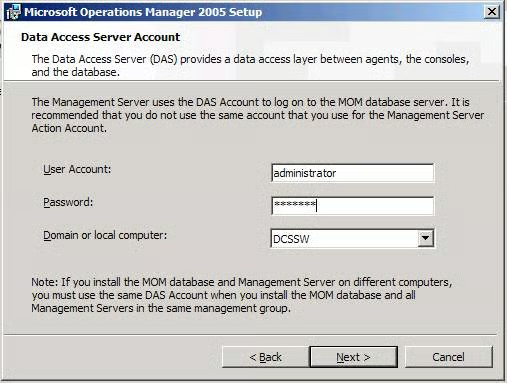
Figure I.