


- Introduction
- General Concepts
- Full-text Indexes vs. Regular SQL Indexes
- Maintaining Full-text Indexes
- SQL Server 2000 Full-text Search Enhancements
- Step-by-step Example
- Literature
Introduction
In this article, I want to tell you about some general full-text search concepts, including software requirements, the Microsoft Search Service, maintaining full-text indexes, the comparison of full-text indexes with regular SQL indexes, and how to set up full-text search step by step.
This document was developed against Microsoft SQL Server 7.0, but full-text search can work in SQL Server 2000 as well; SQL Server 2000 also has some full-text search enhancements not found in SQL Server 7.0 that are identified and explained in a separate section below.
General Concepts
SQL Server 7.0 supports full-text search. This is a new feature which was not supported in previous versions. The full-text search allows you to create special indexes for SQL Server character-based data. These special indexes, called full-text indexes, support linguistic and proximity searches on several languages. By using full-text indexes, you can search by words, phrases, words in close proximity to each other, and by inflexional forms of verbs and nouns. The full-text indexes can be created on the following SQL Server character-based data types:
- char
- nchar
- varchar
- nvarchar
- text
- ntext
Note:In addition to the above data types, SQL Server 2000 can create full-text indexes of text data stored in image columns (only the text data stored in image columns can be indexed; images or pictures cannot be indexed).
The full-text search runs as a service named Microsoft Search Service(MSSearch service).
To work with full-text search, you should have the following operation systems:
- Windows NT Server version 4.0 (with Service Pack 4 or later for SQL Server 7.0 and Service Pack 5 or later for SQL Server 2000)
- Windows NT Server Enterprise Edition version 4.0 (with Service Pack 4 or later for SQL Server 7.0 and Service Pack 5 or later for SQL Server 2000)
- Windows 2000 Server
- Windows 2000 Advanced Server
- Windows 2000 DataCenter
The MSSearch service cannot be installed on Windows 9x, Windows NT Workstation, or Windows 2000 Professional clients, but these clients can use full-text search when the MSSearch service has been installed on the server machine.
Full-text search is supported under the following SQL Server editions:
- SQL Server 7.0 Standard Edition
- SQL Server 7.0 Enterprise Edition
- SQL Server 2000 Personal Edition (except on Windows 9x)
- SQL Server 2000 Standard Edition
- SQL Server 2000 Developer Edition
- SQL Server 2000 Enterprise Edition
- SQL Server 2000 Enterprise Evaluation Edition
To install full-text search in SQL Server 7.0 you should choose the Custom installation type, as full-text search is not included under the Typical or Minimuminstallation types.
To install full-text search in SQL Server 2000 you should choose Typical or Custom installation types, as full-text search is not supported under the Minimuminstallation type.
Because working with full-text search is extremely resource intensive, you should have plenty of physical and virtual memory. Set the virtual memory size to at least 3 times the physical memory installed in the computer, and set the SQL Server max server memoryserver configuration option to half the virtual memory size setting (1.5 times the physical memory).
Full-text Indexes vs. Regular SQL Indexes
The full-text indexes are very different from the regular SQL Server indexes. The full-text indexes are stored in the full-text catalogs outside of SQL Server databases and are managed by the MSSearch service. A full-text catalog is a set of operation system files (the default directory determined during installation is Ftdata subdirectory in the Microsoft SQL Server directory; for example, C:\MSSQL7\Ftdata, the default directory for SQL Server 7.0; and C:\Program Files\Microsoft SQL Server\Mssql\Ftdata, the default directory for SQL Server 2000).
Unlike regular SQL indexes, only one full-text index per table is allowed. 249 nonclustered and 1 clustered regular SQL indexes are allowed per table.
Unlike regular SQL indexes, full-text indexes are not updated automatically when the data upon which they are based is inserted, updated, or deleted. To reflect these changes, you should update full-text indexes manually, or create a job to update these indexes on a scheduled basis.
Unlike regular SQL indexes, full-text indexes cannot be directly created, managed, or dropped using Transact-SQL statements, only by using SQL Server Enterprise Manager, wizards, or stored procedures (see Eli Leiba’s article “Implementing Full Text Search with T-SQL Stored Procedures” for more information on using FTS and T-SQL together). For example, DROP INDEX and CREATE INDEXstatements are not allowed for full-text indexes.
Maintaining Full-text Indexes
Because full-text indexes are not updated automatically when the data upon which they are based is inserted, updated, or deleted, you should immediately update full-text indexes when data in the associated tables changes.
There are two ways under SQL Server 7.0 to synchronize full-text indexes with their table data:
- Full Population
- Incremental Population
Full Population– A population when the index entries are built for all the rows in all the full-text catalog’s tables.
Incremental Population – A population which only adjusts index entries for rows that have been added, deleted, or modified after the last population. To use Incremental Populationthe indexed table must have a column of the timestamp data type. If the indexed table does not have a timestamp column, only full population can be used.
The population of full-text indexes can be made either through Enterprise Manager or through the sp_fulltext_catalogsystem stored procedure.
Because full-text index population can take time, these populations should be scheduled during CPU idle time and slow production periods, such as in the evenings or on weekends.
SQL Server 2000 Full-text Search Enhancements
SQL Server 2000 introduces a new way to maintain the full-text indexes called Change Trackingpopulation. Change Tracking population maintains a log of all changes to the full-text indexed data, and propagates the changes to the full-text index. There are three Change Tracking options:
- Background
- On demand
- Scheduled
With the Backgroundoption, changes to rows in the table are propagated to the full-text index as they occur. You can use this option only when you have enough CPU and memory, as it can take an extremely long time.
With the On demandoption, you should manually update the full-text index by using the sp_fulltext_table with the update_index for the @action parameter.
With the Scheduledoption, you can use SQLServerAgent to schedule periodic jobs that execute the sp_fulltext_table system stored procedure with the update_index for the @action parameter.
This is the example to start the Change tracking with the Backgroundoption for the Product table in the Sales database:
| USE Sales GO EXEC sp_fulltext_table ‘Product’, ‘Start_change_tracking’ EXEC sp_fulltext_table ‘Product’, ‘Start_background_updateindex’ GO |
Note:Change tracking does not track any WRITETEXT or UPDATETEXT operations.
Another SQL Server 2000 full-text search enhancement is image filtering. Image filtering allows you to index and query documents stored in image columns (only the text data stored in image columns can be indexed; images or pictures cannot be indexed).
Note:Though a single computer can have multiple instances of SQL Server 2000, only one MSSearch service can exist. So, a single MSSearch service manages the full-text indexes for all the instances of SQL Server 2000 on the computer.
Step-by-step Example
To set up full-text search, you should take the following steps in order:
- Enable the database to support full-text indexes
- Create a full-text catalog
- Register the appropriate table(s) for full-text processing
- Add each column that participates in a full-text index
- Create a full-text index
- Start a full population of the full-text catalog
Setting up full-text search can be made either through Enterprise Manager or through the system stored procedures.
In this example, I will create a full text index for the pr_info column from the pub_info table in the pubsdatabase. Because using the GUI interface is a much easier and intuitive way to set up full-text search compared with using system stored procedures, I will illustrate setting up full-text search using the SQL Server Enterprise Manager.
First, run SQL Server Enterprise Manager, expand a server group and expand a server. Expand Databases and click a database to enable. On the Tools menu, click Full-Text Indexing as shown in Figure 1.
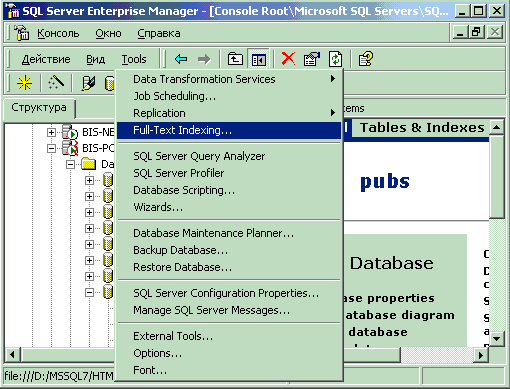

Figure 1
This will launch the SQL Server Full-Text Indexing Wizard shown in Figure 2.
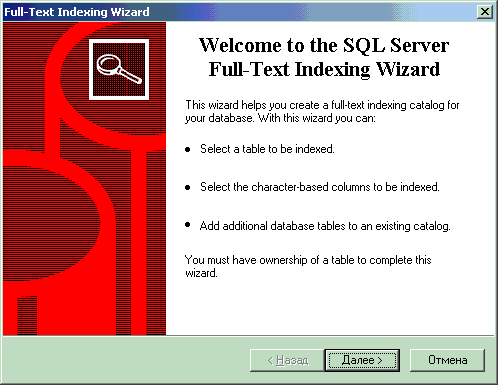
Figure 2
Selecting the Next button will take you to choosing a SQL Server table for full-text indexing as shown in Figure 3.
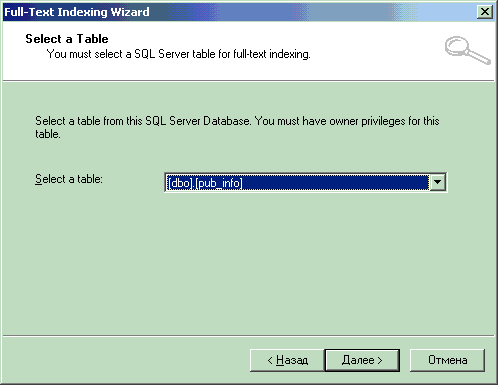
Figure 3
Select the pub_info table and click the Next button. Clicking the Next button will take you to Figure 4.
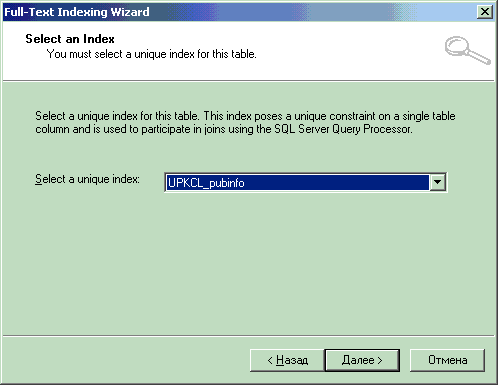
Figure 4
Now you must select a unique index for the pub_info table. Select UPKCL_pubinfo and click the Next button. Clicking the Next button will take you to Figure 5.
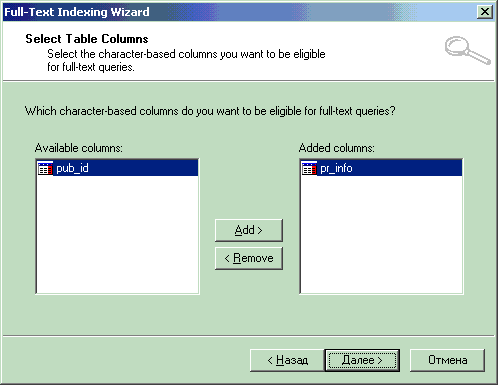
Figure 5
Now you should select the character-based columns you want to be eligible for full-text queries. Add pr_info column and click the Next button. Clicking the Next button will take you to Figure 6.
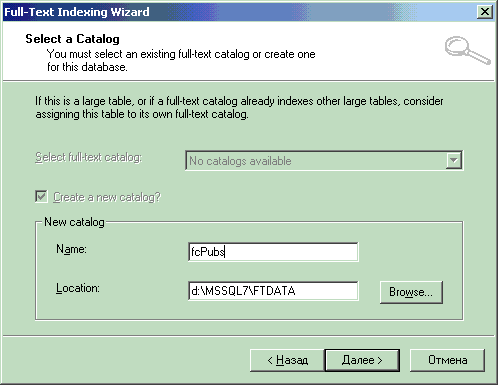
Figure 6
Now you must select an existing full-text catalog or create one for the pubs database. Because in our example there are no existing full-text catalogs, you must create the new fcPubs full-text catalog. Clicking the Next button will take you to Figure 7.
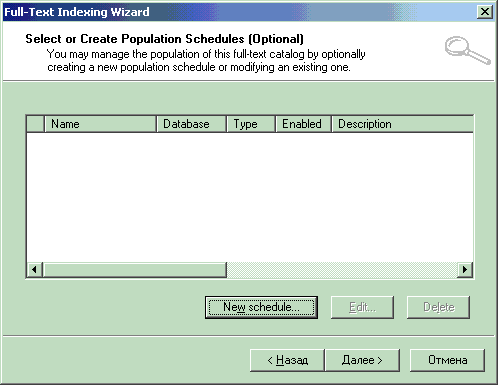
Figure 7
At this step, you should select or create population schedules. Because in our example there are no existing population schedules, so you must creat the new schedule by clicking the New schedule button. Clicking this button will take you to Figure 8.
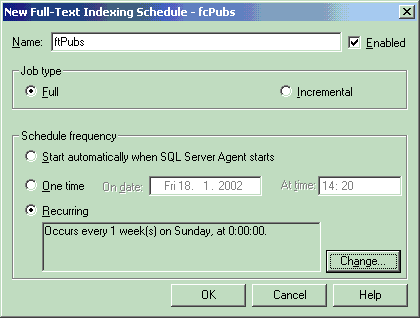
Figure 8
Specify the new population schedule’s parameters. Clicking the Change button will take you to Figure 9.
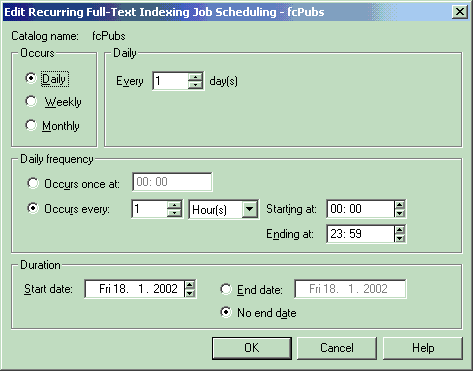
Figure 9
Edit recurring full-text indexing job scheduling as shown in Figure 9 and click the Next button. Clicking the Next button will take you to Figure 10.
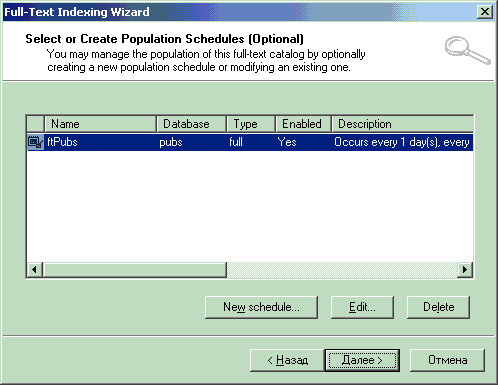
Figure 10
Selecting the Next button will take you to the completion of the configuration as shown in Figure 11.
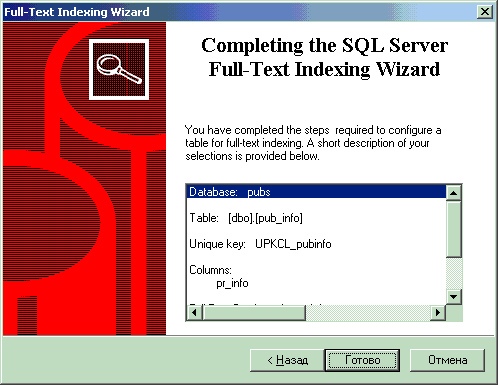
Figure 11
SQL Server will then perform a number of operations corresponding to the options that were selected. Once completed, you should see Figure 12 confirming that the Full-Text Indexing Wizard completed successfully.
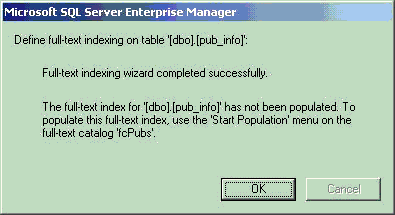
Figure 12
Now you should start a full population of the fcPubs full-text catalog as shown in Figure 13.
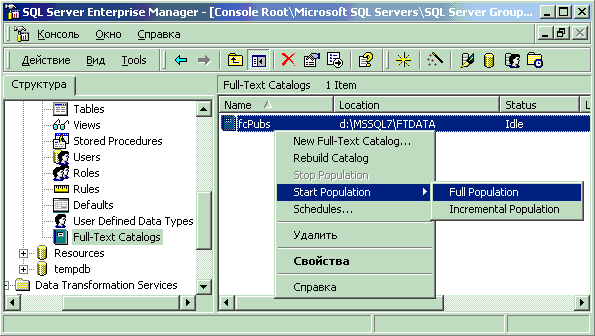
Figure 13
Once completed, you should see Figure 14 confirming that population of the full-text catalog started successfully.

Figure 14
Literature
1. Full-Text Indexes
2. Full-Text Indexing Support
3. Full-Text Query Architecture
4. Maintaining Full-Text Indexes
5. Implementation of Full-text Search